Commission planning
In consignment planning, you can see the list of all open outgoing orders.
Tip
In commission planning, you work with a list of outgoing orders that is optimized for picking. You will only see open orders that have at least one line with available stock. You can filter orders by priority and availability or number of items.
To see the list of all outgoing orders, go to Issue Orders.
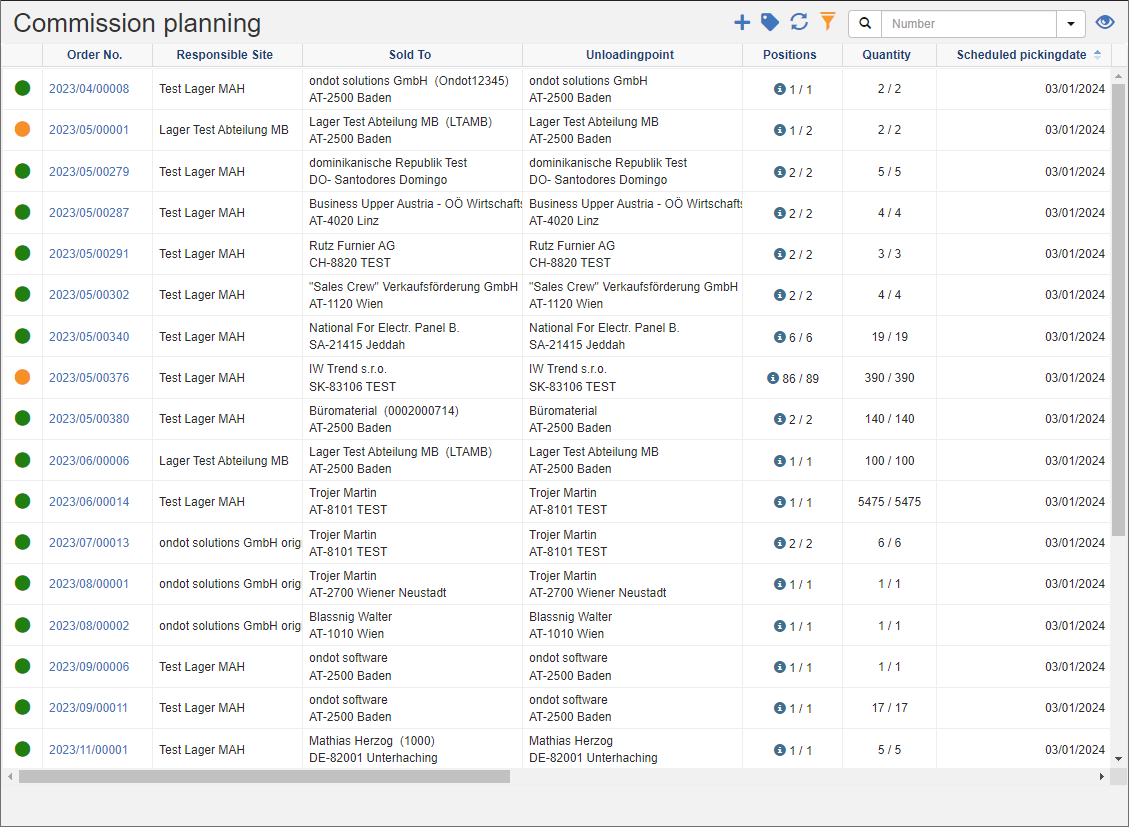
The colored circles in the first column indicate the type of availability:
Out of
stock
Available to WE
In Picking
Done
Note
In the commission planning, you will only see fully or partially deliverable orders!
Actions in the title bar
Special Promotions
| Symbol | Function | more information |
|---|---|---|
| Create new pick list: Create a new pick list for the selected orders. | Create Pick List | |
| Create new order: Create a new outgoing order. | Create Order | |
| Set order multistatus: Store current information or forward the order to the next step. | Set Multistatus | |
| Create documents | Create Documents | |
| Send documents | Send Documents |
General List Actions
| Symbol | Function * | more information |
|---|---|---|
| Export: Exports the data to Excel. | Export Data | |
| Update: Updates the current list. | Working with Lists | |
| Filter: Set criteria that limit the number of records in the current list. | Working with Lists | |
 |
Quick Search: Searches the list by the default criterion. | Working with Lists |
| Views: Switch or create views. | Switch Views edit views |
* Attention: Depending on the context, not all actions are always available!
Create a new picklist
Create a new pick list directly from the list of outgoing orders:
- In the list of outgoing orders, select the orders for which you want to create a pick list. To select multiple records, hold down the CTRL key.
- In the title action bar, click on the Create new pick list.
- The system checks whether there are open quantities for the selected orders and transfers them to the Picklist Editor.
- Add the additional information in the Picklist Editor and click Save.
Tip
In the Title Action Bar, use the action Edit Views, define new views to create pick lists for recurring job configurations. See also Creating a picklist from commission planning.