Create & send business documents
Most lists and also some editors provide functions for creating, printing, and mailing business documents.
Note
Which documents are available depends first and foremost on the data object (shipment, order, transport, etc.) and secondly whether the documents have been activated.
shippingNET offers a variety of standard documents. You can unlock them in the system configuration. If you would like to customize the design, please contact your project manager.
Creating Documents from Lists
- Select the items for which you want to create the documents from the list. To select multiple documents, hold down the CTRL key.
- Next, click on the action <span class="fa fa-file-alt shippingnet-list-icons" in the title action bar> Create documents.
- Select the desired documents from the Create Documents dialog.
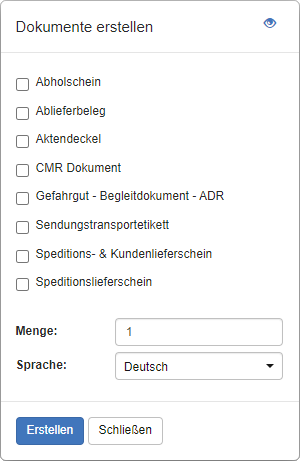
- In the Quantity field, set the number of copies per document.
- Change the language used in the documents in the Language field.
- Next, click Create. You will now see the documents in PDF format.
Creating Documents from Editors
- In the Action bar under the input fields, click the action Create Documents.
- Select the desired documents from the Create Documents dialog.
- In the Quantity field, set the number of copies per document.
- Change the language used in the documents in the Language field or leave the setting to Automatic so that the language determination method is based on the settings in the system configuration.
- Next, click Create. You will now see the documents in PDF format.
Tip
Specify the language determination type per business document in the *system configuration. Depending on the type of document, you can derive the language based on the language of the respective parties. For example, if you select Recipient for a shipping document, the language stored in the Recipient's address will be used to create the document.
To always create a document in a fixed language, select the Fixed option and the desired language.
ATTENTION: The user can select an alternative language in the Create document dialog. This input overrides the configured language determination type.
Note
The Create action creates the selected documents in the Local Viewer (Adobe Reader – PDF). This feature is always available.
The Print action is a direct print feature that is only available in the following circumstances:
- A document printer must be set, see Settings.
- You must be in the shippingNET-Client or configure the Printing-Service centrally in your company.
Send documents
You can send documents by e-mail for multiple records in a list.
- Select the records for which you want to create the documents from the list. To select multiple records, hold down the CTRL key.
- Next, click on the action <span class="glyphicons glyphicons-send shippingnet-list-icons" in the title action bar> Send documents.
- Select the desired template, documents and email addresses from the Send Documents dialog.

- In the list on the right, you will see the e-mail addresses stored with the selected records. You can select rows as a helper and click on the To, CC or BCC actions.
- Then click on Send Documents. The system creates the corresponding e-mails in the background and sends them to the recipients.