The main view
The main view of shippingNET consists of the navigation bar and the main menu.
Navigation bar
In the navigation bar, you can see at all times where you are in the application (Home > ... ) and in which organization you are currently working (right).

The functions in detail:
- Navigate back to the main menu: Click on the shippingNET logo or on Home.
- Change your personal information: Click on the username.
- Switch between departments: In the selection next to the username, you will find all departments for which you have access permission. If the desired department is not available, please contact your administrator. See also Authorization Concept.
- Get support: Click the phone icon . See also Get Support.
- Set language, printer, scanner: Click on the gear icon .
- Log out: Click the power off icon . You will be logged out of the system and will be back on the login screen.
- Return to the previous mask: Click on the desired mask within the breadcrumbs (Home > ... ).
Tip
You can customize the look and feel of the application. Enter your company logo or adjust the color scheme according to your company style guide by contacting your project manager at ondot solutions.
Settings
The settings dialog is divided into two parts.
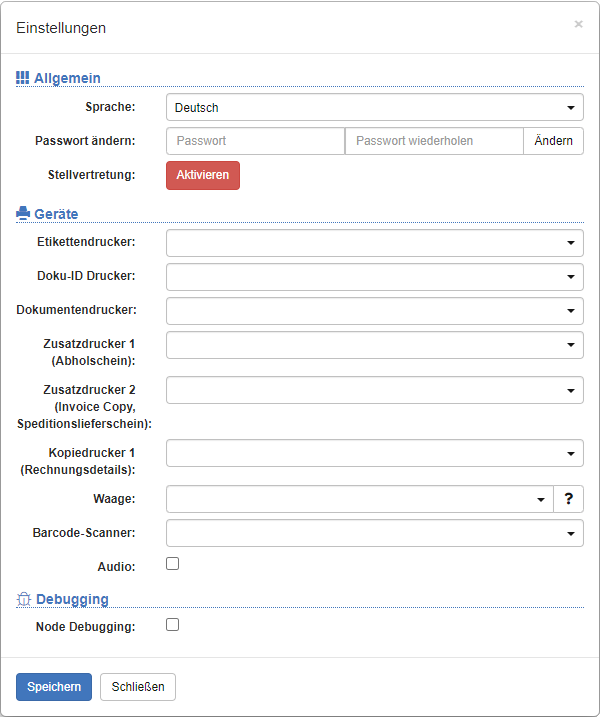
In the general part, you can
- Change language depending on which languages have been enabled in the system configuration.
- Change your password.
In the device-specific section, you can store the various printers and other peripherals for the current workstation.
Note
These settings only apply to the current workstation, i.e. the current PC in combination with the logged-in Windows user. Similar to cookies, these settings are stored in the browser's local memory.
Main Menu
The main menu essentially refers to the business functions of the respective modules.
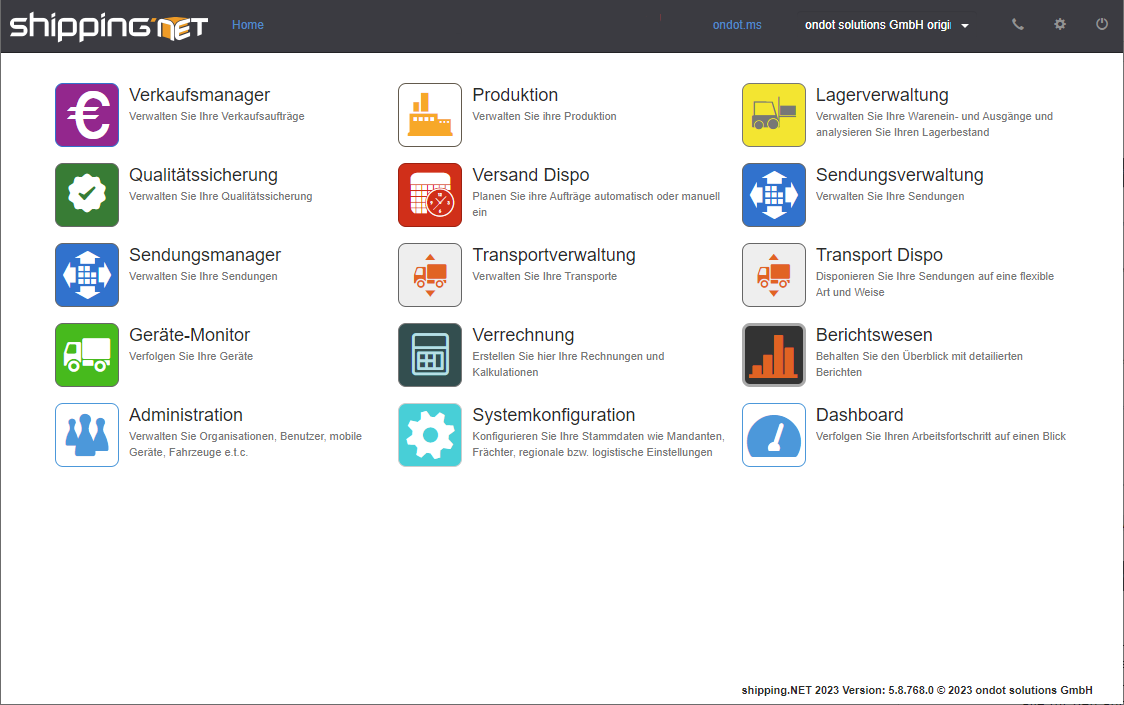
The Sales Manager, Production and Warehouse Management are mainly intended for warehouses or production modules, but these can also be enabled in the shipping module if the process requires it.
The dispatch scheduling, shipment management and transport management are primarily intended for the shipping and transport module. However, it depends on the specific module which functions are present within these business functions.
The device monitor is intended exclusively for the transport module.
Clearing is only available for the clearing module.
The reporting system refers to an instance of the Microsoft Reporting Server. Standard reports are included in some modules. If you need customer-specific reports, it is possible to have them created, but the purchase of the reporting license is necessary for this.
Tip
New since version 24.1.0.8 Integration of Microsoft Power BI!
See also Reporting with Microsoft Power BI.
Administration and system configuration are parts of the basic module and are therefore available for every system. However, the range of functions behind these buttons varies depending on the system. In particular, the System Configuration section contains some functions that require very extensive permissions and are usually accessible to very few people.
The dashboard is also included in the basic module and is used to provide a quick overview of the daily business.
Note
you'll only see the actions you're eligible for. If you can't find an action, contact your administrator!