Reporting mit Microsoft Power BI
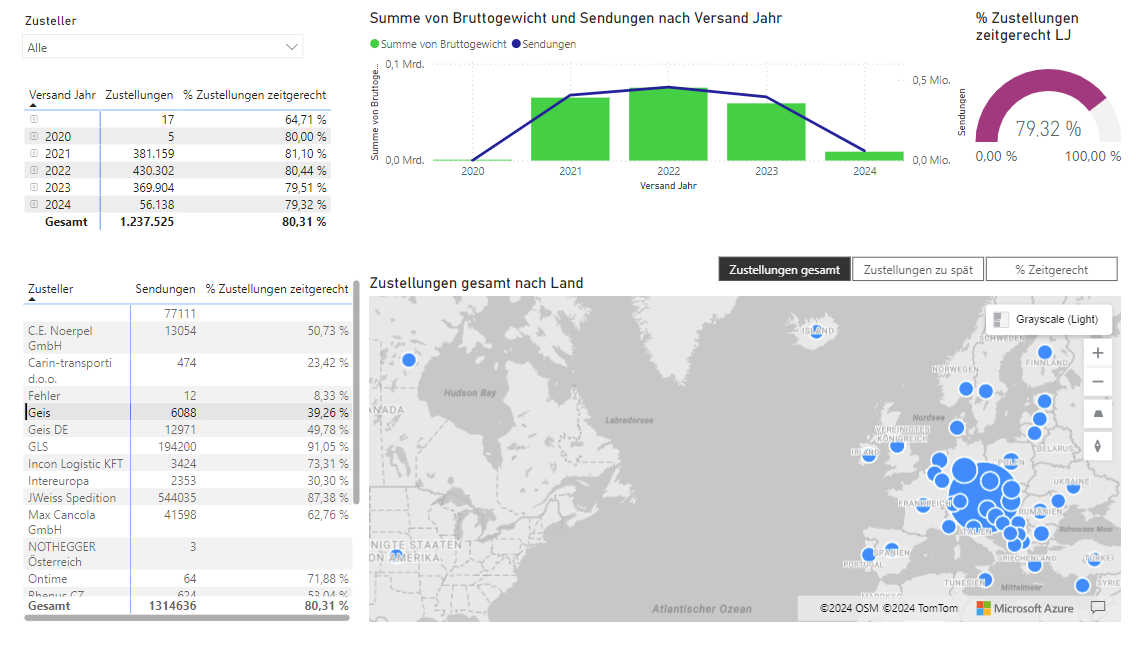
shippingNET provides an API and a special Connector to import data into Microsoft Power BI. Create dashboards and evaluations yourself with the ready-made semantic models.
Requirements
Requirements for viewing reports
- shippingNET system accessible via https.
- shippingNET version 24.1.0.8 or higher.
- Microsoft Power BI license for displaying and distributing your reports.
Requirements for creating reports
- shippingNET Connector
- Microsoft Power BI Desktop (free)
- Microsoft Data Gateway (free)
You can find the shippingNET Connector and the data models on the support page of your shippingNET Web App. Download the shippingNET PowerBI Connector & Models file to your local computer. See also Get Support Web App.
You can find the Microsoft products on the Microsoft Power BI page.
Report development
You create reports with Microsoft Power BI Desktop.
Tip
If you need assistance in creating your reports, please contact your project manager at ondot solutions.
Load data from shippingNET
To access the data, do the following:
Make sure you are using the latest version of Microsoft Power BI Desktop.
Install the shippingNET Connector: Copy the shippingNET.mez file to the C:\Users<your username>\Documents\Power BI Desktop\Custom Connectors folder.
Attention: The file must be located in the operating system’s Documents folder. For profiles that use OneDrive or are set to a different language, this folder may be located elsewhere.
In Power BI Desktop, select the (Not recommended) Allow any extension to load without checking or warning option under File>Options and Settings>Options>Security>Data Extensions.
Restart Power BI Desktop.
In the Get Data menu, search for shippingNET and select the shippingNET Connector.
Enter the URL for the shippingNET installation. e.g.: https://presentation.ondot.at/shippingnet_staging/web/dataservice/reporting/powerQuery
Enter the api-key. You can find the api key in the system configuration of your web app installation under API. See also Public API Credentials.
Select the required tables in the navigator.
Note
- You can only access the data of a single tenant at the same time in a semantic model! The client is determined by the api-key.
- The pre-built sematic models support the languages German and English. To ensure that the data is loaded in the desired language, set the Report Language accordingly in the system configuration for the mandate.
Using semantic models
Tip
We recommend separating the semantic models and the data they contain from the reports. This has the advantage that you can use the data and the definition of the key figures centrally for many different reports.
In the zip archive shippingNET PowerBI Connector & Models you will find ready-made semantic models with proven key figures and examples.
Warning
These data models point to the ondot solutions presentation environment. You need to change the Source to your address. Unfortunately, changing the data source via the Transform Data - Data Source Settings dialog is currently not supported. You must therefore manually correct the address under Transform Data for each table under Source.
Deploying reports & semantic models
Upload your reports and semantic models to your company's Power BI service. To do this, click the Publish function in Power BI Desktop and select the workspace in your Power BI service.
We recommend that you define separate workspaces in Power BI for the shippingNET reports so that you can configure access permissions according to your requirements.
For data synchronisation, please configure the Microsoft Data Gateway. See also Data Gateway Guide.
Tip
shippingNET supports incremental loading of data for large tables such as shipments, packages, transports, orders and order items. In the Power BI service, set the appropriate settings under Data refresh.