How to access shippingNET
You can click on shippingNET with the web app, the shippingNET client or the mobile app.
Web App
The web app supports the most popular browsers such as:
- Google Chrome version 45 or higher
- Microsoft Edge
- Mozilla Firefox (FF) from version 40
The basic functionality is also supported in other HTML5-compatible browsers.
The minimum system requirements are:
- Intel® Core 2 or AMD Athlon 64 processor, 2 GHz or faster
- 2 GB RAM
- Screen with a resolution of at least 1,280 x 960 (1,680 x 1050 recommended)
- Microsoft Windows 8.1, Windows 10, or later
How to log in to shippingNET
Navigate to the website of shippingNET. If you're running the application on-premises in your organization, you'll get the address from your system administrator. If you have decided on a cloud solution, please contact your project manager at ondot solutions.
Log in with your username and password.
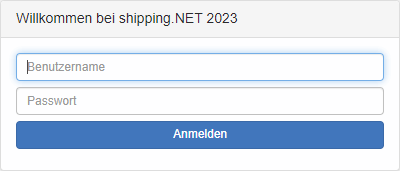
You will receive the credentials either directly from ondot solutions during the initial installation or from your internal administrator, who has the appropriate authorization for user management.
See also Authorization Concept.
Tip
If the web application is operated in your company and SingleSignOn (SSO) has been configured, the login dialog is omitted. You will be authenticated directly with your Windows login and will be taken directly to the main menu.
Get support
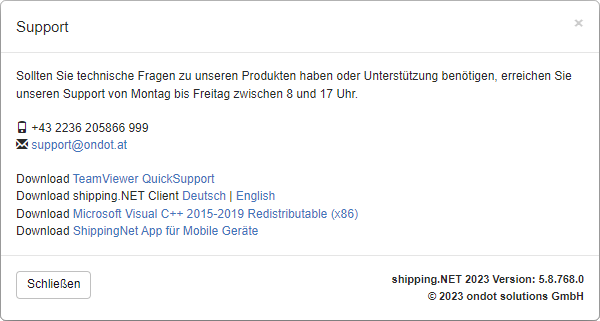
If you need help logging in or using it, click on the action <span class="glyphicons glyphicons-earphone shippingnet-list-icons" in the top right corner of the navigation bar> Get support. Here you will find all the information you need to get support from ondot solutions.
shippingNET-Client
You can click on shippingNET also with the shippingNET client. The advantage over the web app is that you can use the shippingNET] client can connect non-network-enabled devices such as printers or carts directly to your PC. From the web app, for example, labels can only be printed via network-enabled printers.
shippingNET client
You can use the shippingNET from the web app:
- Log in to the web app.
- In the navigation bar, click on the action Get support.
- In the support dialog, click on the Download shippingNET client.
shippingNET-Install Client
Open the installation file and set the installation directory.
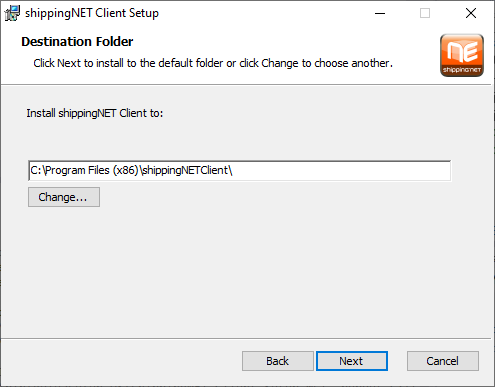
Set the location for the profile files. A profile defines access to a specific shippingNET installation. You can define multiple profiles for your client, for example, to access a test and a production installation. The important thing is that all users can access the chosen path.

Tip
We recommend that you enable the Use installation for multiple users option.
Set the first profile. This is the profile with which the shippingNET client starts by default. Enter the name and URL of the shippingNET installation.
 .
.Confirm the further dialogues. The installation will then begin. After that, the shippingNET client.
shippingNET-Configure client profiles
- Open the shippingNET client.
- Right-click on the shippingNET icon and click the Open Manager action.

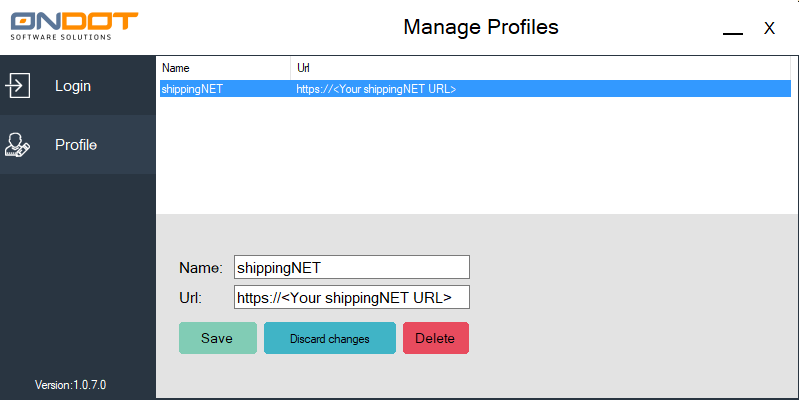
- Click on the Profiles option on the right and select the profile you want.
- Adjust the values of the profile and then click on the Save action.
shippingNET-Client
If you use the shippingNET client as administrator, you can make further settings in the Profile Manager. To do this, click on the gear icon in the title bar.

Available settings:
- SNCDownload: The path in which the shippingNET Client files downloaded by the client, such as PDFs, before opening them. The executing user must have read and write access to this path.
- XMLProfilePath: The path where the profile file is located. The executing user must have read and write access to this path.
- AllowZoomInBrowser: This value controls the zoom function. If this value is set to true, it is possible to use CTRL + mouse wheel to zoom in/out of the text.
- LanguageID: Control the language of the shippingNET clients. Possible values are DE/EN.
- AutomaticLoginActivate: This setting enables the ability to save passwords.
- AutomaticUpdateInfo: This option specifies whether the user is aware of new versions of the shippingNET clients.