How to access shippingNET using MC (Android Mobile Computer)
For Android MCs starting from version 10, it is possible to access shippingNET using our mobile shippingNET-Client..
Mobile App (shippingNET-Client)
The mobile app is currently available exclusively for Android-based mobile computers (MC – Mobile Computer). Official support begins with Android version 10.
Each mobile computer has its own scan engine, depending on the manufacturer and model. The integration of the scan engine enables the reading of metadata from the scanned barcode.
Using this metadata, items such as load carriers, parcels, or articles can be scanned directly on an input form without requiring a specific field to be in focus — the scanned value is automatically placed into the correct input field.
This allows for faster operation and ensures smooth processes in shipping and warehouse operations.
Since the implementation of a scan engine is hardware-specific, it has not been developed for all manufacturers, but only for the following:
- Zebra – currently for all models
- ProGlove – for all models available on the market until mid-2025
- Bluebird – for selected models
- M3 SL10 – for selected models
- Chainway – for selected models
Note
Of course, mobile computers from other manufacturers can also be used. However, implementing a connector for a scan engine can be complex, and in many cases, it may be more efficient to use proven mobile computers instead.
Warning
Please make sure to clarify before purchasing the mobile data collection devices whether the specific model is suitable for the modules/processes. The models differ in terms of the optimal distance required to scan barcodes. Additionally, some models are better suited for use with the mobile delivery app, while others are more appropriate for warehouse management.
Download the mobile app
The current version of the shippingNET mobile app can be found in the web app under Support. In the upper-right corner of the navigation bar, click Get support. You will find a link to download the mobile app here. See also Get Support Web App.
Install your device and mobile app
If you are using Zebra ® devices, we recommend configuring your devices with the free StageNow ® tool.
StageNow is used to:
- Connect your device to a network
- Configure your device's settings and security
- Perform operating system updates
- shippingNET mobile app and other applications
- Erase and reset the device
- Manage mobile profiles
With this tool, you configure all your settings. Then print out a configuration PDF with 3D barcodes, which you can scan with the StageNow app on your MDE. The MDE is then immediately ready for operational use.
See also:
Note
For further assistance, please contact your project manager. We will be happy to work with you to create your StageNow profile and send you the finished configuration PDF with the corresponding 3D barcodes.
How to report to the shippingNET mobile app to
On your device, open the shippingNET-App.
Log in with your username and password.
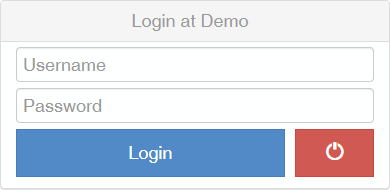
You will receive the credentials either directly from ondot solutions during the initial installation or from your internal administrator, who has the appropriate authorization for user management.
See also Authorization Concept.