The main view
The main view of shippingNET mobile app consists of the navigation bar and the main menu. Under the main menu, you will see the currently logged inuser**, as well as the version of the mobile app.
Navigation bar
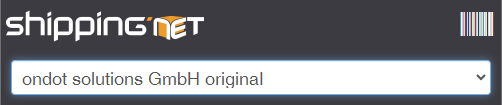
In the navigation bar in the main menu, you can specify which organization you are currently working in.
Main Menu
The main menu essentially refers to the business functions of the respective modules.
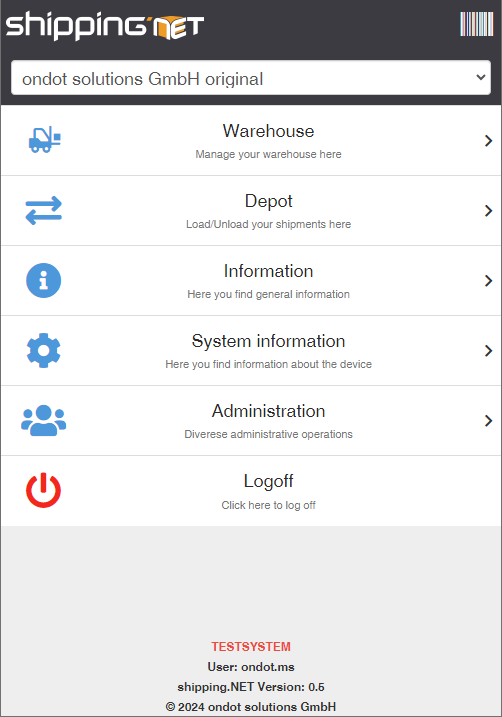
The Warehouse Module offers all functions for goods receipt, goods issue, the processing of travel orders and the execution of inventory corrections.
The Depot Module provides you with all the functions for transshipment in a custody account. Here you will find the loading and unloading, the scanning and shipping station, as well as Collo.
The Administration and System Information are parts of the basic module and therefore available for every system. However, the range of functions behind these buttons varies depending on the system. See also System Information.
Sign Out: This action logs you out of the mobile app.
Note
you'll only see the actions you're eligible for. If you can't find an action, contact your administrator!
System information
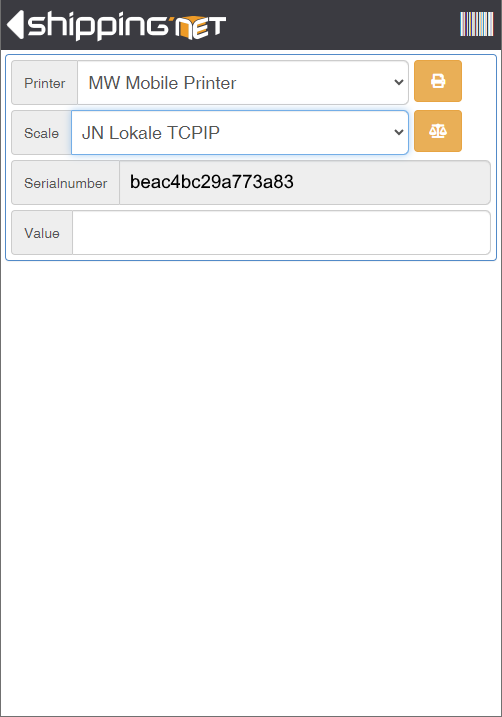
In the System Information you will see the currently assigned Label Printer and optionally a Scale configured in the system.
To change the settings, click on the dropdown and select the desired device from the list.
Test the connection to the device by clicking on the Print Label or Read Weight action next to the drop-down box.
Below the devices, you will see the serial number of the hardware used.
Note
These settings only apply to the current device.