Authorization concept
In shippingNET you can run multiple tenants at the same time. The data is strictly separated by client. You always work in the tenant to which the organization you have just selected in the navigation bar is assigned.
Note
data separation means that you can only view and edit the data of the client for which you are currently logged in. Users of other tenants will not have access to your data under any circumstances.
Users
All accesses to shippingNET are done with a user. The user must first be created in the system, see also Manage User.
Users are assigned to departments via roles. Departments are organizational units with the expression department, see also Manage organizational units.
Tip
A user can be assigned to multiple departments in different roles to different tenants.
example: The same user can be assigned to the Warehouse AT department with the role Warehouse Manager and to the Dispatcher department with the role Dispatcher.
Organizational structure
Within a client, you can model your organizational structure.
Note
The organizational structure is crucial for the access rights of your users. Changes or extensions should be clarified with your project manager in advance.
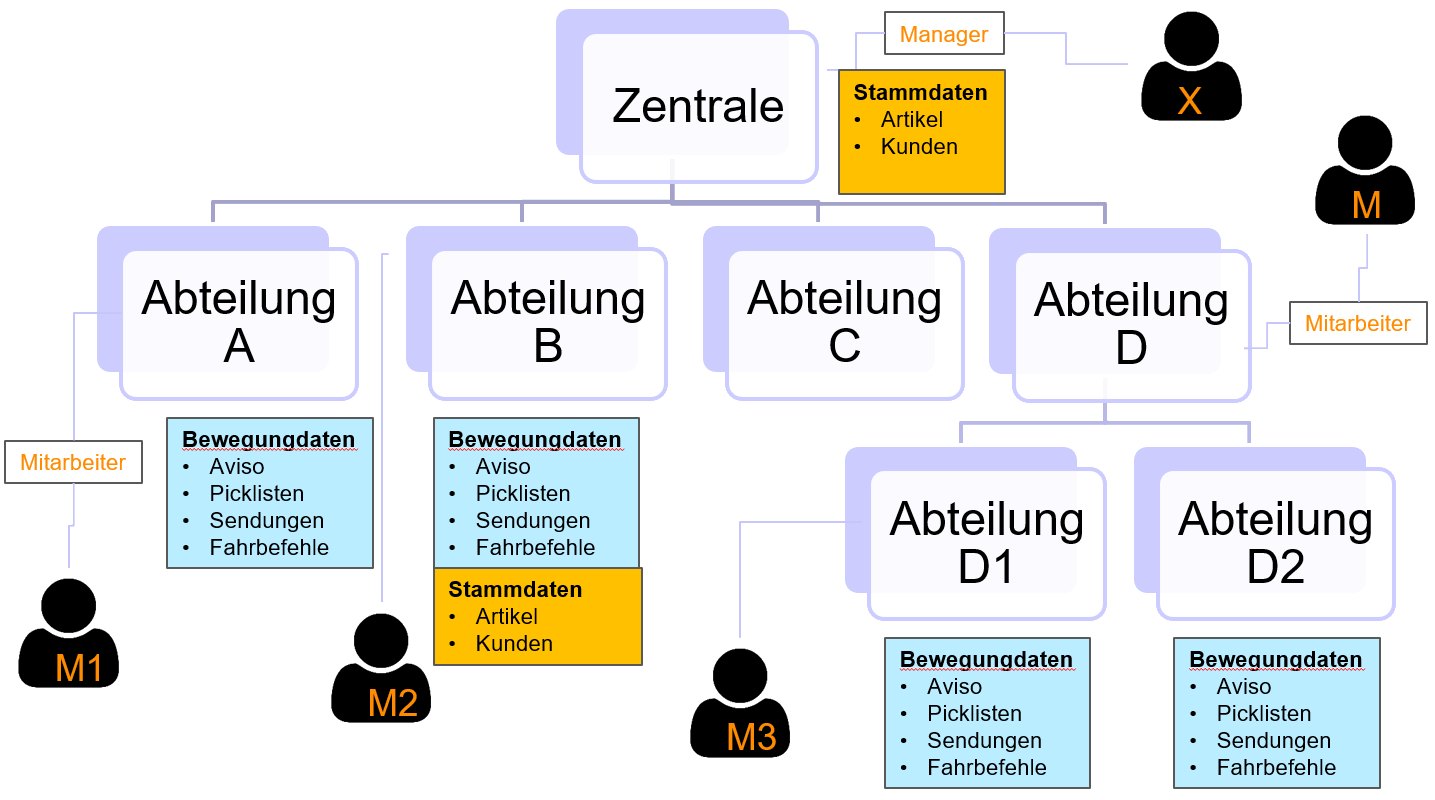
Example:
- The data in the orange boxes are master data such as articles, organizational units.
- The data in the blue boxes are transaction data such as orders, pick lists, notifications, shipments, transports.
Master data
Tip
Master Data Filter: You can see the master data of the department to which you are logged in and all those that are on the direct path to the top.
For the example above, the access rights are as follows:
- In this example, everyone sees the master data in the headquarters
- M2 also sees the master data stored in Department B.
Transaction data
Tip
Transaction Data Filter: You can see the transaction data of the department to which you are logged in and all those that are under this department in all departments.
For the example above, the access rights are as follows:
- X sees movement data from headquarters downwards.
- M1 it only sees the movement data of Department A.
- M2 it only sees the movement data of Department B.
- M3 it only sees the movement data of Department D1.
- M it only sees the transaction data of Department D & D1 & D2
Current Organization/Department
By logging in with your username, you will be logged in to the organization where you were last logged in. To change the current organization, see Change Department. By selecting the current department, you are assigned exactly to a department and a client.