User List
For every person who clicks on shippingNET, a user must be created in the system. Authentication is done via username and password, and user authorization is controlled by roles.
See also:
In the list of users, you can see the users who are authorized with roles to departments that your role is allowed to manage.
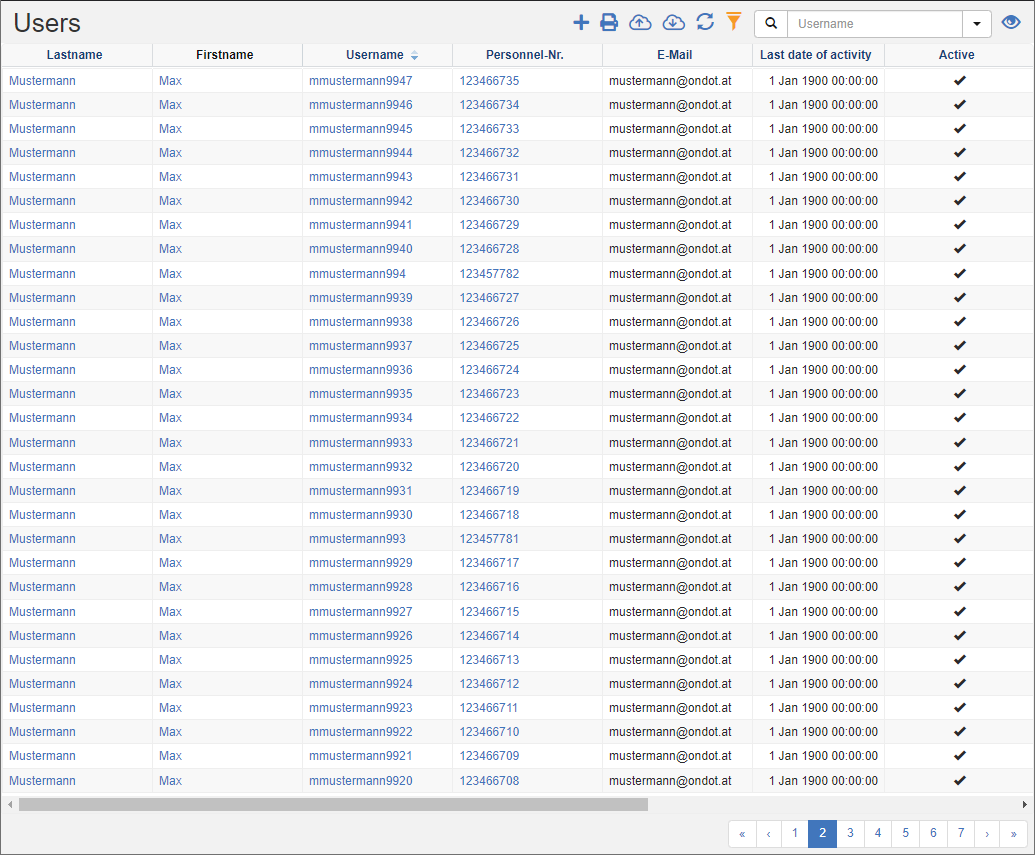
Actions in the title bar
Special Promotions
| Symbol | Function | more information |
|---|---|---|
| Create new user | Create User User Editor |
|
| Delete selected records: Delete multiple users in batch. | Delete User | |
| Restore records: Recover deleted users. | Restore User | |
| Import: Import users from Excel. | Import Data |
General List Actions
| Symbol | Function * | more information |
|---|---|---|
| Export: Exports the data to Excel. | Export Data | |
| Update: Updates the current list. | Working with Lists | |
| Filter: Set criteria that limit the number of records in the current list. | Working with Lists | |
 |
Quick Search: Searches the list by the default criterion. | Working with Lists |
| Views: Switch or create views. | Switch Views edit views |
* Attention: Depending on the context, not all actions are always available!
Create users
- In the title action bar, click on the action Create user. You are now in the User Editor.
- In the Credentials section, enter the username and password. Select the option Password must be changed after login so that the user has to assign a password known only to him when logging in for the first time.
- Record the first and last name as well as other important data.
- On the Roles card, define the permission for the user.
- Click the Save action. You will now see the user in the user list. The user can now log in to the system with their username and password.
See also:
Delete selected users
This feature allows you to delete multiple users. The users will only be set inactive.
Procedure:
- In the user list, select the records you want to delete. To select multiple records, hold down the CTRL key.
- In the title action bar, click on the action Delete selected records.
- The users will be set to inactive and can no longer be selected in subsequent actions.
Restore deleted users
- Remove the **Active" filter from the user list and search for the users.
- In the list of users, select the records they want to recover. To select multiple records, hold down the CTRL key.
- In the title action bar, click on the action Restore records.
- Next, enter a reason for the restore in the dialog and click on the Restore action.
The selected users are now active again and can be used in all other functions.