Manage Views
You can customize their workspace to suit your needs so that only the information you need is displayed. Basically, you can create a view for just about any list or editor.
There are two main types of masks.
List views: You can show or hide columns and define the order of the columns. In addition, you can set default filters and define which filter criteria are offered in the quick search.
Editors: Here you can specify which tabs, input fields or entire areas are shown or hidden. You can also set default values for input fields.
Tip
To configure or edit views, you must have sufficient permissions.
Creating List Views
- Select the action Configuration and then click on Edit View from the drop-down menu.
- You are now in edit mode.
- Configure the view:
Configuring Columns
- To show or hide columns, click on the to the right of the column header.
- Use drag and drop to change the order of the columns.
- Click on the column header to set the sorting.
Configure Quick Search & Filter
- Select the function Filter.
- Add frequently needed filter criteria. Optionally, you can also store a value to automatically filter data in this view.
- If you can't find the filter criterion in the selection, click on the
- Under Filter Options you can add further filter criteria.
- In the Quick Search field, add the filter criteria you want to provide in the Quick Search.
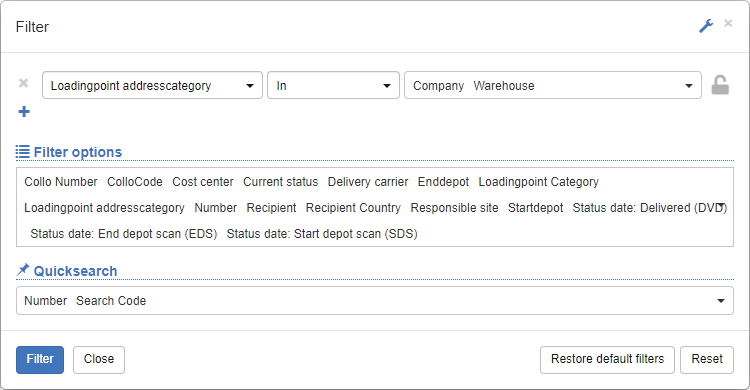
See also Searching, Filtering & Sorting
Tip
Next to the Quick Search, you'll find the Ignore Filter option. If this option is enabled, the quick search will ignore all filter criteria that have been set in the filter dialog.
Creating Editor Views
The configuration options for editors are similar to the list configuration. The biggest difference in the configuration is that significantly more fields can be shown or hidden, and that entire field areas or tabs can be shown or hidden. In addition, you can set default values for various fields.
Example: Configuring the Shipment Editor
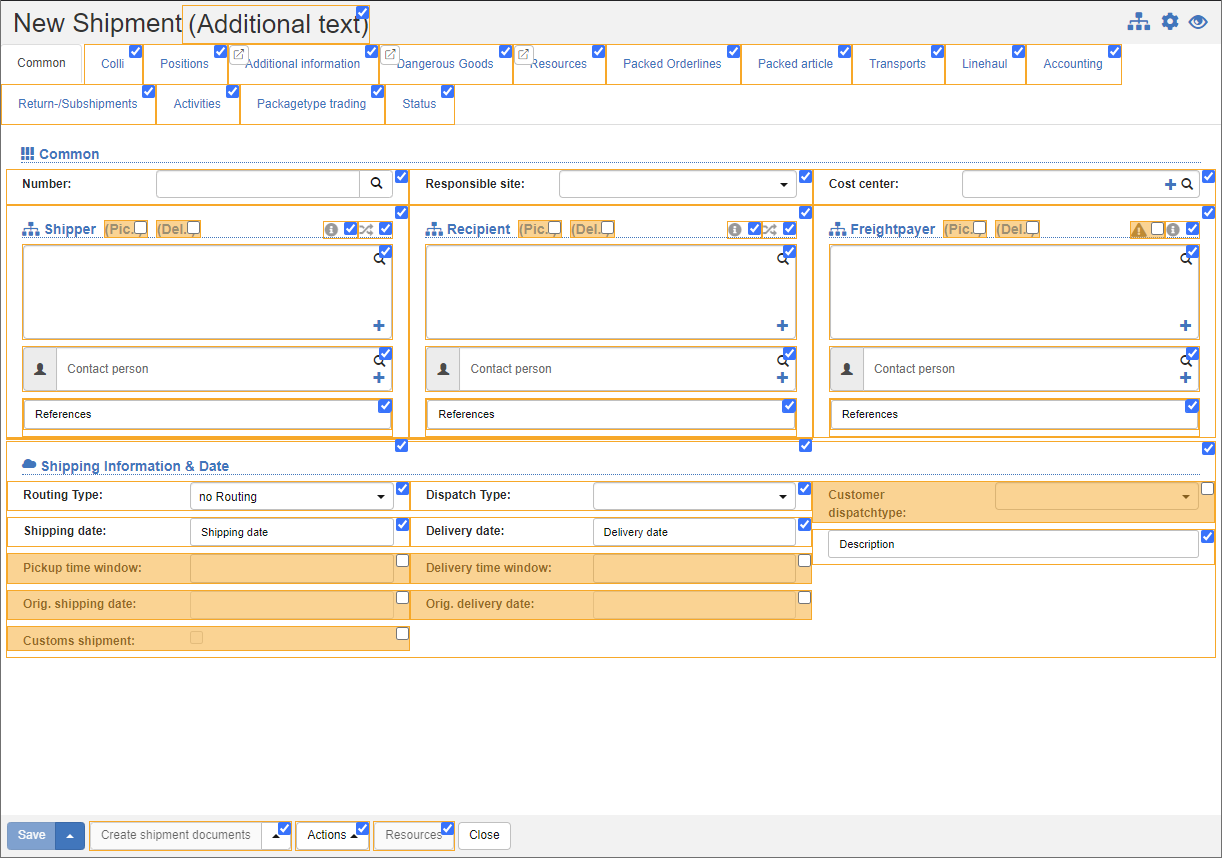
Note
For editors, you can only put a view in edit mode during the creation process to avoid unintentional default pre-population of fields when saving the view.
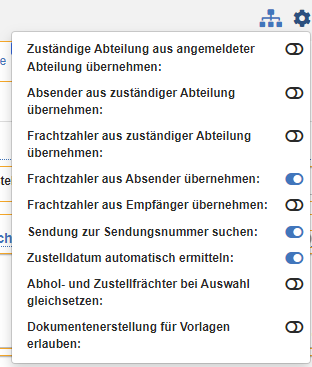
Configuring additional functions
You can get additional settings with the gear icon, which becomes visible in view edit mode. Depending on the editor, there are various configuration options available.
Example: Additional configuration options for the shipment editor
Cancel Edit Mode
Click the and then select Edit View. The edit mode is exited without saving.
Save view
- To save the view, click Select either Save View to override the existing view or Save View As to create a new view.
The Save view dialog opens.
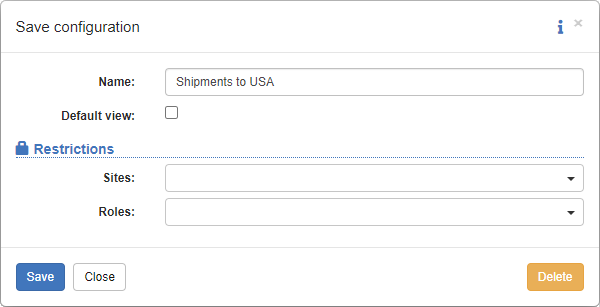
- If you override the existing view, you can change the name of the view in the Name field.
- If you are saving a new view, enter the name of the new view in the Name field.
- The Default View option allows you to set default views for users, taking into account the following limitations. The constraints have two dimensions: departments and roles. On the one hand, you can create standard views for individual departments (e.g. accounting, scheduling, etc.) and on the other hand for specific roles (warehouse worker, dispatcher, sales representative). Both dimensions can be combined.
Tip
The name only serves as a user-friendly identifier and should therefore be chosen as eloquently as possible.
Delete view
- To delete a view, select the view as the current view, then click Save View.
- The Save View dialog will open.
- Select the Delete action.