Working with Stati
Status Flashcard
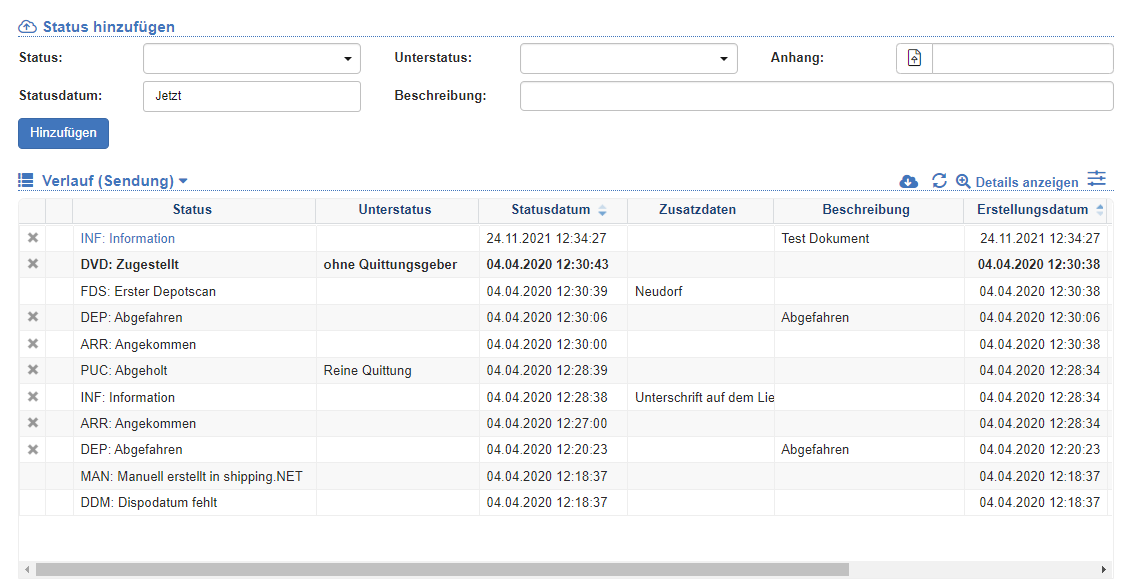
On most editors, you'll find the Status tab. Here you can enter a new status for the current data record and view the list of historical statuses.
Example status index card for shipments:
Set status
- In the editor, click on the Status tab.
- In the Add Status section, select the status, sub-status, status date, and description in the Add Status section.
- Click the Add action. The status is set for the current record. If there is an error, it will be displayed in the message bar.
View stati
Below the input fields, you will find the status history. In this list, you can use the following features:
| Symbol | Function | more information |
|---|---|---|
| Export: Exports the data to Excel. | Export Data | |
| Update: Updates the current list. | Working with Lists | |
| Show details: Displays more status entries. | In the system configuration, you can specify which statuses are displayed here. | |
| options | Show-hide deleted statuses. |
Set multistatus
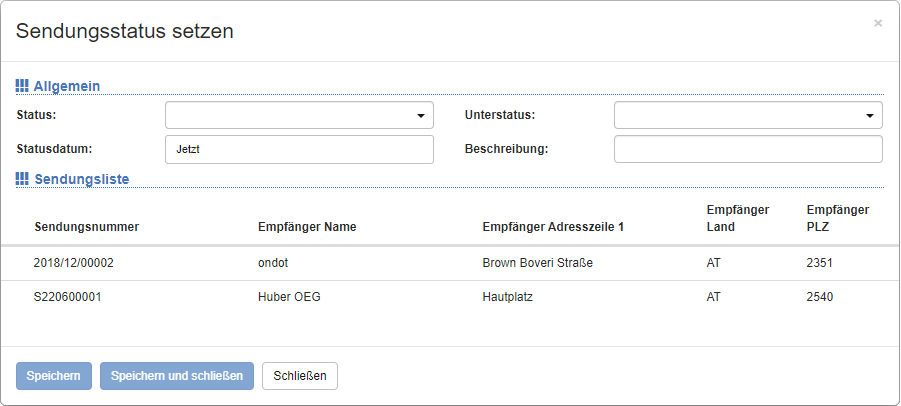
You can use the Multistatus dialog to store statuses for several data records (orders, shipments, etc.). This function is particularly useful if you want to store the same status data for a large number of records. For example, you can set the delivery status for all selected shipments.
Example Shipment Multistatus:
Procedure:
- Select the records for which you want to set a new status from the list. To select multiple records, hold down the CTRL key.
- In the title action bar, click on the action Set multistatus.
- In the dialog, select the status, sub-status, status date, and description in the General section.
- In the Item List section, you will see the records you have previously selected, such as the list of shipments.
- Click Save or Save & Close. The statuses are saved for the previously selected data sets. If there is an error, it will be displayed in the message bar.
Status Quick entry
In contrast to the multistatus function, you can set different statuses for the selected data sets without having to enter the respective editor for each broadcast.
Procedure:
- Select the records for which you want to set new statuses from the list. To select multiple records, hold down the CTRL key.
- In the title action bar, click on the action Quick entry status.
- In a new screen, you will now see the status symbol and relevant header data for the previously selected records.
- Now enter the status, substatus, status date and description for each row.
- To apply the same information to subsequent records, select the action Fill down in the Action bar. All data is copied to the following records until a different status code is found.
- Click Save. The statuses are saved for the previously selected data sets. If there is an error, it will be displayed in the message bar.