Transport scheduling facility
The transport scheduling is the tool for planning and scheduling your shipments and transports. Select the appropriate view to distinguish between the typical MRP types.
Note
MRP views:
Inbound groupage: List of all shipping partners and optionally their tours configured in the system and the associated inbound shipments. Your depot will take care of the forwarding or delivery of the consignments. These are those consignments whose pick-up agent not corresponds to the own fleet. The date assignment is based on the ship date of the shipment.
Outbound groupage: List of all shipping partners and optionally their tours configured in the system and the associated outbound shipments. The shipments are delivered by the respective shipping partner/network partner. These are those consignments whose delivery carrier not corresponds to the own fleet. The date assignment is based on the ship date of the shipment.
Subcontracting: In subcontracting, you will find shipments that are handled entirely by a single third party. This means that both pick-up and delivery are carried out by this partner, the shipments do not come to your depot.
Full Load: Shipments with routing type Shipment with partial route and relations of the company's own fleet or current department. The date assignment is based on the loading date of the individual sections. A shipment can be displayed several times in this view if it is scheduled on several sections.
Scheduled services: Main runs between different depots in your own network. These are the distances between two custody accounts of your own client. The shipments are displayed on the basis of the main runs previously stored with your project manager.
My Trolley Load: Shipments and tours of the own fleet. Your depot will take care of the collection or delivery of the consignments. These are those consignments whose pick-up or delivery carrier corresponds to the own fleet. Date mapping is based on the shipment's shipping date for pickup shipments and the shipment's delivery date for delivery shipments.
My Trolley - Pickup: This is the same view as My Trolley Load, but limited to Pickups.
My Trolley - Delivery: This is the same view as My Trolley Delivery, but limited to Deliveries.
The mask is divided into two parts:
On the left you will see the scheduling calendar, which shows you the planned transports of the last and next days, as well as the shipments and colli still to be scheduled.
On the right, depending on the selection in the scheduling calendar, you can see the shipment list of active transport, or unscheduled shipments.
Discupender
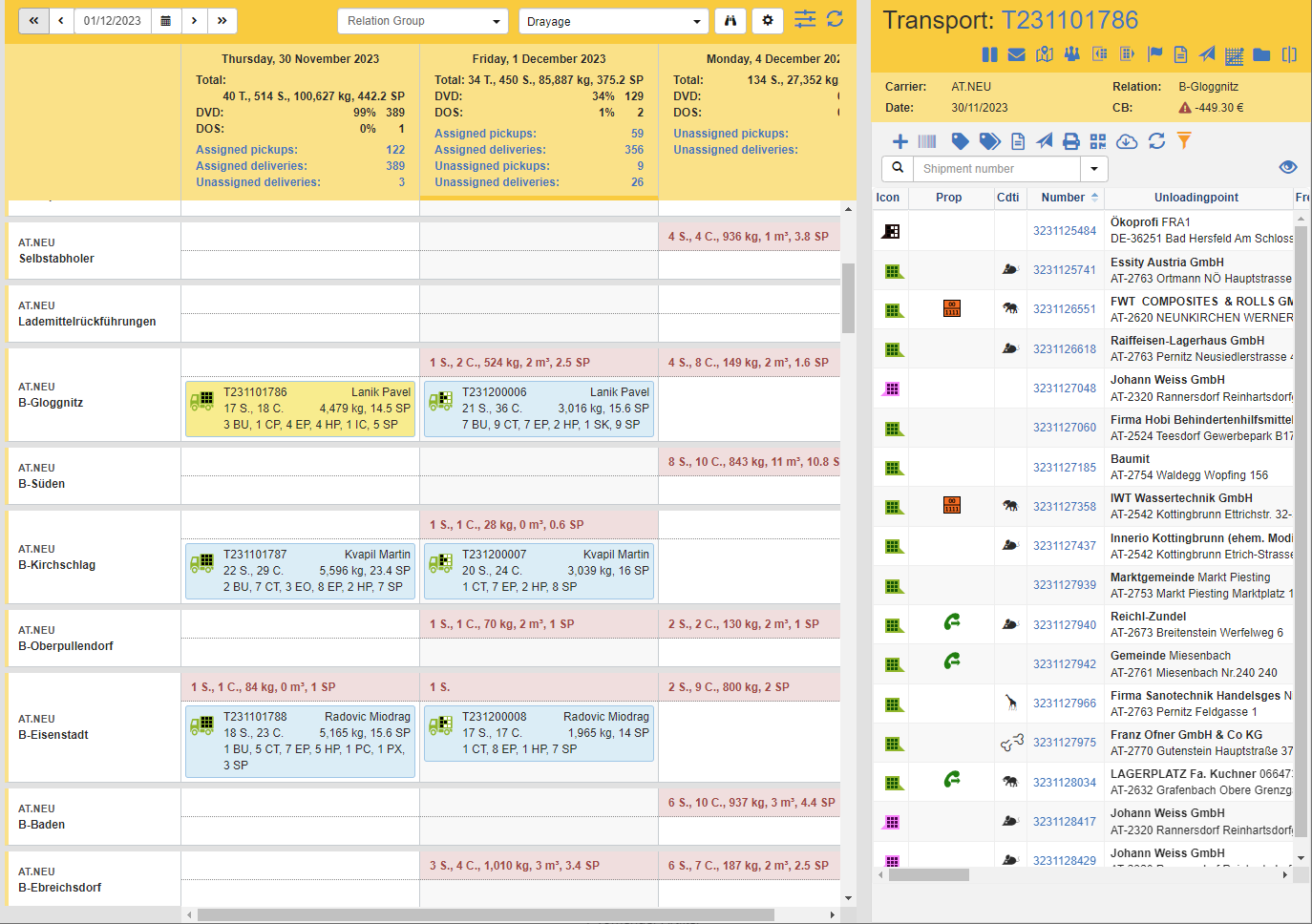
The discipliner displays a separate column for each day with the daily totals. You will see per day:
- the number of scheduled shipments and Colli separated after pick-up and delivery
- Volume and weight
- Number of stops
- Problems with delivery and collection
Under the daily totals in the column headers, you can see the infoblock for the respective MRP date for each carrier and relation.
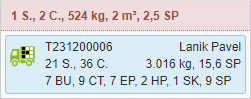
The infoblock first shows the unscheduled shipments and colli with a pink background. In the standard you will see
- Number of shipments and colli
- Weight, volume and pitches
Below you can see the transports with an overview of the scheduled shipments:
- Transport number and driver as well as current status of the transport
- Number of shipments and colli
- Weight, volume and pitches
Tip
**Configure the displayed daily totals and fields in the info block with the action Configure in the title bar. See also Configure MRP view.
Actions in the title bar
| Symbol | Function |
|---|---|
| Filter by Relation Groups: Show only relations of a specific group. This function is only available in the Rollfuhr views. | |
| MRP view: Select the desired MRP view. See also MRP view | |
| Quick search: Search for a transport no. or a tracking number. | |
| Configure view: Configure the MRP views. See also Configure MRP view. | |
| Display Options: Additional Display Options | |
| Update: Updates the scheduling calendar. |
Scheduling shipments
There are several ways to schedule shipments.
Schedule all unscheduled shipments of an info block: Use drag & drop the pink bar of the info block onto the symbol or a transport that has already been scheduled. Attention: The plus symbol is only visible during the dragging process!
Scheduling selected shipments:
- Click on the pink bar or a specific transport in the info block.
- On the right, the shipment list opens.
- Select a shipment and drag the shipment symbol to the symbol or an already scheduled shipment. Attention: The plus symbol is only visible during the dragging process!
If you drag the selected shipments to the icon, a new shipment will automatically be created and displayed in the displacer. If you schedule the shipments to an existing shipment, the shipments are posted to this shipment.
Tip
You can cancel the scheduling process at any time by pressing the ESC key.
Shipment list
On the right-hand side of the transport scheduling facility, you can see the shipment list of active transport, or unscheduled shipments, depending on the selection in the MRP calendar.
Active Transport Functions
In the title bar, you can see the most important information for active transport:
-Carriers
- Relation (Tour)
- Overdraft date -Contribution margin
The following functions are available:
| Symbol | Function | more information |
|---|---|---|
| Toggle Status Stop or Run: Sets a stop or run status for active transport. | Transport status | |
| Send/Show Messages: Displays all sent messages. You can also send new messages | ||
| Show map: Opens the map view. You can see the distance traveled and the stops. | Map View | |
| Show shipment list: Returns to the list of shipments. | Shipment List | |
| Show resources: Opens the Resources dialog. Capture drivers, transportation, and additional resources | ||
 |
Switch to loading scan: Opens the loading scan for this transport. | Loading Scan |
 |
Switch to unload scan: Opens the unload scan for this transport. | Discharge Scan |
| Tour Feedback: Opens the tour confirmation. Here you can record the current status of all shipments as well as general tour dates. This completes the transport/tour. | ||
| Create documents | Create Documents | |
| Send documents | Send Documents | |
| Optimize tour: Optimizes the order of the stops approached. | ||
| Change split: Changes the screen layout. Display only the MRP calendar, only the shipment list, or both. |
Tip
**Configure the available actions with the Configure action in the title bar. See also Configure MRP view.
Functions for unscheduled shipments
In the title bar, you can see the most important information for active transport:
-Carriers
- Overdraft date
The following functions are available:
| Symbol | Function | more information |
|---|---|---|
| Optimized scheduling: Opens fleet optimization. | ||
| Create transport: Opens the transport editor. | Transport Editor | |
| Create Shipments for Relation Drivers: Creates the shipments according to the Transportation Facility Plan for the selected relation. | ||
| Copy the previous day's shipments: Copies the previous day's shipments without shipment and other transaction data (such as mileage). The master data, such as driver and license plates, are transferred. | ||
| Tour Feedback: Opens the tour confirmation. Here you can record the current status of all shipments as well as general tour dates. This completes the transport/tour. | ||
| Create documents | Create Documents | |
| Optimize Fleet: Performs fleet optimization. | ||
| Collective printing: Print all required transport documents per carrier for one shipping day. |
Tip
**Configure the available actions with the Configure action in the title bar. See also Configure MRP view.
List of shipments
The list of shipments and the associated functions coincide with that of the standard shipment list.
Map view
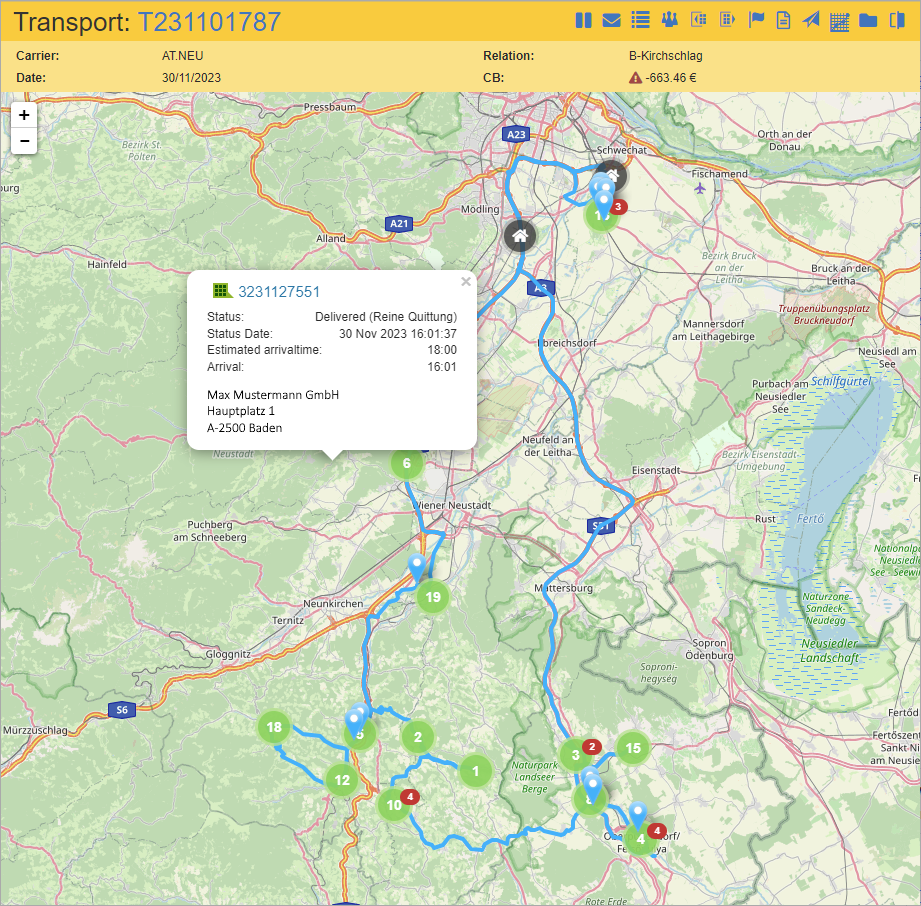
In the map view you can see the transport and the distance traveled.
In the green circle icons you can see the order of the stop. If multiple shipments are delivered at one stop, the number of shipments is shown in red in the upper right corner of the circle icon.
Click on the circle icon for more information about the shipments that will be picked up or delivered at this stop. You see
- the current status and status date,
- the estimated and actual time of arrival,
- and the address.
To get more information about the timing and speed, hover your mouse over the blue track.
Configure MRP view
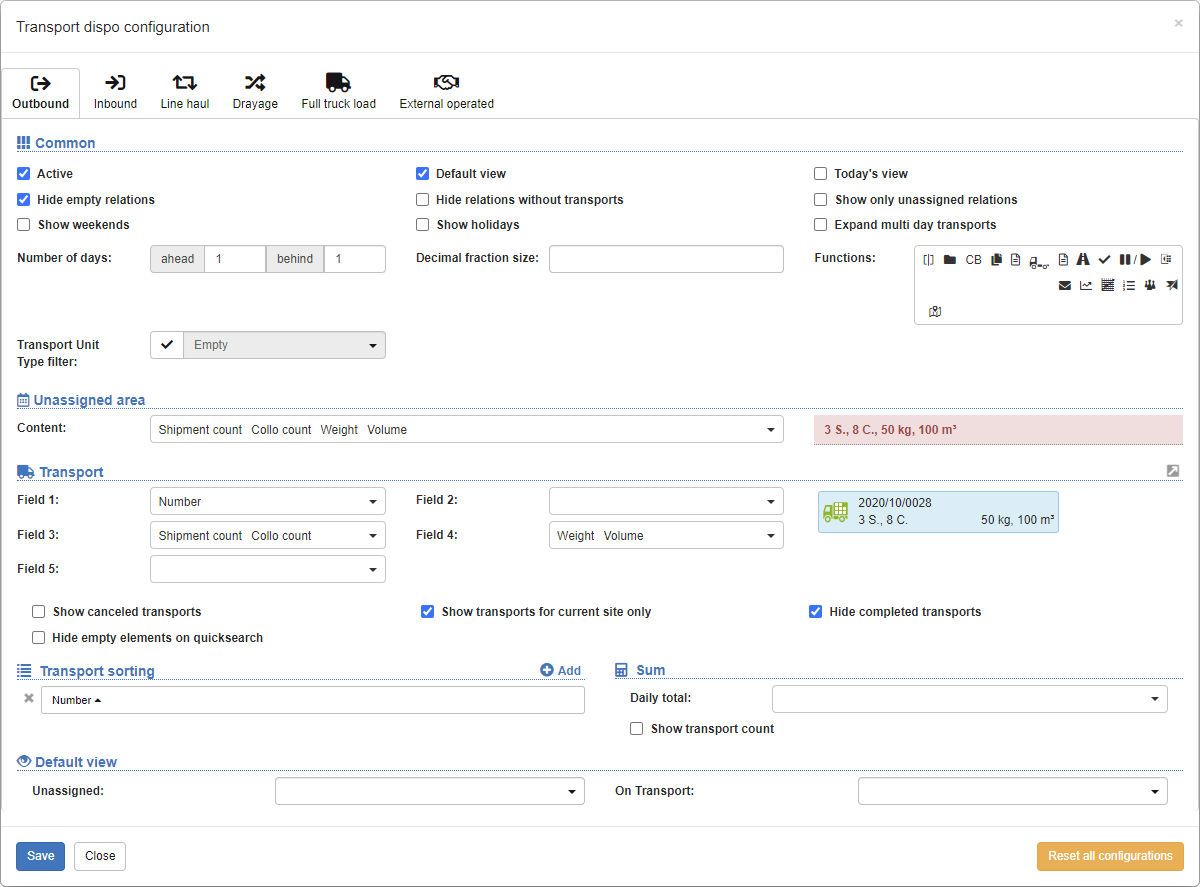
You can configure the views in the transport MRP. You can make the following settings per MRP view:
- Number of days displayed before and after the date of the day
- Available Actions
- Information in the daily totals
- Displayed fields in the unscheduled area of the calendar
- Displayed fields per transport
- and much more.