Transport editor
Transports in shippingNET are specific tours that start from a starting point and start at several stops and end at a end point. Transportation defines:
- depending on the mode of transport, the means of transport (truck, ship, plane) and the times.
- Depending on the disposition type: incoming or outgoing groupage traffic, trolley transport, main run, full load or outsourcing.
Note
Each shipment has a disposition type.
The following disposition types are distinguished:
Inbound groupage: Shipments received at your depot. Your depot will take care of the forwarding or delivery of the consignments.
Outbound groupage: On these transports, all outgoing shipments are scheduled for each shipping partner. If you work in a network, outbound transports within this network are also handled with this MRP type. The shipments are delivered by the respective shipping partner/network partner.
Rollfuhr: Transports that carry out the distribution of shipments in your delivery and pick-up area based on your route planning.
Main run: Scheduled services between the depots of your network.
Full load: Transports with partial routes are particularly relevant in the partial and full load industry, as the shipments are handled several times and no main runs are necessary, but separately agreed transports. To support this optimally, any number of intermediate stops are inserted with this type.
Outsourcing: All transports that are picked up and delivered by the same shipping partner, the so-called three-point traffic.
The goods carried and the stops to be called at are determined by the colli and delivery addresses of the shipments that have been scheduled on the transport.
Create transport
You create shipments in the Transport MRP. The transport editor is used exclusively for displaying and editing existing shipments.
Edit transport
The transport editor, like each editor, is divided into several index cards and sections in order to form thematic focal points. In addition to the entry of the general basic information that can be found on the General Map, additional information and billing data can be recorded. The Shipments, Colli, Activities and Status maps are used for the traceability of processes (or provide an additional overview of the current status of the transport).
General
On this map you can see the most important information at a glance.
- In the Transport Number field, you will see the unique number of the transport. It is automatically assigned by the system.
- Enter start and end point, as well as their contact persons and telephone numbers and define the essential dates such as the planned start and end date in addition to processing type, cost center and references.
- In the Carrier Information section, specify the carrier, carrier and driver.
- In the Vehicle Information section, enter the vehicle type, license plate, WAB number, etc.
For more information about the fields of the shipment, see Transport Fields.
Additional information
On this map, you can record the details of the mileage as well as the resources used, such as drivers, vehicles and equipment.
Shipments
On this map you can see the shipments scheduled for this transport. The list provides you with the standard list actions.
For more information about the fields of the shipments, see Shipment Fields.
Colli
On this map you can see the packages (colli) of the transport. These are:
Shipments of all shipments scheduled for this transport.
All colli that have logged a status that is assigned to this transport. This occurs when the colli has been loaded onto this transport without prior disposition.
For more information about the fields of the Colli, see Collofelder.
Activities
In the Activities tab, you can see the activity log of all activities recorded as part of this transport. The activity log records the following data for a shipment and a shipment:
-Start
- End time
- Activity: List of activities defined in the system configuration, -Transport -Mission
Note
The data for these activities is recorded by the users in the course of shipment delivery.
Billing
The Allocation tab shows you the costs and revenues for each clearing party. In the totals line, you can see the contribution margin. The parties Customer, Carrier and Clearing arise from the information collected on the shipment as well as the system configuration.
For each party, you will see the underlying calculation, the invoice type, the invoice country, the tax code in the header.
Below the header you will see the List of Posting Lines with:
- Type of service -Amount -Sum -Invoice
- Booking text
The posting lines are created automatically by stored calculations or are entered manually.
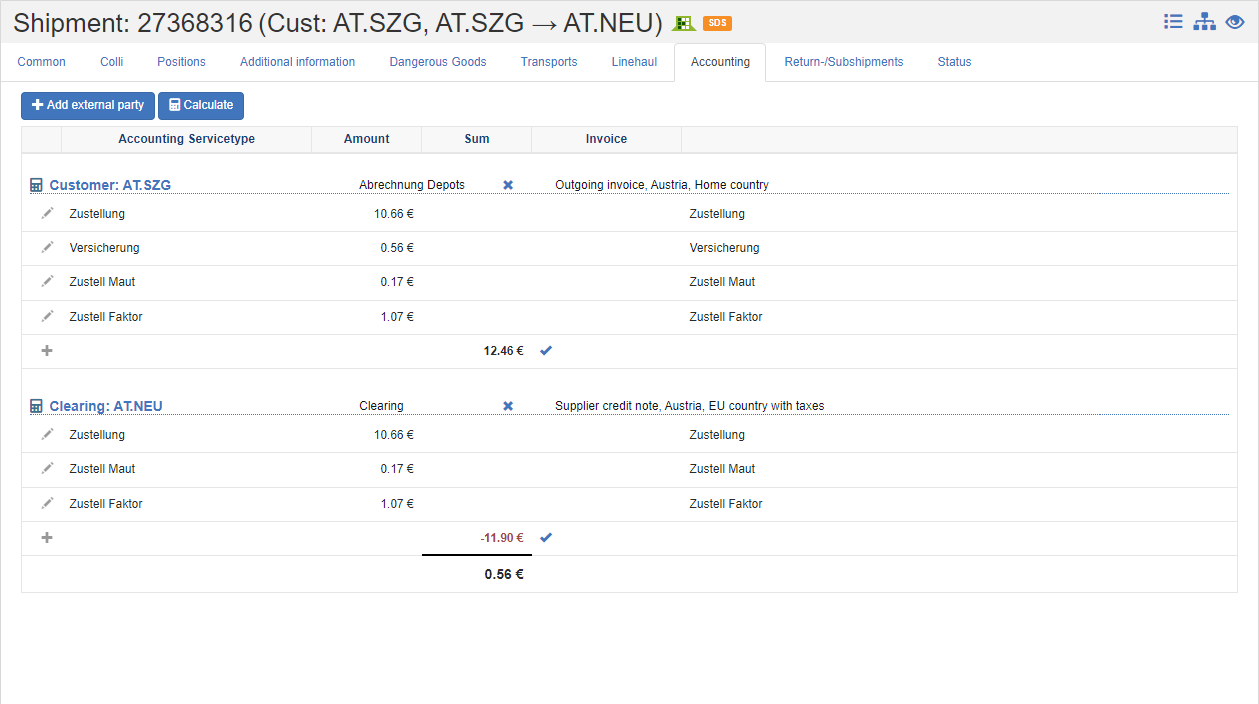
Recording of costs and revenues
- To add an additional billing party, click the Add another party.
- In the following dialog, you specify whether the costs or revenues are involved. A new section will open in the list.
- Now click on the Add list action and select the desired line type and amount.
Options for activity allocation per party
By clicking on the icon in front of the party's name, you can perform the following actions.
- Add Booking: Adds a new transaction line to manually enter a service type. Click the Delete Record to remove the transaction line from the list.
- Enable/deactivate costing: With this action you prevent the automatic calculation of the amounts. The stored costing is no longer applied to this party. You can only define manual posting lines. To store a costing again, click on the text No costing and select the desired costing.
- Exclude from offsetting: The party is completely excluded from the settlement, i.e. neither costs nor revenues are charged for this party.
- Edit Cost Accounting: With active cost accounting, an adjustment/distribution of costs can be made.
- Invoice Assignment: Assign the transaction lines to a new invoice or an existing invoice. The party must match the invoice recipient.
- Edit Party: Switches to the organizational unit editor to edit the master data. Add any data relevant to billing, such as accounts, accounting period, etc. here.
- Show Calculation Info: Displays the composition and calculation bases of the amounts of the individual posting lines.
- Show status details: Displays the settlement status for this settlement object (shipment, transport). You can see all billing-related activities related to the selected party.
see also:
Status
You can manage status information that relates to the entire shipment on the Status tab.
A shipment can get the following current statuses:
| Symbol | Code | Description | Final |
|---|---|---|---|
 |
MAN | Manually created in shippingNET | |
 |
IMP | Imported into shippingNET | |
 |
TRS | Transport started | |
 |
RUN | Run | |
 |
HLT | Stop | |
 |
TRE | End of transport | |
 |
EDP | End of customs clearance process | |
 |
CMP | Completed | ✔️ |
 |
SDP | Start of the customs clearance process | |
 |
STO | Cancelled | ✔️ |
 |
TRC | Transport completed | |
 |
DLY | Delay | |
 |
UCP | Discharge scan complete | |
 |
LCP | Loading scan completed |