Calculation list
Calculations are calculation models that are made up of items for specific types of services. For calculating amounts, you can set rates, surcharges or discounts, minimums or maximums per item. The calculations are assigned to parties and calculated automatically. The calculation result is posted per item to so-called settlement object. In clearing control, you can see an overview of all calculated settlement objects.
Note
Settlement object: A separate settlement object is created for each transport or shipment and relationship to a billing party (customer or supplier, carrier). All costs and revenues associated with this shipment/transport will be assigned to this specific settlement object.
The corresponding settlement object is automatically generated in the course of the transport or shipment system. Optionally, you can define additional settlement objects manually.
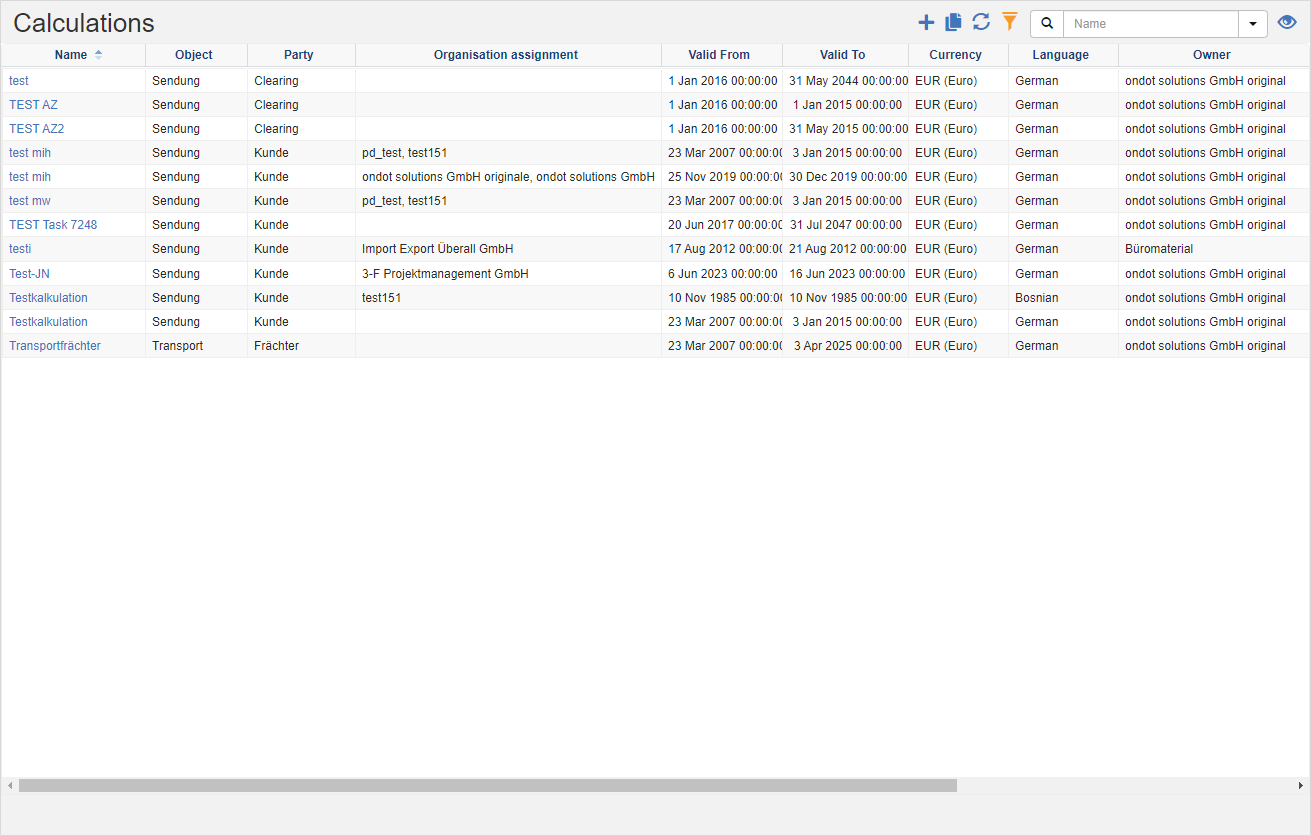
In the spreadsheet you can see the list of all calculations, according to the Allocation Data Filter.
Tip
Billing Data Filter: You will see the Billing Objects of your Billing Department and all those that are below the Billing Department in all departments.
The Clearing Department is an indicator of an organizational unit with the characteristic Department in your organizational structure.
Actions in the title bar
Special Promotions
| Symbol | Function | more information |
|---|---|---|
| Create new costing: Create a new costing. | Calculation Editor | |
| copy costing: Copies an existing costing. | Copy Calculation |
General List Actions
| Symbol | Function * | more information |
|---|---|---|
| Export: Exports the data to Excel. | Export Data | |
| Update: Updates the current list. | Working with Lists | |
| Filter: Set criteria that limit the number of records in the current list. | Working with Lists | |
 |
Quick Search: Searches the list by the default criterion. | Working with Lists |
| Views: Switch or create views. | Switch Views edit views |
* Attention: Depending on the context, not all actions are always available!
Copy calculation
With this action, the data of an existing costing is copied into a new costing and can then be adjusted there.
Procedure:
- In the costing list, select the costing you want to copy.
- In the title action bar, click on the action
- The system loads the data of the selected costing and opens it in the costing editor. Edit the calculation and then click the Save action.