Calculation editor
Calculations are calculation models that are made up of items for specific types of services. For calculating amounts, you can set rates, surcharges or discounts, minimums or maximums per item. The calculations are assigned to parties and calculated automatically. The calculation result is posted per item to so-called settlement object. In clearing control, you can see an overview of all calculated settlement objects.
Note
Settlement object: A separate settlement object is created for each transport or shipment and relationship to a billing party (customer or supplier, carrier). All costs and revenues associated with this shipment/transport will be assigned to this specific settlement object.
The corresponding settlement object is automatically generated in the course of the transport or shipment system. Optionally, you can define additional settlement objects manually.
Create calculation
You can create calculations in the Calculation Editor. The calculation editor, like each editor, is divided into several index cards and sections to form thematic focal points. In addition to entering the general basic information that is on the General Map, you enter the service items in the Items card. Under Clearing Principles, you define the quantities that are determined from the settlement objects and are required for the calculation of the individual service items.

General
On this map you can see the most important information at a glance.
In the Name field, enter a descriptive name for the costing.
Set the currency and language for the calculation.
In the Object field, specify what you want the rate to be used for. You can set general objects such as Transport, Shipment or Collo, or restrict the rate to apply only to delivery shipments or only to Pickup shipments.
In the Party field, enter which party you want the rate to apply to, starting from your billing department. This allows you to determine whether the rate should be applied for customer billing, freight billing or a general clearing.
Use the Valid from and Valid until fields to define the validity of the tariff. If an expired rate is applied to a costing, this will result in an error that will be caught in clearing control.
In the Organization Assignment field, you bind the costing to a specific organization, such as a customer or supplier.
Warning
> If you leave the field **blank**, the calculation will be performed for **all** settlement objects that correspond to the **object** and the **party**. This makes sense, for example, for a standard calculation that should apply to all your customers.
- In the Conditions area, define additional restrictions to further restrict the application of the costing. For example, you can limit the shipping method to parcel for shipment settlement.
Positions
On the Items card, you enter the individual activity types that are to be settled with this calculation. The items are organized as a tree, i.e. items can have multiple subheadings.
Tip
A condition can be defined per position, which determines whether the position is calculated at all. For shipments, for example, it can be specified that the item should only be charged for pick-up shipments with a specific type of service.
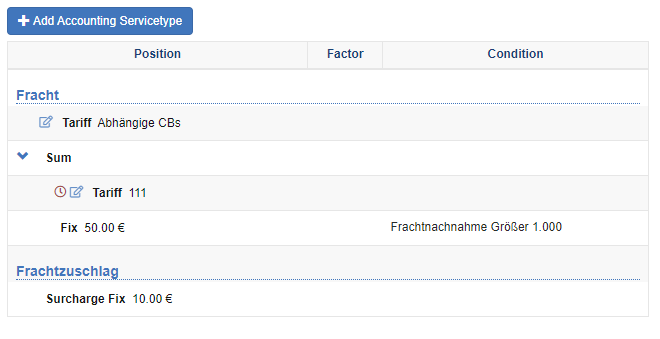
Capture Positions
Click on the Add Activity Type action and specify the desired service type, such as Freight. If you select the Result required option, we will ensure that the position actually needs to determine an amount. If this is not the case, an error is displayed in the calculation, which you can view in the clearing control.
Select the calculation type in the line line. The following calculation methods are available:
- Tariff: A previously created tariff is used for the calculation, see also Tarfiliste.
- Lump sum: Set the value to a lump sum.
- Group Functions: Group Functions select the appropriate amount from child items.
- Min: Selects the lowest amount from all subheadings.
- Max: Selects the highest amount from all subheadings.
- Sum: Adds up the results of all subheadings.
- Average: Calculates the average of all subheadings.
- Selection: Selects from several sub-items, the first position whose condition matches and returns a value. The following subheadings are no longer taken into account.
- Exclusive Selection: Same as the Selection function, but independent of whether a value has been determined.
To edit existing items, hover your mouse over the label or calculation type. The following actions are available.
Add position
Edit position: This is also where you set the condition, an additional factor, and the settlement object.
Delete positionClick the Save action.
Accounting bases
Depending on the items and the tariffs used, you can see here the billing bases required for the calculation. For freight tariffs, for example, a zone model is often used to map distances. In this case, select the correct zone model.
Warning
Your changes will not be saved until you click the Save action in the action bar below the editor. If you leave the editor without saving, your changes will be lost!