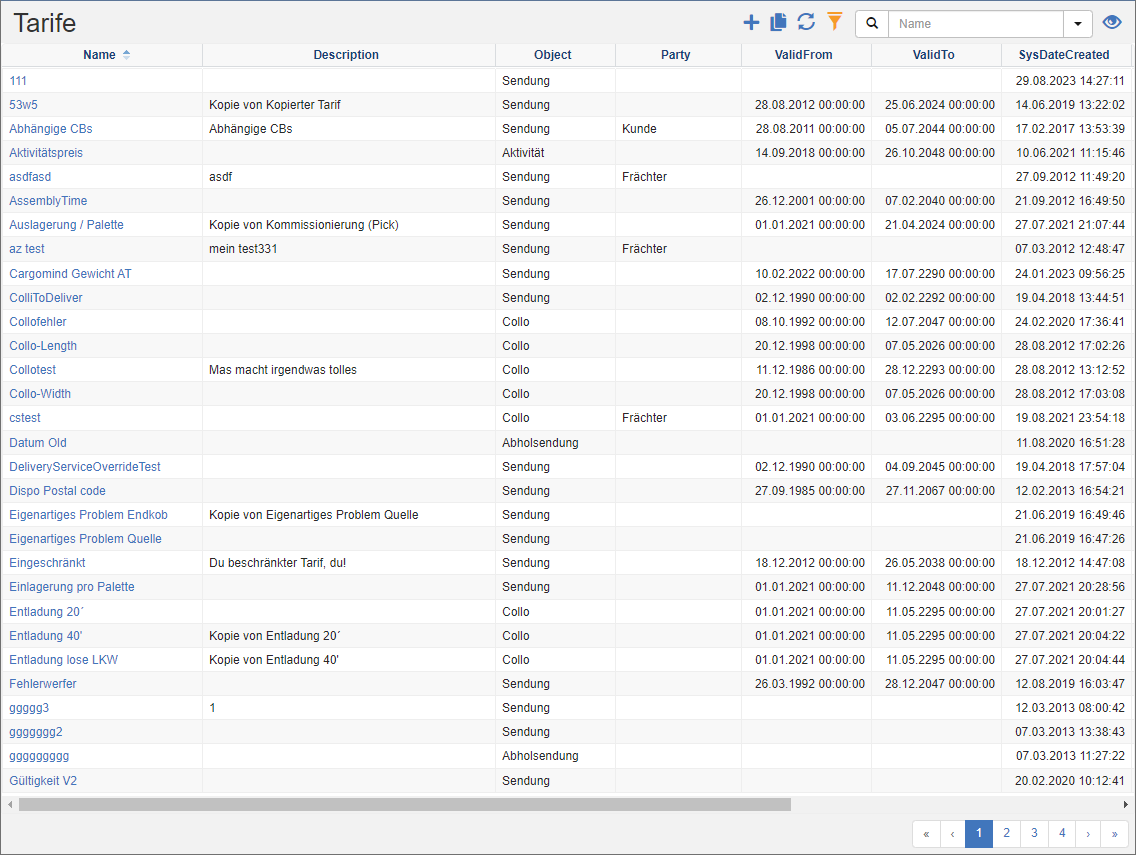
Tariff list
Tariffs are charges or charges charged for the transportation of cargo between two locations or destinations. These tariffs serve as the basis for calculating transport costs and are set between shipping companies, logistics service providers and freight companies. Freight rates are often set in coordination with different modes of transport, such as trucks, trains, ships or planes.
Tariffs in shippingNET are price tables with dynamic columns (x-axis) and rows (y-axis). They are used in the calculations of the billing to calculate prices for individual services.
A typical example of a fare is the freight cost by weight and zone. In this example, the zones in the columns and the weight are staggered in the rows. For example, for a shipment with a freight weight of 5 kg, a scale of 0-10 kg can be defined. There is a price for each zone of this season.
Actions in the title bar
Special Promotions
| Symbol | Function | more information |
|---|---|---|
| Create new rate: Create a new rate. | Fare Editor | |
| Copy tariff: Copies an existing tariff. | Copy tariff |
General List Actions
| Symbol | Function * | more information |
|---|---|---|
| Export: Exports the data to Excel. | Export Data | |
| Update: Updates the current list. | Working with Lists | |
| Filter: Set criteria that limit the number of records in the current list. | Working with Lists | |
 |
Quick Search: Searches the list by the default criterion. | Working with Lists |
| Views: Switch or create views. | Switch Views edit views |
* Attention: Depending on the context, not all actions are always available!
Copy tariff
With this action, the data of an existing tariff is copied into a new tariff and can then be adjusted there.
Procedure:
- Select the tariff you want to copy from the tariff list.
- In the title action bar, click on the action
- The system loads the data of the selected tariff and opens it in the tariff editor. Edit the plan, then click the Save action.