Drive Commands
Driving commands control the flow of goods in your warehouse. Every transport of goods is mapped with driving commands. A driving order thus constitutes an order. To transport goods from a source storage location to a destination storage location.
Driving commands are generated for each collo at the goods takeover so that the goods are transported from the goods receipt gate to the final storage location.
Analogous to the goods receipt, in the course of the release of the pick lists, travel commands are generated in the course of releasing the pick lists, which direct the goods from the storage bins to the destination location.
In the drive command list, you can see the list of all goods transports whose responsible department corresponds to the transaction data filter.
Tip
Transaction Data Filter: You can see the transaction data of the department to which you are logged in and all those that are under this department in all departments.
See also Transaction Data Filter
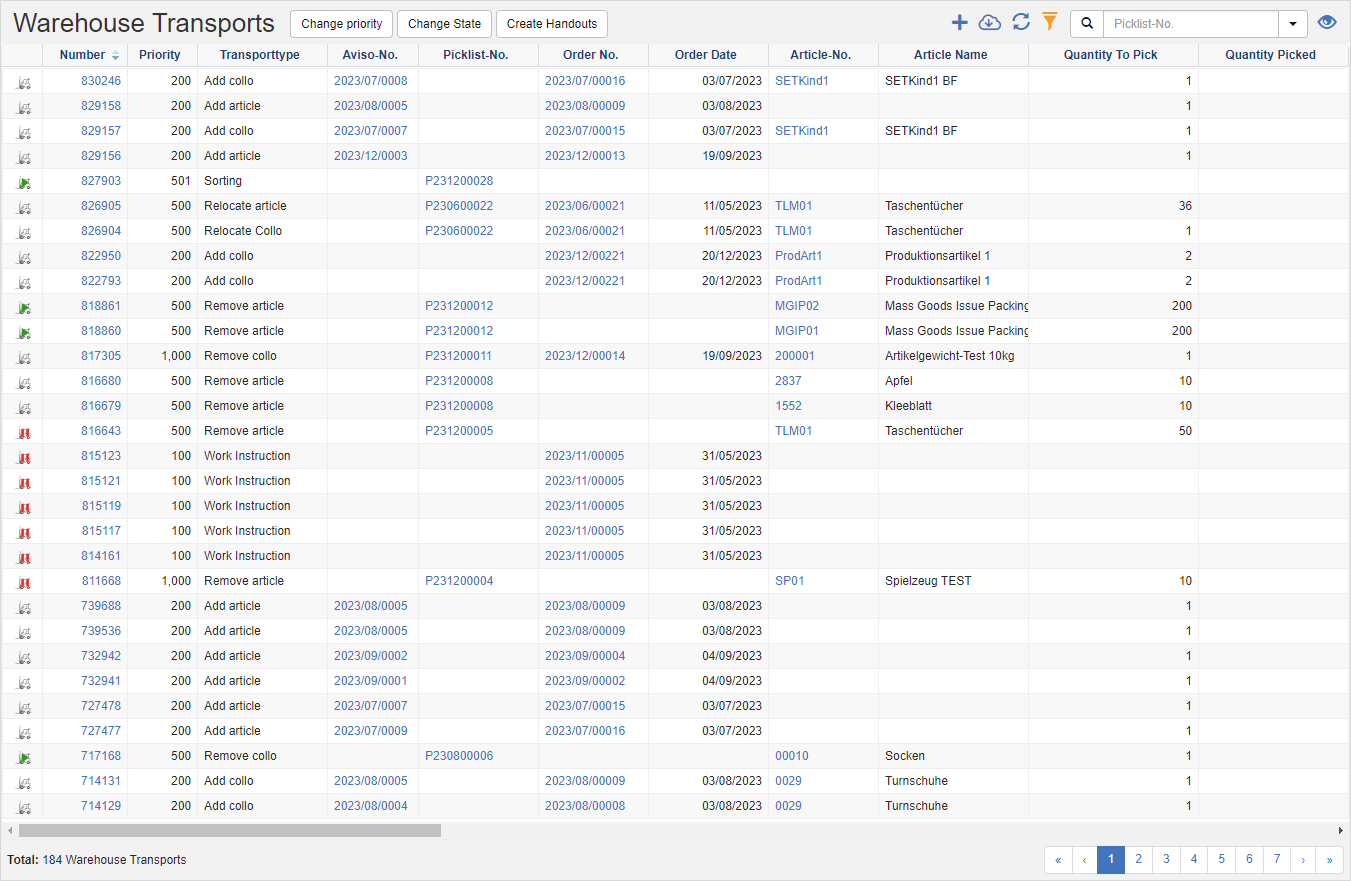
Actions in the title bar
Special Promotions
| Symbol | Function | more information |
|---|---|---|
| Create new drive command: Create a new drive command. | Create Driving Command | |
| Print Label: Print the appropriate labels for the selected drive commands. | ||
| Change Priority: Change the priority of drive commands. | Change Priority | |
| Change Status: Change the status of drive commands. | [Change Status](#change status) | |
| Create Handout: Creates a handout for manual processing for the selected drive commands. |
General List Actions
| Symbol | Function * | more information |
|---|---|---|
| Export: Exports the data to Excel. | Export Data | |
| Update: Updates the current list. | Working with Lists | |
| Filter: Set criteria that limit the number of records in the current list. | Working with Lists | |
 |
Quick Search: Searches the list by the default criterion. | Working with Lists |
| Views: Switch or create views. | Switch Views edit views |
* Attention: Depending on the context, not all actions are always available!
Change priority
This action changes the priority of the selected drive commands. This defines whether driving commands should be processed with a higher or lower priority compared to other driving commands. Driving commands with higher priority are displayed first to the employees in the warehouse.
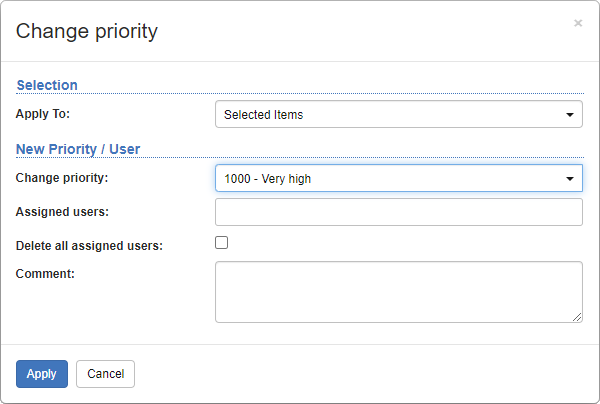
- In the title action bar, click the Change Priority action.
- In the Apply to field, select the type of selection:
- Selected: The changes will be applied to the records selected in the Drive Command list.
- Order, Aviso, Inventory, Pick List: Select the appropriate object to change all driving commands that affect this object.
- Define the priority of the driving commands.
- Optionally, in the Assigned Users field, you can assign the driving commands to specific warehouse employees. As a result, only this employee will receive the selected driving commands.
- Click the Apply action to make the changes to the drive commands.
Change status
With this action, you set a status for the selected drive commands.
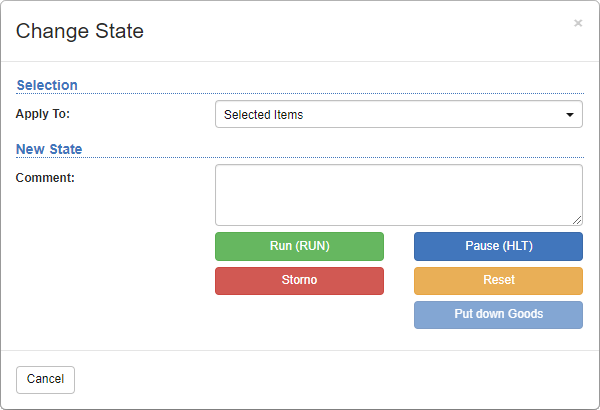
- In the title action bar, click the Change Status action.
- In the Apply to field, select the type of selection:
- Selected: The changes will be applied to the records selected in the Drive Command list.
- Order, Aviso, Inventory, Pick List: Select the appropriate object to change all driving commands that affect this object.
- Click one of the following actions:
- RUN: Reactivates paused drive commands. This means that they can be carried out again.
- Pause (HLT): Pauses the drive commands. The processing of these driving orders is thus prevented.
- Cancel: Cancels the drive commands. The driving orders are thus forever impracticable.
- Reset: Resets drive commands that have already been started. A drive command is started as soon as it is opened by a user on the MDE.
- Place goods: Completes or completes the driving order. The goods are posted to the destination of the driving order.