Collo Assignment
The Collo assignment shows the list of all Colli without shipment reference. This situation arises if the goods were recorded in the goods receipt before the customer's electronic shipment data transmission.
The list shows only those colli whose responsible department corresponds to the transaction data filter.
Tip
Transaction Data Filter: You can see the transaction data of the department to which you are logged in and all those that are under this department in all departments.
See also Transaction Data Filter
Note
The list should be checked continuously and should always be empty at the end of the day, as shipments are required for further processing and Colli cannot be processed without a shipment reference!
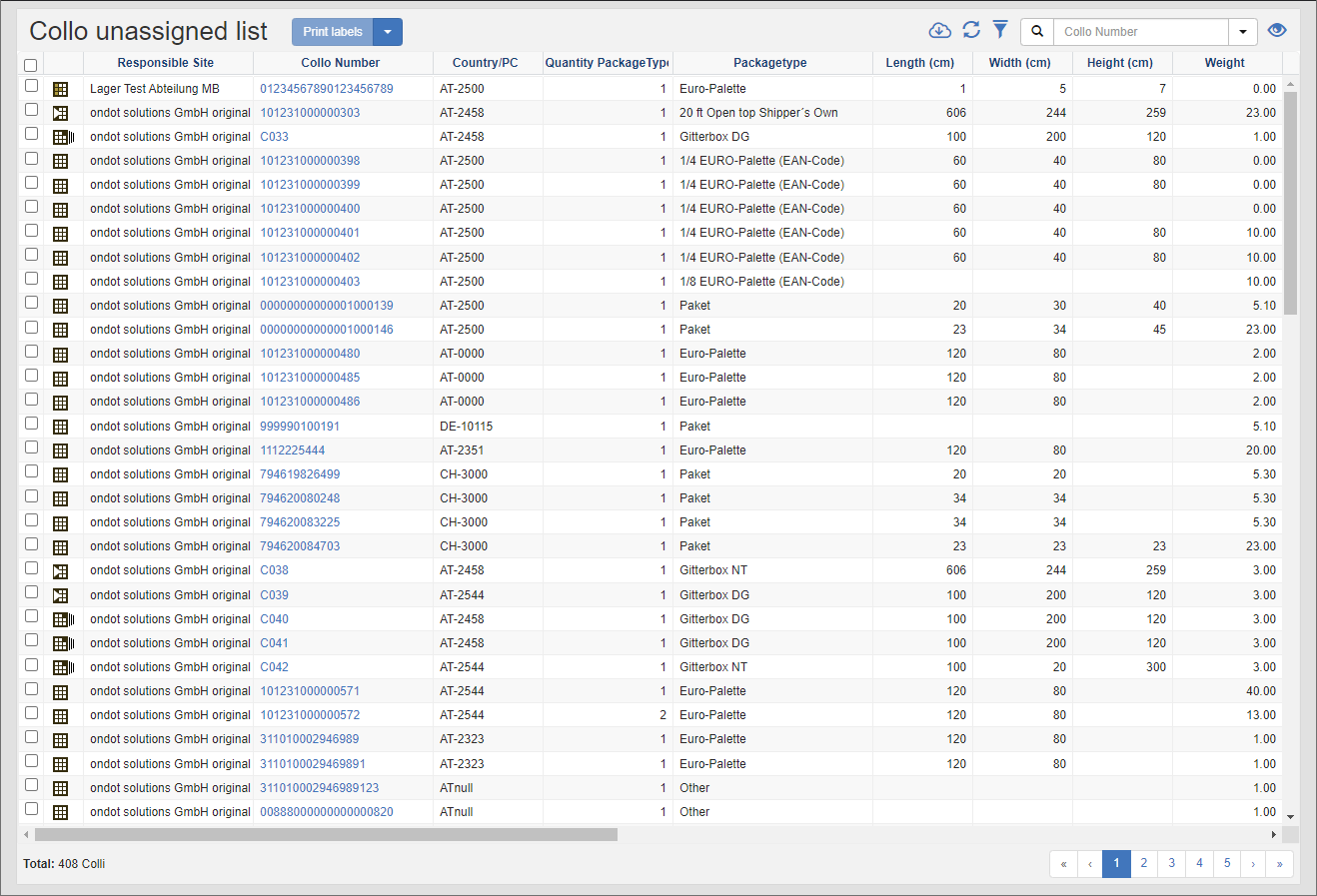
The following functions are available:
Creating Shipments
Select the colli for which you want to create shipments from the list. To select multiple records, hold down the CTRL key or click directly in the drop-down box at the beginning of the line.
In the Title Action Bar, click on the action Create Shipment - Delivery Only or Create Shipment Pickup and Delivery.
The Shipment Editor will open. You can find the previously selected colli in the collo list of the show editor. The address data and the routing type of the shipment will be transferred to the Colli if the information is available.
Fill in the missing information in the shipment editor and then save the shipment.
Note
The Create Shipment - Delivery Only or Create Shipment Pickup & Delivery actions are only available if you have selected Colli with the same recipient details.
Printing labels
This action prints the transport labels for all selected collis.
Cancel
This action cancels all selected colli. Before the colli is cancelled, a dialog is displayed with the number of collis to be cancelled. You can confirm or cancel the process.
If you confirm the process, the reversal status will be set for all colli.
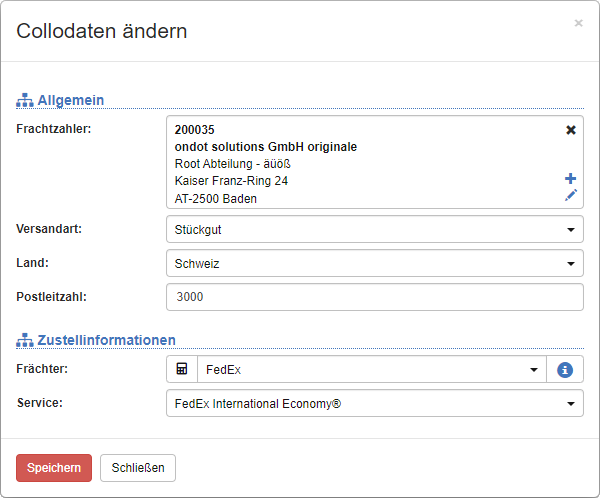
Change collo data
With the function Change collo data you can revise certain basic information for all selected collis. Correct the data in the Change collo data dialog and then click on the Save action.
General List Actions
| Symbol | Function * | more information |
|---|---|---|
| Export: Exports the data to Excel. | Export Data | |
| Update: Updates the current list. | Working with Lists | |
| Filter: Set criteria that limit the number of records in the current list. | Working with Lists | |
 |
Quick Search: Searches the list by the default criterion. | Working with Lists |
| Views: Switch or create views. | Switch Views edit views |
* Attention: Depending on the context, not all actions are always available!