Shipment editor
Shipments are available in shippingNET is a central building block for many business functions. Shipments in shippingNET are deliveries that are transported from a loading point to an unloading point. The contents of the consignment are described by means of packages, so-called Colli.
Create shipment
You can create shipments in the shipment editor. The broadcast editor, like each editor, is divided into several index cards and sections to form thematic focal points. In addition to recording the general basic information that can be found on the General Map, further information on the packages or items, return shipments, additional information, dangerous goods data and resources can be recorded. The Transports, Activities and Status cards are used to track processes (or provide an additional overview of the current status of the shipment).
General
On this map you can see the most important information at a glance.
- In the Shipment Number field, you can assign a unique number. If you leave the field blank, a number will automatically be drawn when saving.
- Enter the organizations involved, such as senders, recipients and freight payers, as well as their contact persons and telephone numbers.
- In the reference fields, you can enter identification numbers from the point of view of the respective party. For example, you can store the order number of the sender or a booking number from the point of view of the freight payer.
- In the Shipping Information & Date section, you control the routing type, the shipping method and the essential dates such as shipping and delivery date.
Note
Each shipment has a routing type. The routing type determines which routes are carried out for a shipment.
The following routing types are distinguished:
- Pickup: The shipment is picked up by the sender or loading point and taken to the depot.
- Delivery: The shipment is taken from the depot to the recipient or unloading point.
- Pick-up & Delivery: The shipment is delivered directly from the sender or loading point to the recipient or unloading point.
- Partial routes: Shipments with partial and full leg loads are particularly relevant in the part and full truck load industry, as the shipments are handled several times and no main runs are necessary, but separately agreed transports. In order to optimally support this, you can insert any number of intermediate stops with this routing type and assign independent carrier information to the individual routes and then plan them separately.
- Depending on which routing type has been selected, a different selection is offered in the lower part of the mask. The information Carrier, Service, Depot (usually determined automatically), Relation (also usually determined automatically) and Requirements must be entered. In the case of shipments with partial routes, different stops can also be recorded and the carrier for future transport can be recorded.
For more information about the fields of the shipment, see Shipment Fields.
Colli
On this card, you enter the packages (colli) of the shipment. There are two ways to do this:
Add existing colli: In the Find Collo section, enter the collo number of the package and click on the Add action.
Add new colli: Enter the collo data such as loading equipment, dimensions & weight and then click on the Create action.
In both cases, the colli will be displayed in the collo list below. If you have added an incorrect colli, click the Delete record and remove it from the list.
The collolist is editable. To change the data, edit the fields directly in the list. If a field cannot be edited directly in the list, click on the collo number. This will open the Colloeditor. In the collo editor you can now edit all fields of the package.
Warning
Your changes will not be saved until you click the Save action in the action bar below the editor. If you leave the editor without saving, your changes will be lost!
For more information about the fields of the collo, see Collofelder.
Shipment Items
For some shipments, there are no packages. This happens in the freight forwarding sector when it is not yet one hundred percent clear how many colli will be picked up and what dimensions (or weights) they have. In the shipment items, you can enter an item directly, which is particularly interesting for shipping to dutiable countries, as significantly more data has to be transferred to the respective carrier (shipping partner). Another area of application for item recording is partial and full load transactions, since no collo numbers are required for partial and full loads and the goods usually consist of a few but large units, recording via items is much easier.
Procedure:
In the Add position section, enter the signo, a description of the goods, as well as loading equipment, dimensions & weight.
In addition, you can enter articles from the article master for the item.
Click on the Create action
You will now see a new line below the input fields with the details of the shipment item. If you want to change the data of the item, you can do so directly in the list. If you want to remove the position, click on the action Delete record.
Warning
Your changes will not be saved until you click the Save action in the action bar below the editor. If you leave the editor without saving, your changes will be lost!
Additional information
On this card, you will enter the details of the agreement:
-Terms of delivery
- Shipping information
- Loading equipment
- Dimensions & weights
- Values of goods -Documents -Customs
- Cash on delivery & insurance
- Return information
Dangerous goods
If a shipment contains dangerous goods, you can enter dangerous goods information for each individual collo or for the entire shipment in the Dangerous Goods tab card.
Procedure:
Select the Dangerous Goods Officer: Specify the user who is responsible for dangerous goods in your organization. In order for a user to be selected as a Dangerous Goods Advisor, the user must have the Dangerous Goods Advisor role. See also User Management.
In the Dangerous Goods section, enter the number of dangerous goods packaging, the mass in liters or kilograms, the European waste code, the emergency telephone number and other characteristics.
Optionally select a collo of the shipment to store the dangerous goods information only for the selected collo.
To the right of Number and Mass, select the Convention from the dropdown after the classification is to be made (e.g.: ADR, IATA, IMDG). After that, the hazardous substance must be entered in the lookup field to the right of it. It is possible to search by UN number or designation. For a hazardous substance that is not listed by name in the list of dangerous goods, the exact name of the substance must also be entered in the field "Additional text for NAG".
Click the Create action.
You will now see a new line below the input fields with the details of the dangerous goods item. If you want to remove the position, click on the action Delete record.
Resources
Enter the requirements for the delivery of the shipment here. In addition to the required qualification of the employees, you can also determine the planned working hours and time spent at the customer's site as well as the time window of arrival.
Note
This information is especially relevant for route planning and optimization. They are primarily used to manage the efficient use of your resources and to plan the expected length of stay at the stops of the tours.
Track deliveries
In the Packaged Orders, Transports & Status tabs, you will find useful information about the delivery status of the shipment.
Packaged Orders
In the order list, you can see all the order lines that are delivered with this shipment. The order number and the order date give you a quick overview of the packaged items in this shipment.
Transports
In the Transports tab, you can see the list of transports on which this shipment has been loaded.
With the transport symbol, the tour, routing type, license plate number and driver as well as the estimated date of arrival, you have a quick overview of the status of all transports involved.
See also Transport Status.
Billing
The Allocation tab shows you the costs and revenues for each clearing party. In the totals line, you can see the contribution margin. The parties Customer, Carrier and Clearing arise from the information collected on the shipment as well as the system configuration.
For each party, you will see the underlying calculation, the invoice type, the invoice country, the tax code in the header.
Below the header you will see the List of Posting Lines with:
- Type of service -Amount -Sum -Invoice
- Booking text
The posting lines are created automatically by stored calculations or are entered manually.
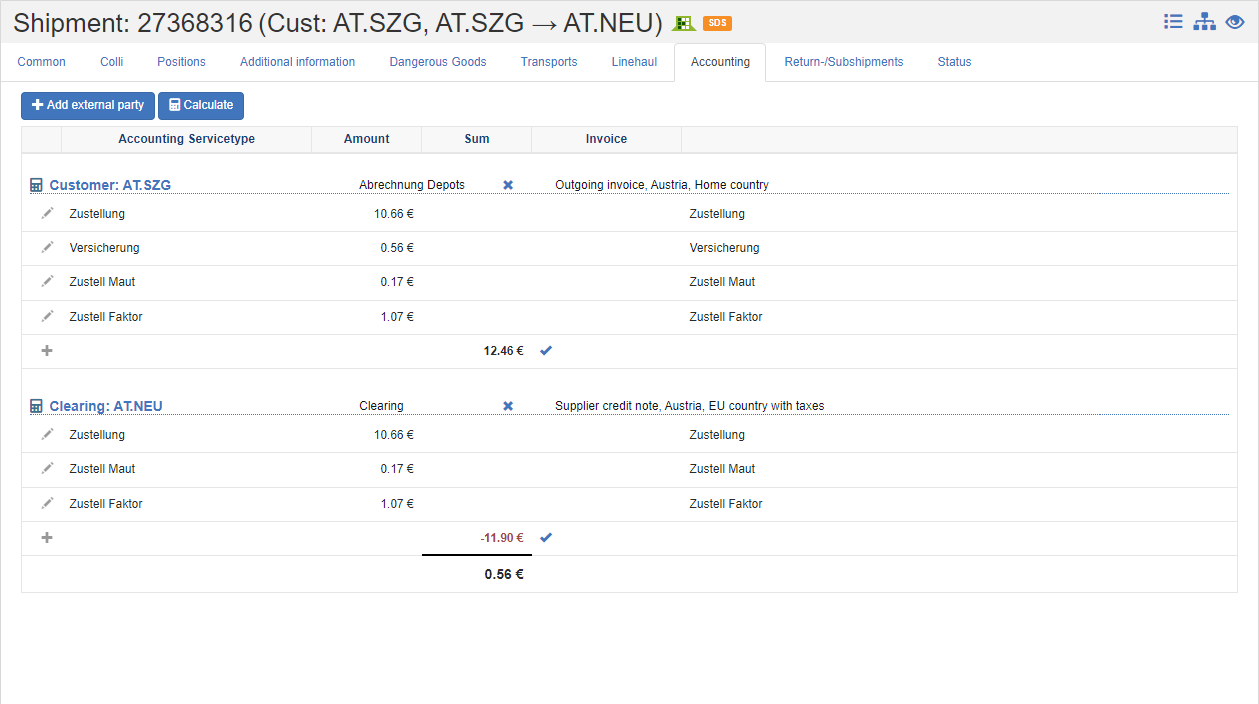
Recording of costs and revenues
- To add an additional billing party, click the Add another party.
- In the following dialog, you specify whether the costs or revenues are involved. A new section will open in the list.
- Now click on the Add list action and select the desired line type and amount.
Options for activity allocation per party
Click on the name of the party in the header to perform the following actions.
- Add Booking: Adds a new transaction line to manually enter a service type. Click the Delete Record to remove the transaction line from the list.
- Enable/deactivate costing: With this action you prevent the automatic calculation of the amounts. The stored costing is no longer applied to this party. You can only define manual posting lines. To store a costing again, click on the text No costing and select the desired costing.
- Exclude from offsetting: The party is completely excluded from the settlement, i.e. neither costs nor revenues are charged for this party.
- Edit Cost Accounting: With active cost accounting, an adjustment/distribution of costs can be made.
- Invoice Assignment: Assign the transaction lines to a new invoice or an existing invoice. The party must match the invoice recipient.
- Edit Party: Switches to the organizational unit editor to edit the master data. Add any data relevant to billing, such as accounts, accounting period, etc. here.
- Show Calculation Info: Displays the composition and calculation bases of the amounts of the individual posting lines.
- Show status details: Displays the settlement status for this settlement object (shipment, transport). You can see all billing-related activities related to the selected party.
See also Offsetting
Activities
In the Activities tab, you will see the activity log of all activities recorded as part of this broadcast. The activity log records the following data for a shipment:
-Start
- End time
- Activity: List of activities defined in the system configuration, -Transport -Mission
Note
The data for these activities is recorded by the users in the course of shipment delivery.
Status
You can manage status information that relates to the entire shipment on the Status tab.
A shipment can get the following current statuses:
| Symbol | Code | Description | Final |
|---|---|---|---|
 |
IMP | Imported into shippingNET | |
 |
MAN | Manually created in shippingNET | |
 |
PUP | Pick-up order released | |
 |
PUR | Pick-up refused | |
 |
PUC | Picked up | |
 |
FDS | First depot scan | |
 |
SDS | Start Depot Scan | |
 |
HUS | Hubscan | |
 |
EDS | Enddepot Scan | |
 |
SPC | Fully Picked | |
 |
SPP | Packing list printed | |
 |
STO | Cancelled | ✔️ |
 |
CMP | Completed | ✔️ |
 |
DVD | Delivered | ✔️ |
 |
PDE | Partial delivery | |
 |
POS | Pick-up obstacle | |
 |
PRD | Pickup Denied | |
 |
DDM | MRP date missing | |
 |
DEP | In Pickup/Delivery | |
 |
DOS | Obstacle to delivery | |
 |
DRD | Delivery denied | |
 |
ERR | Error | |
 |
ADR | Missing ADR information | |
 |
ARR | Arrived | |
 |
STR | Pre-reservation | |
 |
WAD | Incorrect address | |
 |
RCE | No routing found |