Shipping overdraft facility
With the dispatch scheduling you can plan customer appointments for the delivery and assembly of orders or shipments on site. Similar to the Transport Dispo, shipments are created for this purpose and entered in the Dispokalender.
Note
Differentiation from transport scheduling:
In the transport dispatch, the transport of the goods is in the foreground. Shipments are scheduled without a longer assembly time. The time slots for delivery are defined by service types. e.g.: delivery until 18:00. No sales orders are required for the transport scheduling facility.
In contrast to the shipping dispatch facility, where an appointment is made in advance with the customer on which the shipment is to be delivered and services such as the assembly of furniture are carried out on site. In the dispatch scheduling department, shipments are often created from sales orders in order to determine the required assembly time.
Prerequisites
Definition of opening hours and geo-coding of the outgoing depots in the organizational structure. In order for the tours to be planned correctly, longitude and latitude as well as the operating times must be defined for the departure depots. See also Orgunit-Editor. The calculation of the travel time is based on the opening hours and the address of the departure depots.
In the system configuration, define the resource package templates. A resource package template specifies the composition of a team. For example, a Sprinter vehicle, an employee with the qualification of fitter and an employee with the qualification of an installer. The template also has a skill level, which ranks different resource packages according to your qualifications.
Based on the resource package templates, define the specific resource packages. Define the specific people, vehicles, machines, etc. for each team. For example, for the template described above, assign the vehicle with the license plate number W-567 BN and the employees Hans and Franz.
Creation of relations/tours: Create all tours in the administration under Relations. Deviating from the depot opening hours, you can store a timetable for the tour here. Attention: Make sure that the relation is set to Dispatch MRP for Overdraft Restriction. If the tour is not a round trip, but ends at an alternative address, set it in the End Point field. Assign a default resource pack to the tour. This ensures that only tours with sufficient qualifications are suggested when scheduling a shipment.
Main view
The main view is divided into two parts:
On the left you will see the scheduling calendar, which shows you the planned transports and shipments per relation/tour for the selected date.
On the right, depending on the view, you can see the list of outgoing orders, shipments and schedules for vehicles or people.
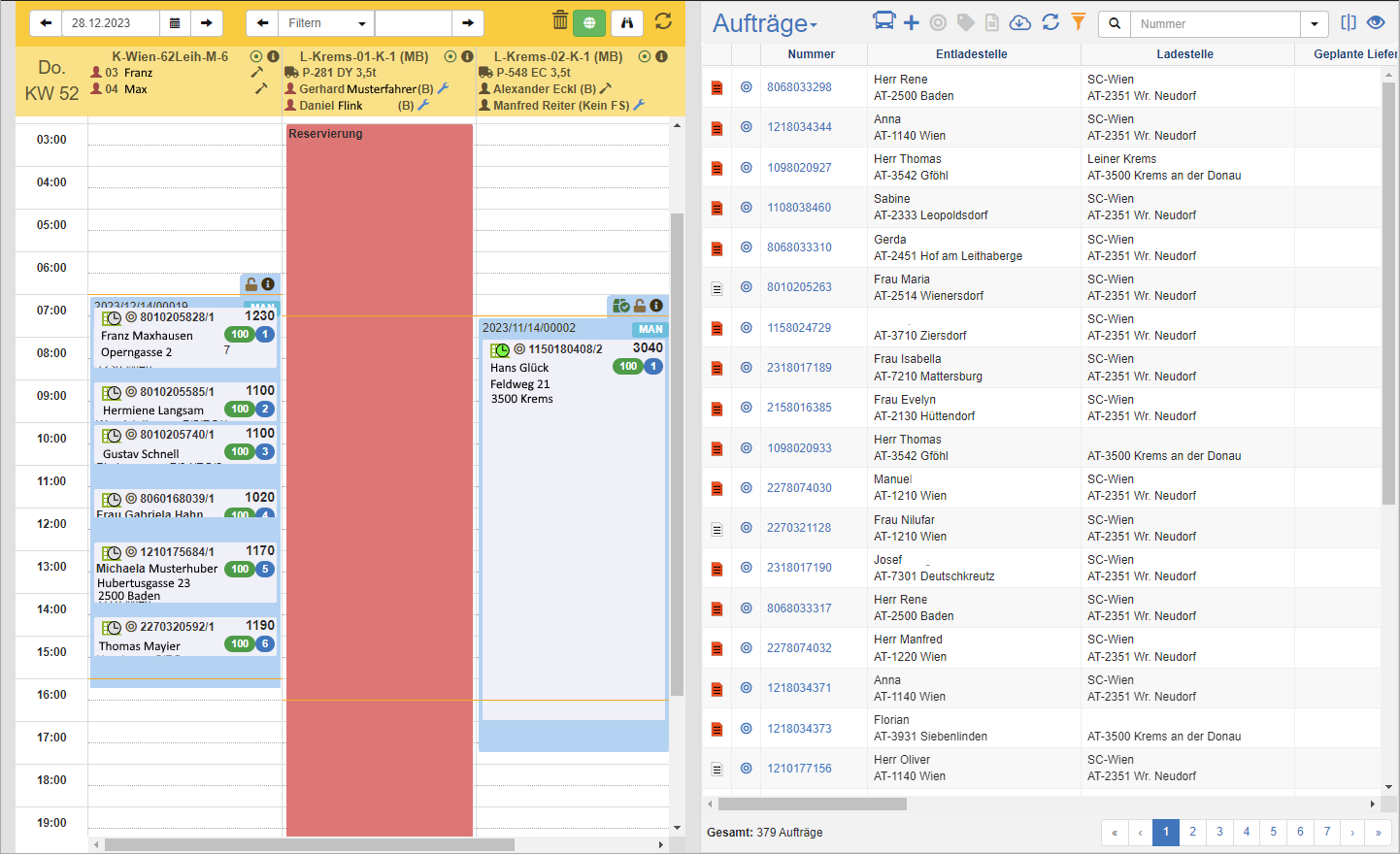
Discupender
In the title bar of the MRP calendar, select the MRP date. This is the date on which the transports are carried out. You only ever see a single day in the shipping scheduling facility. The disposer displays a separate column for each relation/tour.
In the Sheet and filter bar next to the scheduling date, you can browse through the tours. You can use the filter dropdown to filter the tours by relation groups. Relation groups are groups of tours that you can put together as you wish in the system configuration.
In addition to the relation group filter, you can filter by the names of the tours in the free text field. For example, if you type in the word Vienna, you will see all tours whose name contains Vienna. You can also specify multiple search criteria.
Below the title bar, a separate column is displayed for each relation/tour with the following information:
- Column header with the Tour Infoblock: Displays the tour, resources (employees and vehicles), as well as their availability.
- Transports: The Transport represents the specific route and is displayed proportionally in the time grid.
- Within the transports, you can see the stops, which are the shipments with status and address information.
- If a tour is not available on that day, a red reservation box will be displayed.
Tour Info Block
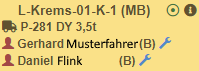
In the tour info block you can see:
- Tour name: Click on the name to go to the tour settings. There, in addition to the name, you also specify the operating hours of the tour.
- To the right of the label, you'll see the indicating an alternate endpoint for the tour. For example, you can end the tour at the driver's home address.
- Resources grouped by type: You will see the vehicles and people that are assigned to this tour by default.
- To the left of the resource, you'll see a resource type icon. If the resource is not available, the icon will be red. If you hover your mouse over the icon, you will see additional information about the unavailability of the resource. Click the name of the resource to edit the associated master data.
- To the right of the resource, you'll see an icon that indicates people's qualifications. If you hover your mouse over the icon, you will see the description of the qualification.
See also: Change Resources
Transports
The course of the day is displayed downwards. The transport is visualized in this time grid according to the start and end time.
At the beginning of the transport you will find the Transport Infoblock.

Click on the action Block MRP to prevent further scheduling operations for this transport. This ensures that a completed MRP cannot be changed by other colleagues in the scheduling team. Click on the action Unlock overdraft to remove the lock.
To get to the details of this transport, click on the action Show transport info. In the list view on the right, you can see the header data of the shipment with the following information:
Relation/Tour
- Resources: vehicles, people
- Start time and place
- End time and place
- Distance in km, travel and working time in hours and minutes
- Stop list: List of all shipments with estimated arrival and departure times
Click on the action Move transport to move the transport to another day and/or tour. To postpone the transport to another tour on the same day, drag and drop the transport onto a free tour.
Stops
Inside the transport (blue rectangle), you can see the stopped stops with the stop address, shipment status and stop order. The stops, like the transports, are visualized in the time grid according to the arrival and departure times.
In the first line of the stop info block you will see the stop symbol, see also shipment symbol. Depending on the type of appointment, the shipment symbol is extended by a time symbol.
fixed appointment
date & tour fixed
Click on the action Prepare Order to enter the order preparation of this shipment. See also Preparing Order/Shipment.
List view
To the right of the discupender you will see the list view. Select one of the following views:
Orders: Displays the list of all outgoing orders whose responsible department corresponds to the transaction data filter. From here, you can use the action Prepare order to enter the order preparation for this order. You can also select multiple jobs and switch to job preparation in the Title Action Bar. See also Preparing Order/Shipment.
Shipments: Displays the list of all shipments. In this context, shipments are already scheduled delivery dates, which are usually based on one or more orders.
Schedule - Vehicles: Here you can see the list of vehicles for the scheduling date set in the scheduling date. Next to the vehicles, you will see an icon that visualizes the availability of the resource. In the title bar of the list, you can filter by vehicle type and availability.
Schedule - Persons: Here you can see the list of persons or employees for the scheduling date set in the Dispoender. Next to the people, you will see an icon that visualizes the availability of the resource. In the title bar of the list, you can filter by the employee's role and availability.
Types of Availability:
Available & scheduled
Available & unscheduled
Absent & scheduled
Absent & unscheduled
Note
To find a shipment in the Dispander, click on the shipment icon in one of the list views or in the order or shipment preparation. The Discupender jumps directly to the delivery day of the shipment and highlights it in yellow.
The standard list functions are available in all lists:
| Symbol | Function * | more information |
|---|---|---|
| Export: Exports the data to Excel. | Export Data | |
| Update: Updates the current list. | Working with Lists | |
| Filter: Set criteria that limit the number of records in the current list. | Working with Lists | |
 |
Quick Search: Searches the list by the default criterion. | Working with Lists |
| Views: Switch or create views. | Switch Views edit views |
* Attention: Depending on the context, not all actions are always available!
Order Preparation & Shipment Preparation
The order and shipment preparation are very similar. The only difference between them is that order preparation first transfers a sales order to a shipment. Partial deliveries or the combination of several orders into one shipment can be defined.
In the case of shipment preparation, this step is omitted. There are no sell orders.
In the preparation of the order or shipment, the 3 essential criteria for route planning are determined.
- What will be delivered (only in case of order preparation)? Which items are delivered.
- What resources are required for delivery? Determine the required resource package.
- How long does it take to assemble on-site? Indication of working time in minutes.

Procedure***:
- Select the desired job from the job list and click on the action Prepare order.
- The Job Preparation View opens.
- In the Order section, you can see the parties to the order (Client, Loading Point and Unloading Point).
- In the item list below, select the order lines that you want to deliver together. By default, the entire order quantity is transferred to the MRP quantity. If necessary, you can also schedule only a subset of it.
- Click on the Create Shipment action. You will now see a new shipment in the shipment list with the delivery address and the default values of the order for the required resource package and the estimated working time.
- Adjust the values accordingly.
- To record additional deliveries, repeat steps 4 to 6.
- For each subsequent shipment, a new shipment will be created in the shipment list.
- Click the Save action to complete the job preparation.
Add more jobs
When you enter the order preparation view, you can see all orders and the associated shipments. If there are other open orders that need to be delivered to the same unloading point, the number of matching orders for the Add order action is displayed in the action bar below the items.
Adding Items to an Existing Shipment
- First, select the desired position.
- Then click on the Create Shipment dropdown.
- Now select one of the shipments that have already been created. The position is added to this shipment.
- Click the Save action to complete the job preparation.
Remove items from a shipment
- First, select the desired position.
- Change the MRO quantity of the item for the shipment to 0.
- Click the Save action to complete the job preparation.
Scheduling shipments
There are several ways to schedule shipments.
Direct scheduling: Use drag and drop the shipment symbol into the scheduling calendar. You can drag the shipment onto an existing transport (blue rectangle) or onto an empty route. In this case, a transport is automatically created for this tour. You can perform this operation from order or shipment preparation and from the order or shipment list.
Suggested date:
- In the Order or Shipment Preparation, click on the action Scheduling in the shipment list. The scheduling window opens.
- Set the possible time period for suggested dates in the earliest and latest delivery date fields. Attention: These fields are blocked if an earliest or latest delivery date has been agreed with the customer on the order. To unlock these fields, click on the lock icon and provide a reason for the move.
- In the Tour field, you can limit the search to free time slots of a specific tour. This makes sense if, for example, you want to send a specific team to a customer.
- Enable the Afternoon - Time Slots option to show only time slots after 12:00.
- The options Ignore resources or Ignore qualifications also provide time slots of tours that are actually not sufficiently qualified.
- Click on the Get Suggested Appointments action. You will now see possible tours and time slots in the list of suggested dates.
- Select the desired row and click the Apply action.
- The proposal is taken into account in the preparation of the order or shipment.
- Optionally, you can change the type of date fixation in the shipment list of order preparation (date fixed or date and tour fixed)
- Click the Save action to save the proposed appointment.
Move shipments
You can move shows in the Dispander in the following ways:
Drag & Drop: Move the shipment forward or backward on the same tour. You can also reschedule the show to another tour. In doing so, the system checks whether the new tour meets the required qualifications.
Tip
You can cancel the scheduling process at any time by pressing the ESC key.
Postponement to another day: To postpone the shipment to another day, click on the action Postponement. The rescheduling view for shipments opens. Set the desired period here. The list graphically visualizes the occupancy rate per day and tour. In a row, click the gray area. You will now see the show displayed as a yellow rectangle in the row. Click the Apply action to save the move.
Extend or shorten the working time: Hover your mouse over the top or bottom of the stop info block. The cursor of the mouse changes to an arrow representation. Click and hold the left mouse button and move the mouse up or down. The calendar entry of the stop will be adjusted accordingly.
Note
For all dispositions, it is checked whether the arrival time window agreed with the customer can be adhered to. If not, the MRP process is aborted and a corresponding error message is displayed.
Change resources
In the tour info block, you can see the resources currently stored for the tour or transport. To change the resources of a transport, you can:
- Replace Resources: Drag the icon of the new resource to the icon of the resource to be replaced.
- Add Resources: Drag the icon of the new resource to the name of the tour. The resource will also be added to the transport/tour.
- Remove Resources: Drag the resource's icon to the Trash in the title action bar of the MRP calendar.
Note
You can perform this operation using a resource from the tour info block of another tour or from the Deployment Plan for People or Vehicles.