Stock
Inventory will show you the list of all item stocks in all warehouses for which you are eligible.
Tip
The Warehouse Authorization controls which Warehouse Components and Inventory you can access so that the customer or department concept is reliably applied.
In principle, the transaction data filter is used to determine the authorized warehouses. The current department is used as an entry point into the organizational structure.
If the current department has activated the ShowParentStock option, the organizational structure will move up as long as the OrgUnits above it have also activated the ShowParentStock option. In this case, the entry point for the movement data filter is the highest OrgUnit in the tree.
If there is no stock above it, the OrgUnitID will remain unchanged.
From this entry point, all organizational units and their assigned warehouses are determined by means of transaction data filter.
In the title bar, choose whether you want to view the list summarized per item or detailed per collo/bin.
Inventory Management in shippingNET is technically always based on a collo. This means that every item inventory is always posted to a Collo and never directly to a storage bin.
Note
Depending on the storage bin configuration, it is possible that the collo is dissolved during storage. This means that the entire stock of the Collo will be transferred to the storage bin. After that, the Collo no longer exists. Technically, there is also a collo with the number of the storage bin and a "_" sign in front of it on a dissolved storage bin. This collo is fixed connected to the dissolved bin and cannot be moved away from it.
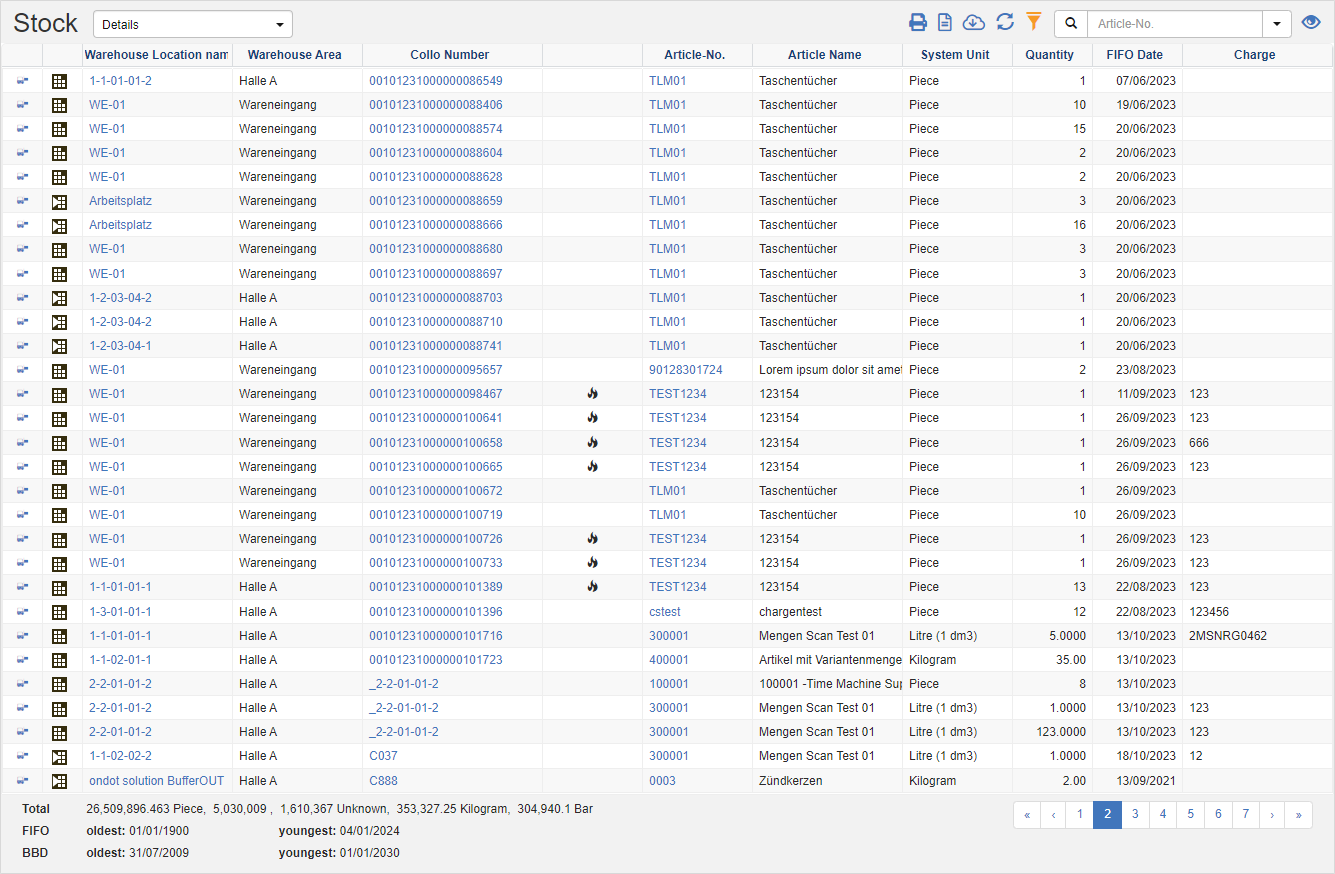
Stock Detailed:
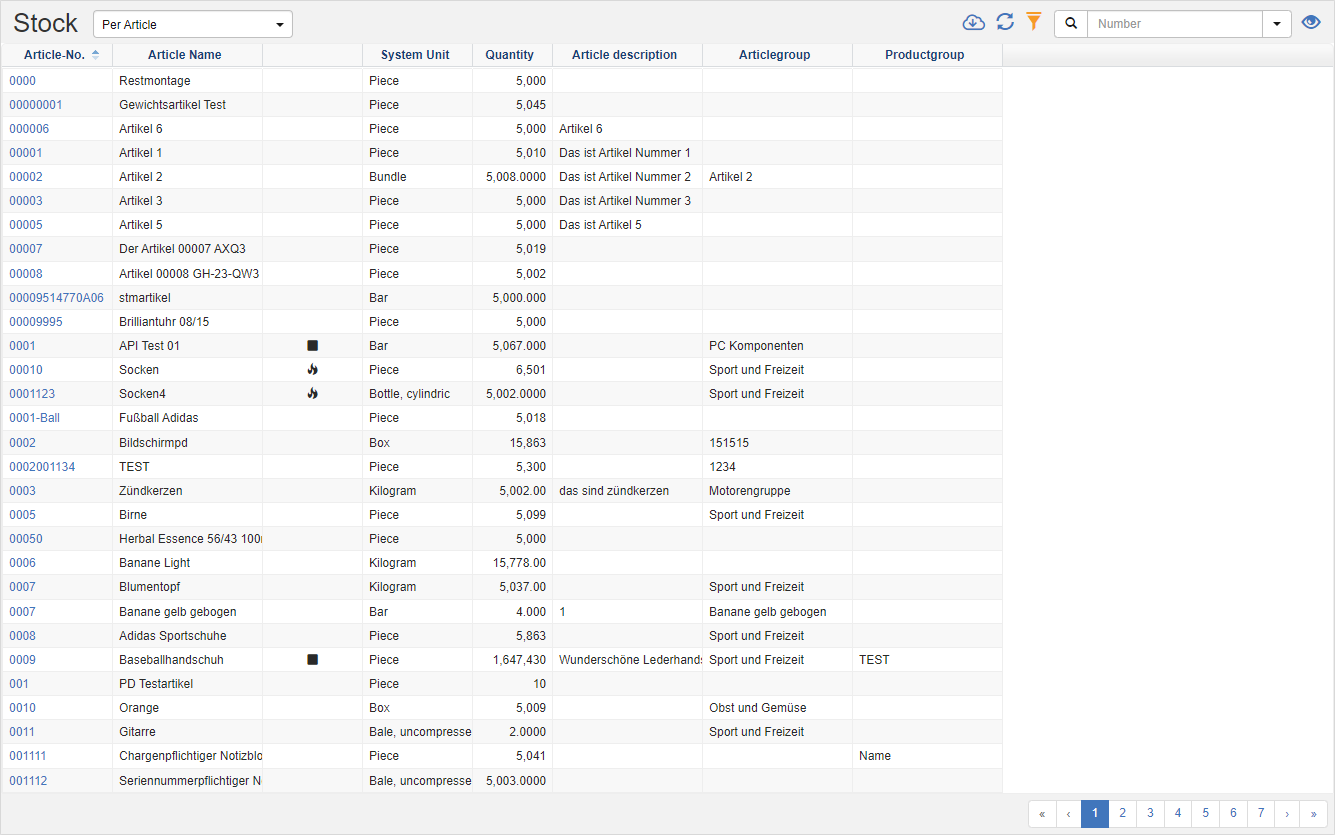
Inventory per item:
Below the list you can see the sum information with the values for the current filter setting:
- the quantity per system unit
- the oldest or youngest FIFO date
- the oldest or youngest best-before date
Actions in the title bar
Special Promotions
| Symbol | Function |
|---|---|
| Create Outgoing Goods Order for Selected Inventory: Create a Goods Issue Order for the selected item inventory, which you can subsequently retrieve with a pick list. | |
| Print stock labels: Print stock labels for the selected item inventory. |
General List Actions
| Symbol | Function * | more information |
|---|---|---|
| Export: Exports the data to Excel. | Export Data | |
| Update: Updates the current list. | Working with Lists | |
| Filter: Set criteria that limit the number of records in the current list. | Working with Lists | |
 |
Quick Search: Searches the list by the default criterion. | Working with Lists |
| Views: Switch or create views. | Switch Views edit views |
* Attention: Depending on the context, not all actions are always available!