Stock transfers and inventory adjustments
Inventory Management in shippingNET is technically always based on a collo. This means that every item inventory is always posted to a Collo and never directly to a storage bin.
Note
Depending on the storage bin configuration, it is possible that the collo is dissolved during storage. This means that the entire stock of the Collo will be transferred to the storage bin. After that, the Collo no longer exists. Technically, there is also a collo with the number of the storage bin and a "_" sign in front of it on a dissolved storage bin. This collo is fixed connected to the dissolved bin and cannot be moved away from it.
Relocate
During the transfer process, a collo is moved from one storage location to another.
Open the Collo in the Collo Editor. To do this, click on the collo number in one of the collolists. See also Colloeditor.
On the General Map, click on the Relocation action in the Current Storage Bin field.
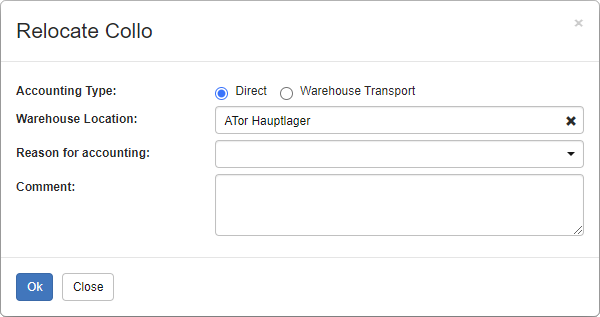
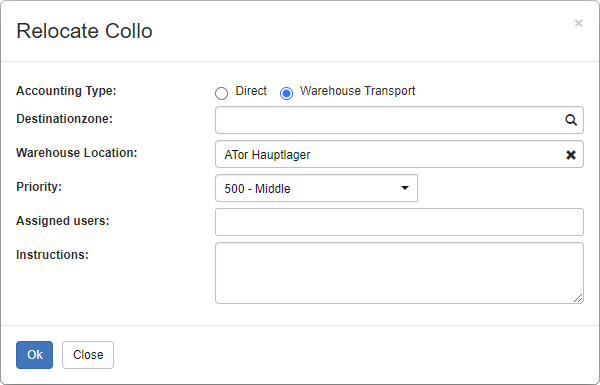
Select the posting type: Here you can specify whether the stock transfer should be carried out directly or whether a transport order should be created for later processing by the warehouse staff.
Fill in the other fields and then click OK.
Stock correction
Inventory correction changes the item inventory on a collo. This change can reduce or increase the quantity as well as change properties such as FIFO date, batch, serial number, etc.
Open the Collo in the Collo Editor. To do this, click on the collo number in one of the collolists. See also Colloeditor.
At the bottom right of the Action bar, click on the Inventory Change action and select the Inventory Correction option.
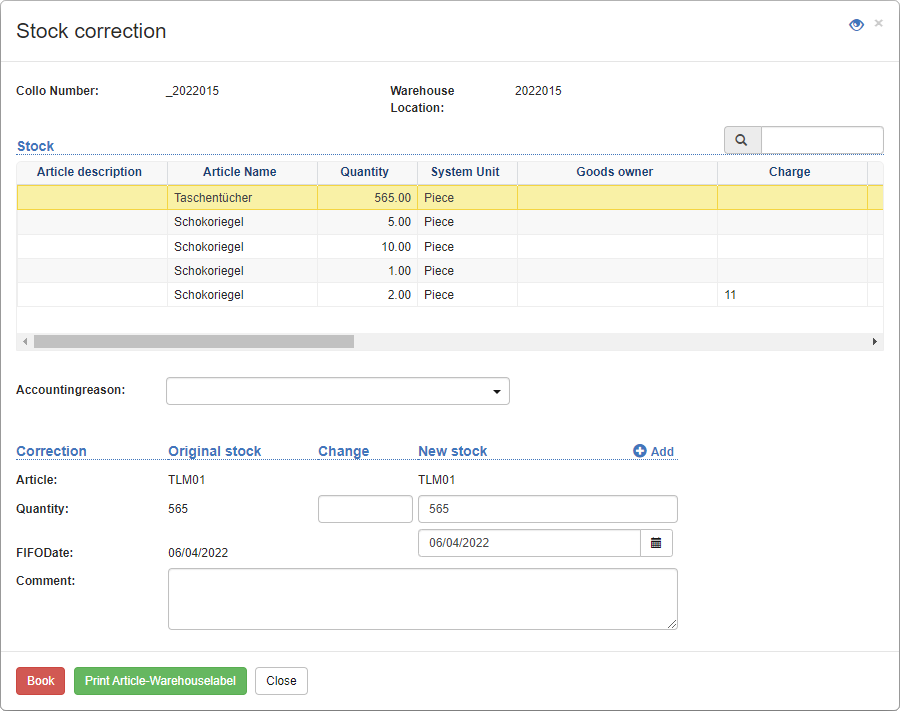
In the stock correction dialog, you will first see the collo number, the current storage bin and the list of the items posted on the collo posted with quantity, system unit and their properties.
Select the inventory line that you want to change.
Select a Reason for Booking. It is necessary to enter a posting reason because the action changes the stock and there must be a reason and additional information for it.
Under the booking reason, you can now change the quantity and other properties.
Click on the Book action. The stock change is carried out immediately.
Note
many projects, inventory corrections have to be transferred to another IT system. Contact your project manager about this.