Fine picking
Fine picking is the next step in multi-stage picking strategies.
Two-step picking is a specific method in the picking process that serves to increase efficiency in the preparation of customer orders. This method divides the picking process into two main stages to streamline the workflow. Here are the basic principles of two-step picking:
Batch picking: In the first stage, the pickers are tasked with processing several orders at the same time. They collect items needed in various orders as they go through the warehouse. This allows for a more efficient use of walking distances and a reduction in the total distance that an order picker has to travel.
Order picking: In the second stage, the actual order preparation takes place. The previously collected products are sorted and assembled according to the individual customer orders. This step is often carried out in a separate area of the warehouse, where the products are sorted by customer order.
Two-stage picking offers several advantages:
Efficiency Increase: Collecting products for multiple orders in one round increases efficiency by optimizing pickers' paths.
Reduction of walking distances: Since bulk picking is used to collect the items for multiple orders at the same time, the walking distances in the warehouse are minimized, resulting in time and cost savings.
Better utilization of resources: Two-step picking allows for more effective use of available manpower, as pickers are able to process multiple orders in one pass.
Reduction of bottlenecks: By bundling orders in collective picking, bottlenecks and waiting times can be reduced as multiple orders are processed at the same time.
When goods are received, the delivered items are compared with the expected order items. The items are posted on Colli and then stored from the goods receipt gate to the corresponding storage area with drive orders.
Prerequisites
Outgoing goods order: For the correct posting of the goods issue, one or more outgoing goods orders must be available for all items. Typically, these were automatically imported from a leading IT system. See also Issue Orders.
Pick list: There must be a pick list with a two- or multi-step picking strategy in which the order lines and the withdrawal quantities that you want to retrieve have been recorded. See also Picklist.
Execution of the driving orders of the pick list: The driving orders of the upstream process stages must have been carried out partially. Depending on the selected picking strategy and configuration of the mask, either all or at least part of the goods must have been placed at the destination storage location.
You can perform fine picking in both the web app and the mobile app.
Tip
Depending on the use case, the web app or the mobile app is to be preferred. If you are working with a mobile picking trolley with a PC and a label printer installed, the web app is recommended. If you prefer to work remotely due to the structural conditions, we recommend the mobile app.
See also Fine Picking - Mobile App.
Fine Picking - Web App
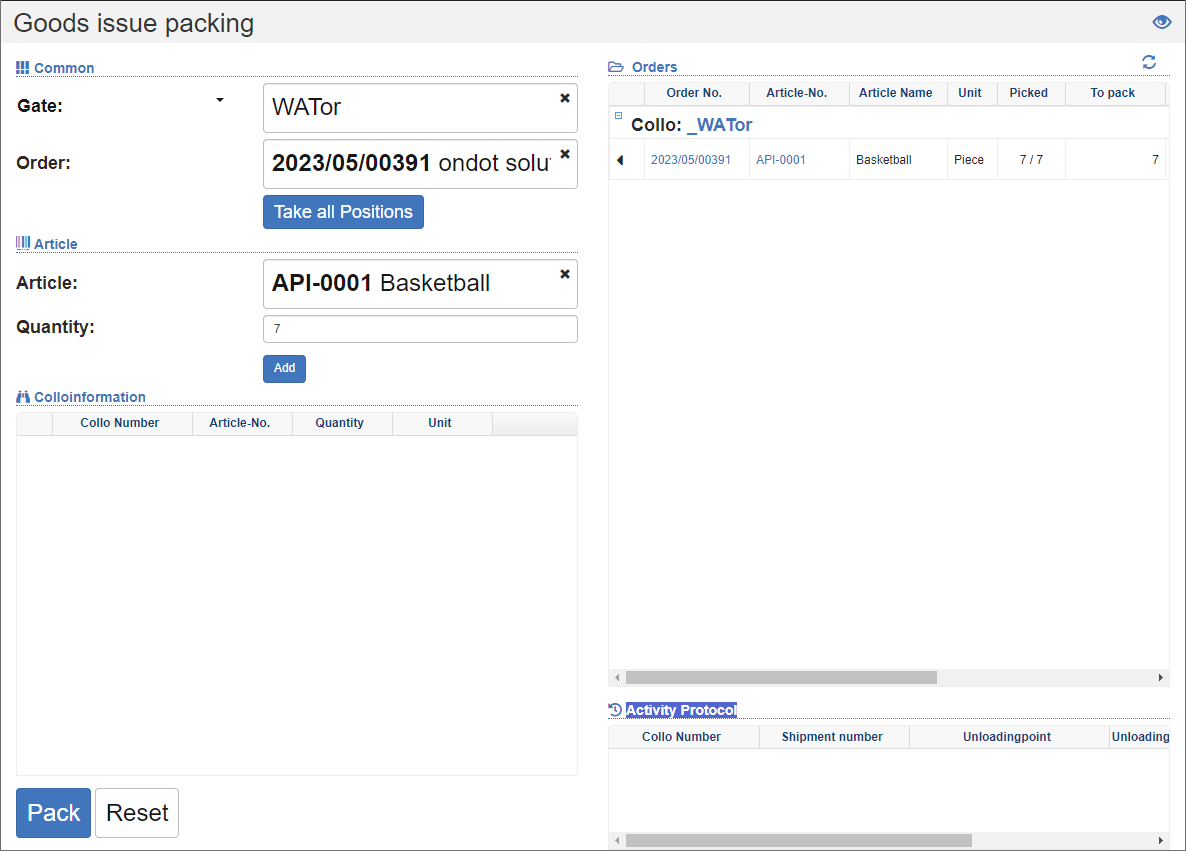
Fine Picking Process
Select the Goods Issue Gate or the Packing Line Storage Bin. This is the target storage location of the pick list.
Scan the item number of any item. The system automatically searches for the appropriate outgoing goods order and shows you all the required items on the right with the quantities to be packed. Optionally, you can click on the corresponding line in the List of orders.
If the item requires the entry of batch numbers, best-before date, etc., enter these data in the appropriate fields. Often, this data is contained in the GS1 barcode and is therefore automatically transferred to the respective fields during scanning.
In the Quantity field, enter the number of items you want to pack in the system unit.
Next, click on the Add action. In the List of orders, you can see in the To pack column that the quantity you just packed has been deducted.
Optionally, you can select the action Apply all items. All items of the order are automatically transferred to the current collo.
Repeat the process until either all items of the order have been packed or the collo is full.
Click on the Packing action to complete the packing process for the current collo. See also Completing Collo.
List of orders
Selecting the outgoing goods gate will update the list of orders on the right. In this list, you can see the progress of packaging. It displays the list of orders with their positions and the current quantities for each parked collo. When you scan an item or click on an item, the order behind it is placed in the order filter on the left. As a result, you can only see the items that belong to this order and need to be packed. Fully packaged items are marked with a green checkmark.
Activity Log
At the bottom right, you'll see the activity log. Here, after completing the collo, you will see the list of all created collis and the associated shipments.
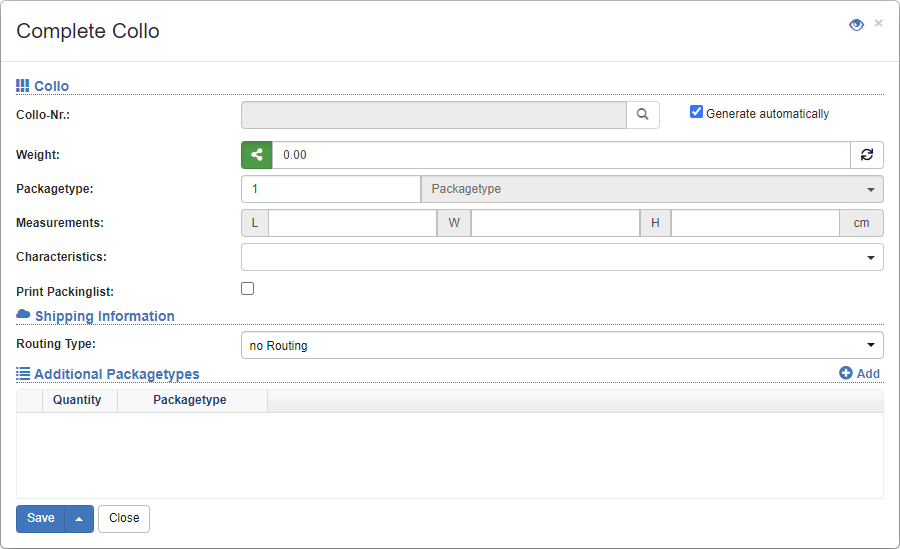
Complete collo
Click on the Packing action to complete the packing process for the current collo.
You will now see the Complete Collo dialog. Either select an existing collo or leave the collo no. blank to create a new one.
Then enter the loading equipment, as well as the dimensions and weight of the colli to be created.
Click the Save action.
Repeat the process for all subsequent collis.
Options
You can access the options when you edit the current view. To do this, click on the action Edit view in the title bar. After that, click on the action Settings and set the desired configuration. After that, save the view.
Show all orders: Specifies whether only orders whose requested items have been completely placed at the destination bin are displayed, or also orders for which only a part has been delivered.
Move goods immediately to the target list when selected: Specifies whether the requested quantity is automatically added to the current collo when the item is selected or only the item field is set for filtering in the left mask.
Move goods piece by piece when scanned: Specifies whether a unit is automatically added to the current collo when the item is scanned.
Move all related goods when selecting an order: Specifies whether all related items are automatically moved to the same collo when an order is selected.
Warning when order lines are left for packing: Specifies whether a warning is displayed if not the entire order quantity has been packed.
Collapsed Grouping: Specifies whether the display of the orders shows the grouping of the collo collapsed or expanded.