Avisoeditor
A receiving notification is an essential part of an efficient logistics and warehouse management system, it is the digital image of a delivery note. This tool is designed to ensure the smooth process of receiving goods and allows your company to accurately track stock levels. The incoming goods notification informs about incoming deliveries in advance and allows warehouse employees and logistics managers to prepare for the upcoming deliveries.
Characteristics of the Receiving Notification:
Supplier Information: The notification contains important information about the supplier, including name, address, and contact details. This allows for clear identification of the places of origin of the incoming goods.
Delivery date and time: The expected delivery date and the planned time of delivery are crucial information in the goods receipt notification. This information allows warehouse staff to optimally plan the receipt of goods and avoid bottlenecks.
Item and quantity information: A detailed list of the delivered items including quantities is included in the goods receipt notification. This allows warehouse staff to match the order with the goods delivered and immediately identify discrepancies.
Transport information: The notification contains information about the means of transport and the company. These details are important in order to understand the transport route of the goods and to identify any logistical challenges at an early stage.
Create Aviso
You can create the Goods receipt notification in the Avisoeditor. The Avisoeditor, like each editor, is divided into several index cards and sections to form thematic focal points. In addition to entering the general basic information that can be found on the General Map, you can add the expected orders here.
On the Items card, you define the delivery quantity per order line. The cards Goods Acceptance Protocol, Shipment List and Status are used for the traceability of processes (or provide an additional overview of the current status of the notification).
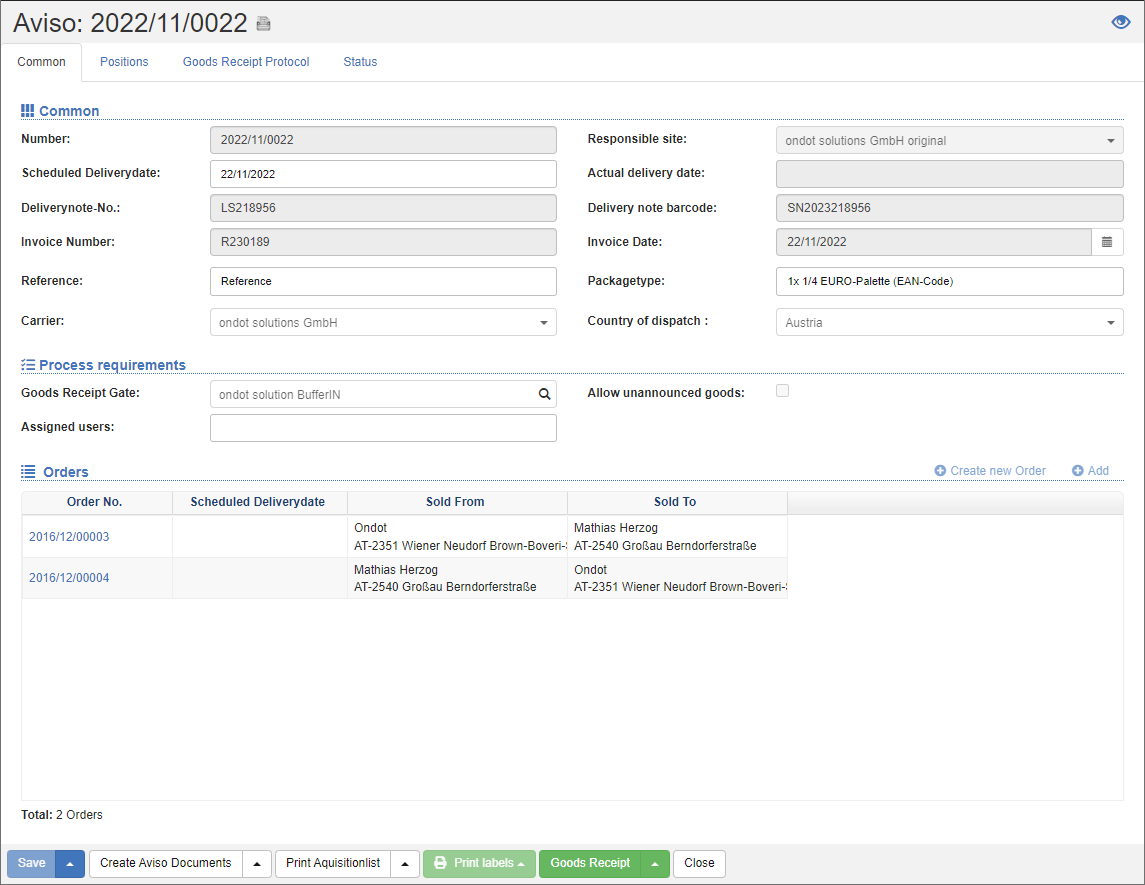
General
On this map you can see the most important information at a glance.
In the Notification Number field, you can assign a unique number. If you leave the field blank, a number will automatically be drawn when saving.
Then enter the planned delivery date, delivery note number, invoice number and carrier.
In the reference fields you can enter identification numbers. For example, you can store the order number of the sender or a booking number from the supplier's point of view.
In the Process Requirements area, define the goods receipt gate at which the goods transfer is to be processed. Optionally, you can assign the execution of the goods transfer to a specific employee. In the Allow unannounced goods field, specify whether items that have not been listed in the order items of the notification can also be transferred. Unannounced items must also be recorded on an order. Therefore, when the Allow unannounced goods option is activated, the Order for unannounced goods field is displayed. In the next step, an existing order can be selected. If no order is selected before saving, a new order will be created upon saving, and the unannounced goods will be added to this new order.
In the Orders area, assign the goods receipt orders that are to be transferred with this notification. To do this, click on the action Add in the List action bar. A dialog box opens with the list of open goods receipt orders. The standard list functions for filtering and searching are available here. Select the jobs you want and click the Apply action. You will now see the order items in the list of orders. Now switch to the Locations card to capture the quantity per item.
For more information about the fields of the notification, see Alert Fields.
Positions
On this card, you enter the details of the transfer for each order item. In the item list, you can see all the items of the orders that have been added to the General card.
Note
In the list action bar, you can use the quick filters to narrow the list so that you only see the open or positions with differences.
Now enter the quantity according to the delivery note for each item. Optionally, you can enter additional information such as the invoice number, delivery note number and gross weight.
Tip
With the Adopt Open Quantities action, you can automatically fill the quantity according to the delivery note with the open quantity per order item.
Warning
Your changes will not be saved until you click the Save action in the action bar below the editor. If you leave the editor without saving, your changes will be lost!
Print access list
After the notification has been created, the receipt list must be printed before the goods are received. The receipt list is an accompanying document for the goods acceptance team. It shows additional item information to help identify the items, as well as barcodes in case the barcodes on the goods are damaged or illegible.
This process locks the entry of the fields and you can start with the goods transfer. See also Takeover of goods.
Goods Acceptance Protocol
In the Goods Takeover Protocol tab, you can see the transferred items per Collo:
- Collo number: Load carrier on which the goods have been transferred.
- Order No.
- Item no.
- Article name
- System unit: The inventory unit of the item.
- Transferred quantity
- Quantity stored
- Creation date (posting date)
- Created by: The employee who carried out the goods takeover
Status
Status information that relates to the entire notification can be managed on the Status card.
An Aviso can get the following current statuses:
| Symbol | Code | Description | Final |
|---|---|---|---|
 |
IMP | Imported into shippingNET | |
 |
MAN | Manually created in shippingNET | |
 |
STO | Cancelled | ✔️ |
 |
CMP | Completed | ✔️ |
 |
GRC | Goods Acceptance Completed | |
 |
ALP | Access list printed | |
 |
AVC | Notification completed |