Transport - Clearing Control
Clearing control occupies a prominent position in your logistics company, especially when it comes to ensuring that all transports and shipments carried out are properly accounted for. The logistics and transportation industry faces the challenge of handling a wide range of complex transactions and services, where billing errors can not only have a financial impact, but also affect customer trust. Systematic monitoring and control of billing processes are therefore essential to ensure accurate, transparent and traceable billing. Find out here how you can ensure that all shipments carried out are adequately recorded and billed accordingly with the help of effective clearing control.
In the Transportation - Clearing Control, you will see the list of all Transportation Settlement Objects, according to the Clearing Data Filter.
Note
Settlement object: A separate settlement object is created for each transport or shipment and relationship to a billing party (customer or supplier, carrier). All costs and revenues associated with this shipment/transport will be assigned to this specific settlement object.
The corresponding settlement object is automatically generated in the course of the transport or shipment system. Optionally, you can define additional settlement objects manually.
Tip
Billing Data Filter: You will see the Billing Objects of your Billing Department and all those that are below the Billing Department in all departments.
The Clearing Department is an indicator of an organizational unit with the characteristic Department in your organizational structure.
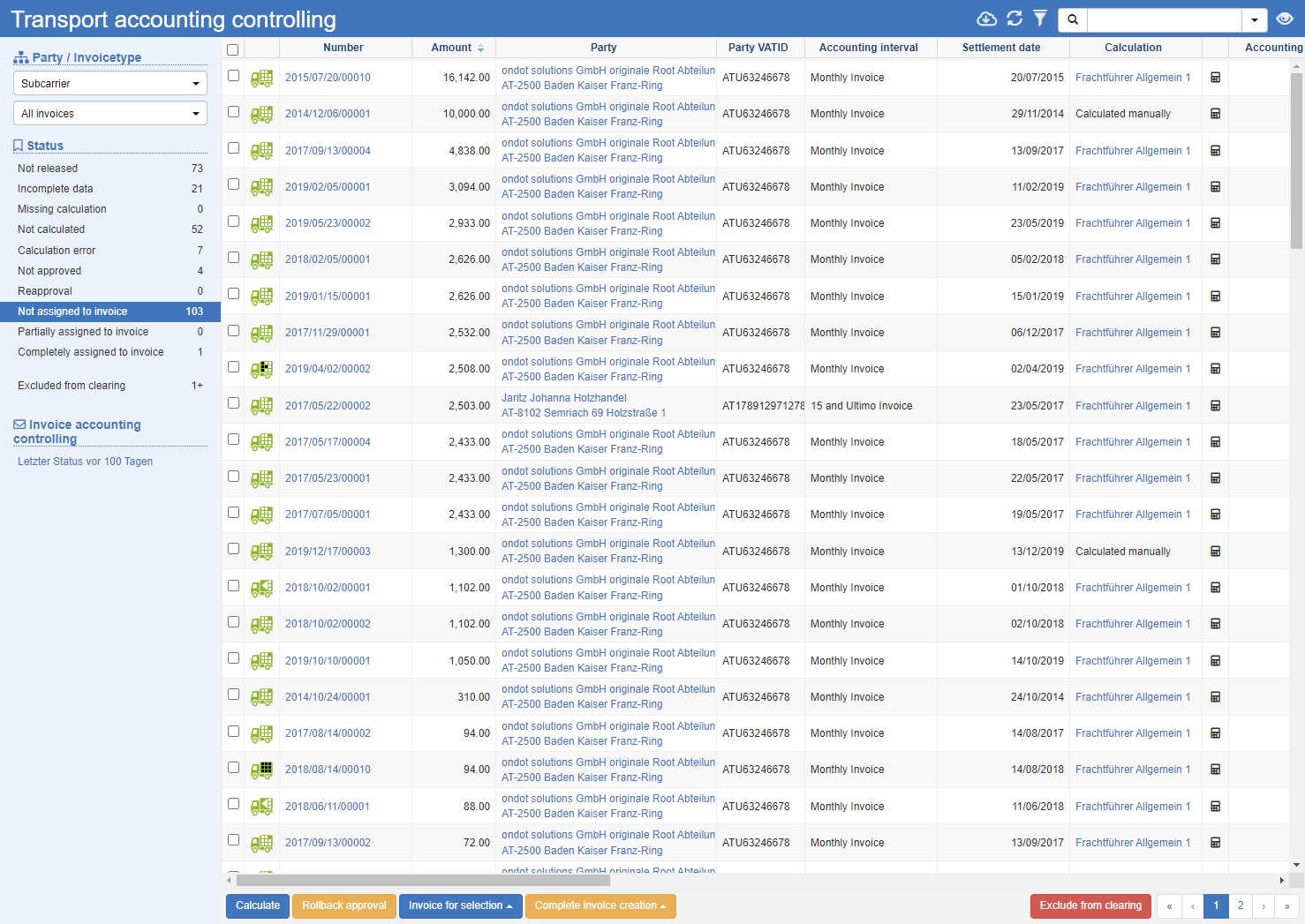
Status Area
The status area to the left of the list of settlement objects shows you a quick overview of the status of the individual settlement objects.
Filter
Party: Specify which billing objects you want to see. A separate settlement object is created for each party.
Document Type: Filter the view by incoming or outgoing documents.
Status
In the Status area, you can see the individual statuses of the settlement and the number of objects that are in this status. Depending on the status, corresponding actions are available below the list of settlement objects to further advance the process:
| Status | Description | Actions |
|---|---|---|
| Not released | Displays all billing objects that have not yet been released. Check the amounts charged here. | Share Calculate |
| Data incomplete | There is a lack of data relevant to billing. See the Errors column to see the cause. | Click on the number of the settlement object to correct the data. |
| Lack of calculation | Displays all settlement objects for which no costing is stored. | Calculate Disable Costing |
| Not charged | Displays all settlement objects for which no calculation has been performed. | Calculate |
| Calculation error | Displays all settlement objects for which an error occurred in the calculation. See the Errors column to see the cause. | Calculate Disable Costing |
| Not approved | Displays all billing objects that have not yet been approved. | Calculate Approve Approve List |
| Resubmission | If there are changes to the billing bases, such as the freight weight, and the associated settlement objects have already been approved, these objects are resubmitted. | Calculate |
| Not assigned to an invoice | Displays all settlement objects that have not yet been assigned to an invoice. | Calculate Roll back approval Invoice Assignment |
| Partly on account | Displays all billing objects that have only been partially assigned to an invoice. | Calculate Invoice Assignment |
| Fully on account | Displays all settlement objects that have been fully settled. | |
| Excluded from billing | Displays all settlement objects that have been excluded from allocation. | To include the objects in allocation, define an RFC status (release for calculation) for the corresponding object. |
Actions:
Release: Releases the selected objects and moves them to the next state.
Compute: Recalculate. This is particularly relevant in the event of changes to the billing bases or tariffs.
Disable calculation: Disables automatic calculation. Manual items will continue to be settled.
Approve or Approve List: Sets a status on the clearing object so that the costs or revenues are assigned to an invoice.
Reroll approval: Resets the approval. This rolls the settlement objects back to the previous step.
Invoice assignment: Specify how the selected objects are assigned to an invoice. The selection can be made automatically, manually or with an additional posting to a partial invoice.
Exclude from allocation: In all statuses, you can permanently exclude individual objects from allocation. As a result, no further process steps take place for these objects.
Invoice control
In invoice control, you will see links to configured views in invoice control. Make sure that the invoices created are sent or exported to the invoice recipients.
See also Invoice Control
General List Actions
| Symbol | Function * | more information |
|---|---|---|
| Export: Exports the data to Excel. | Export Data | |
| Update: Updates the current list. | Working with Lists | |
| Filter: Set criteria that limit the number of records in the current list. | Working with Lists | |
 |
Quick Search: Searches the list by the default criterion. | Working with Lists |
| Views: Switch or create views. | Switch Views edit views |
* Attention: Depending on the context, not all actions are always available!