Mobile App Delivery Module
In the dynamic world of logistics, efficient pickup and delivery of shipments is critical to the success of your business and the satisfaction of your customers. With the steady rise of e-commerce and global flows of goods, the need for a seamless and transparent supply chain is growing. The delivery module of the mobile app has been specially designed by us to meet the challenges of picking up and delivering shipments and to optimize logistics processes.
By using the mobile app, you not only support your drivers with an easy-to-use platform, but also ensure that your customers are informed about the status of their shipments in real-time. By integrating advanced tracking technologies, our app enables precise location tracking and accurate delivery time. This not only improves transparency for the end customer, but also enables effective route planning for delivery drivers, resulting in shorter delivery times and optimized use of resources.
In addition, the mobile app offers digital signature features that ensure a smooth and paperless delivery process. The app is designed to integrate seamlessly with your existing shippingNET - logistics system while providing a user-friendly interface for daily operations.
Prerequisites
The following prerequisites are required for the smooth operation of the delivery module:
- Use of suitable hardware (MDE)
- Installation of the shippingNET mobile app on your hardware and activation of the delivery module.
- Dropped transports with scheduled shipments for your tours.
See also:
Overview
To complete a tour with the pick-up and delivery of shipments, you will go through the following steps:
- Registration: See also Mobile App Registration.
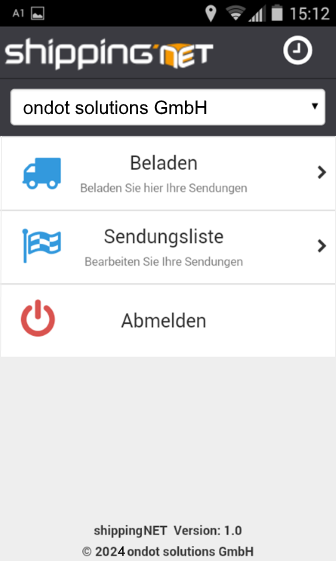
- Main Menu: In the main menu, choose between the actions Loaded and Shipment List.
- Loading the colli of scheduled shipments
- Pick-up / delivery of the shipments with the shipment list
- Conclusion of the tour
Main Menu
In the main menu, you can choose between the actions Loaded and Shipment List. You can also unsubscribe at any time. If you register again, you will be back in the same tour.
Loading
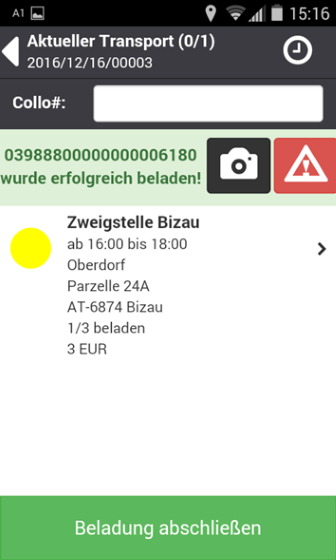
In the loading, you will first see the list of all shipments that have been scheduled for this tour. To the left of each shipment you will see a colored circle that shows you if Colli have already been scanned for these shipments:
Not a single colli scanned/loaded
At least one colli, but not all scanned/loaded
yet
All colli scanned/loaded
Procedure***:
Scan one collo at a time. The status changes as described above.
If you want to document the current state with a photo, click on the action The photo will be stored in the status list of the Collo.
If the collo is damaged, you can use the action Damage to store a DMG status.
Repeat the process for all Colli on the touring site.
If a Collo cannot be scanned, for example because the barcode is missing or defective, click on the shipment to switch to the detail view. Select the collo you want. It is now highlighted in blue. Click on the action Load manually. Alternatively, you can manually enter the number of the collo in the Collo# field.
After that, click on the Complete Loading action. If not all colli have been scanned, the query will be asked if you still want to complete the loading.
Note
After the loading has been completed, you cannot get into the loading. There is only the possibility to reload individual shipments!
Options***:
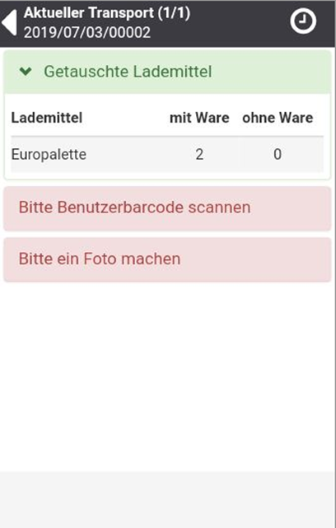
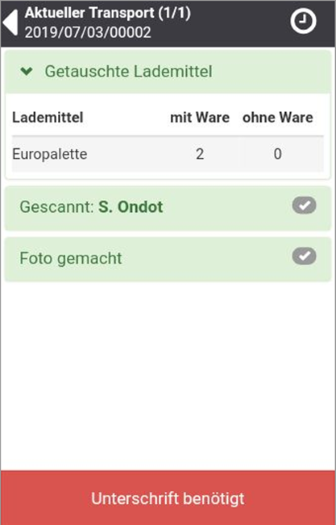
If your system has enabled loading equipment tracking, the loading equipment exchange view will be displayed after loading has been completed.
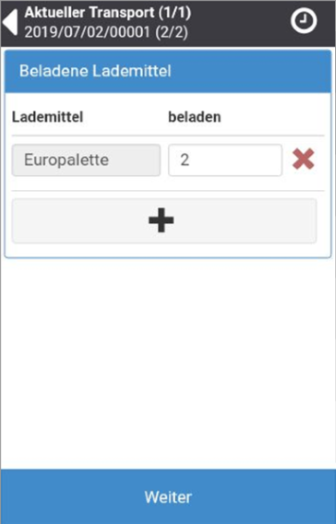
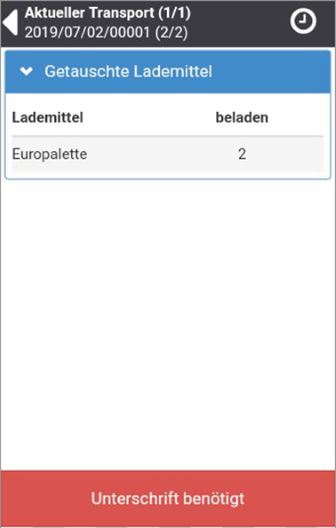
- Record the number of loading equipment you have loaded. With the action Add, you can enter other types of loading equipment.
- Then click on the Next action.
- Have the correct registration of the loading equipment confirmed with the signature of a representative at the loading point.
Delivery with the consignment list
- In the main view, click on the Shipment List action.
- Enter the mileage and license plate number in the Tour Start view.
- Click the OK action.
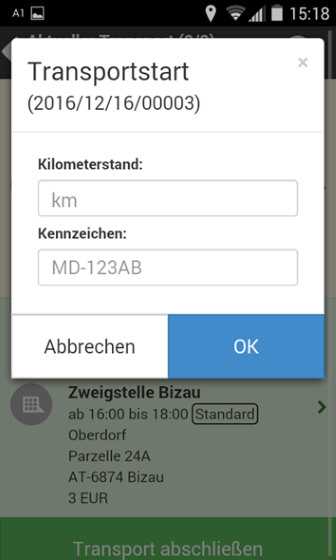
You started the tour. In this case, the TRS status (tour started) is stored in the underlying transport.
Shipment list
You are now in the shipment list. You'll see all the shipments you need to pick up or deliver.
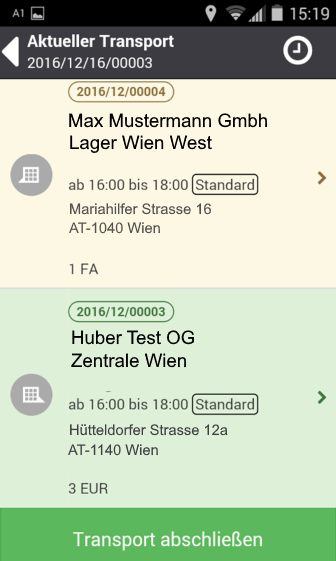
The shipment icon will show you if you need to make a pickup or a delivery:
 Pickup
 Delivery
 Pick-up & Delivery
Next to the shipment icon, you will see the address of the stop and the predetermined time window for arrival. Next to the time slot, the booked service type is displayed. Below you will see additional information, e.g. whether a cash on delivery amount has to be collected.
Navigation to the stop address
Click and stay longer on the shipment in the shipment list. The system will start the navigation and redirect you to the stop address.
Start the pick-up or delivery process
Depending on the type of stop, the process for deliveries and pickups is slightly different. Therefore, the delivery process is first described and then the additional steps in the pickup.
Start delivery process
Start the delivery process by either
- scan a collo of the shipment or
- click on the tracking number.
You will now see the shipment details clearly displayed in different groups. Click on the arrows in front of the groups to see more details such as sender, recipient, colli etc.
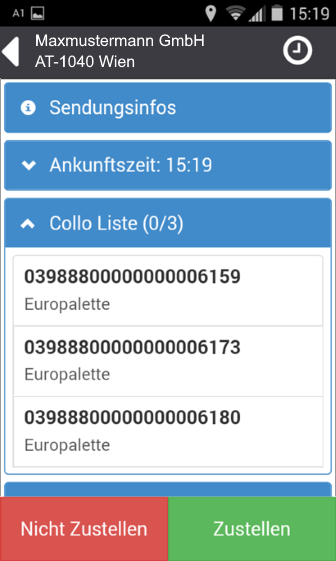
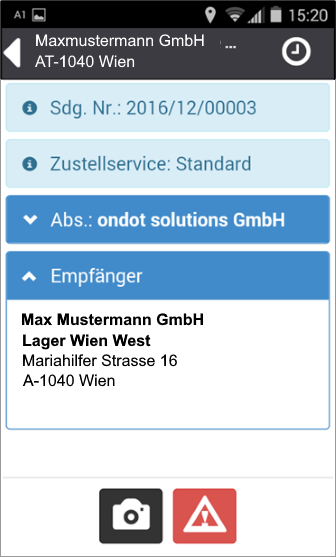
If you want to document the current situation with a photo, click on the action . The photo will be stored in the status list of the shipment.
If you want to store a general damage in the shipment, you can use the action Damage to store a DMG status.
Click on the action Back to go to the previous view.
Delivery impossible
If you are unable to deliver the shipment, click on the action . This is the case, for example, if the recipient is not found or the address is wrong, or if acceptance is refused. The corresponding status is stored on the shipment.
See also Broadcast status:
- DRD Status: Delivery Denied
- DOS Status: Delivery Impediment
Delivery possible
In order for you to be able to make the delivery positive, at least one collo must first be scanned or manually stored as delivered. Then click on the action .
Warning
In this step, select only one collo that you can actually deliver!
If you want to document the current state with a photo, click on the action . The photo will be stored in the status list of the Collo.
If the collo is damaged, you can use the action Damage to store a DMG status. By clicking again, the damage will be reversed.
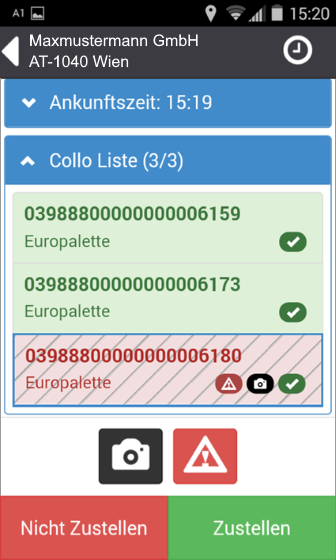
Collo successfully scanned
photo
Collo is corrupted
After clicking on the , select the type of delivery:
Receipt plain: The Colli were personally handed over to the recipient without any damage.
Turned off: The collis have been left at the recipient's place. In this case, it is mandatory to document the orderly parking with a photo.
Damage: The recipient accepts the shipment but notes that there is damage.
Partial shortfall: Not all collis could be transferred to the recipient.
Partial Refusal: The recipient does not accept at least one collo. If you have already scanned this collo, you must go back and click on the collo with your finger to undo the scan.
Note
The requirements for positive delivery have a big impact on the further delivery process. The choices for these requirements will be determined together with your project manager!
Depending on the selected type of delivery, you will now be guided through the corresponding views until the delivery process is completed.
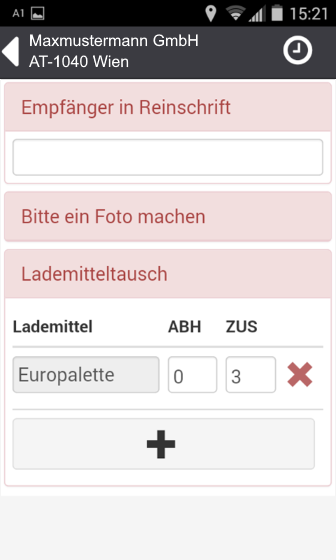
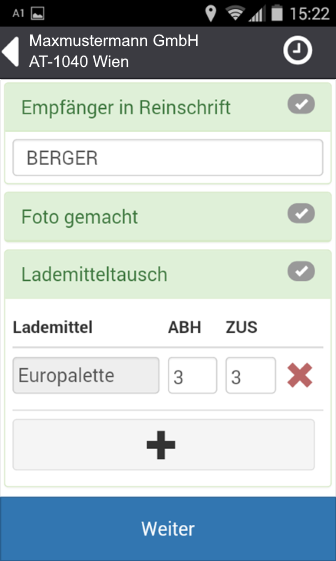
Typical requirements for positive delivery may include:
- Colloscan: Each Collo must be scanned.
- Evaluation by customer: At the end of the process, the transferee can evaluate the quality of the service.
- Door number: Subsequent registration of the door number.
- GPS check: The system checks whether the delivery process takes place within a radius of the previously determined geo-coordinates of the address.
- Mileage: Recording the current mileage is mandatory.
- Photo: A photo must be taken of the Colli of the show.
- Loading equipment processing: The exchanged loading equipment must be recorded.
- Recipient fair copy: The name of the transferee must be recorded.
- Return shipment: Specifies whether it is possible to enter a return shipment after delivery.
- Signature on the delivery note: The paper delivery note must be signed by the purchaser.
- Digital signature: The transferee's signature must be done digitally at the MDE.
Summary & Digital Signature
After confirming the collection of all requested information, click on the Continue action. Show this summary to the transferee before you have them sign the confirmation of the acquisition.
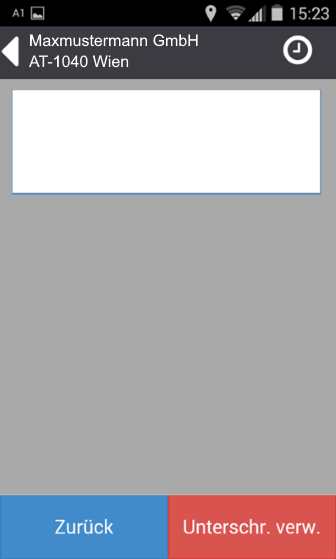
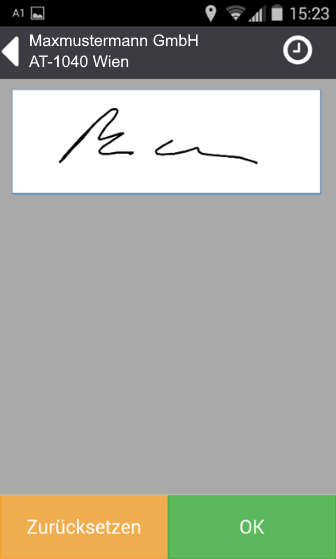
- Rotate the device 90° to make the signature field larger.
- If the recipient refuses to sign, click the .
- If the signature was recorded poorly or incorrectly, you can reset the field.
Confirm the signature dialog with the action .
Now the delivery process is over.
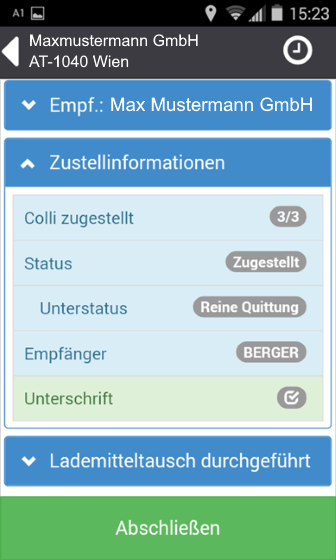
The action will take you back to the main view.
Start pickup process
The pickup process is only slightly different from the delivery process. Therefore, we recommend that you first read the information about the delivery process.
At the time of pick-up, there is usually no concrete Colli information known. Therefore, the collected colli must first be assigned to the shipment.
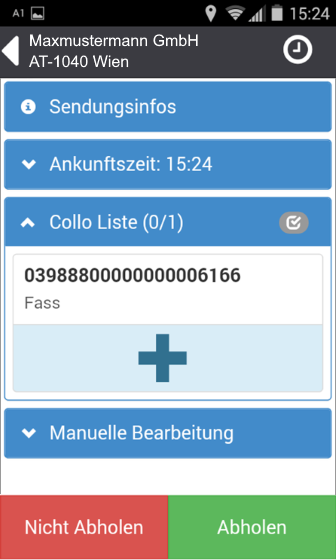
If the goods are already labelled at the customer's premises, or if you already have labels with you for collection, scan the collo number. As a result, the package is assigned to the shipment.
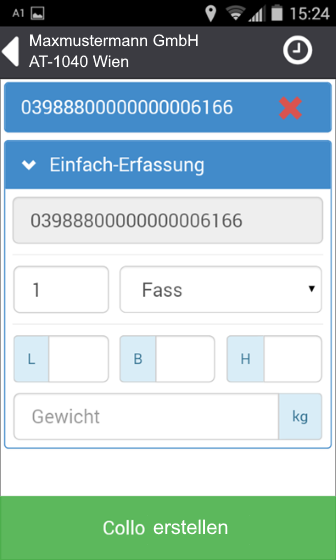
Alternatively, you can manually create a new collo with the action Add.
You will then be taken to the Collo detail view. Enter the weight, the loading equipment and the dimensions here.
Next, click on the action
In both variants, the collo is now assigned to the shipment and has already been scanned.
Change collo data
To change collo data afterwards, click on the collo or scan the barcode. As a result, the collo is highlighted in blue.
Click on the action Edit Collo. You can now correct the data.
Next, click on the action
Delete Collo
If you want to delete a collo, click on the action .
Conclusion of the tour
When you have returned to the depot after your tour and all shipments have been picked up or delivered, you will end the transport.
Click on the action Complete transport.
Record the mileage.
Click the OK action.
Optional: If Loading Equipment Tracking is enabled, you will be guided through the Loading Equipment Exchange. See Loading Equipment Exchange Option.
You are now in the main view. Click the Sign Out action.
Option: Loading equipment exchange
If loading equipment tracking is activated, you will be asked before the transport is completed whether you are unloading in the depot or just parking the vehicle.
Loading equipment replacement: Turn off the variant
If you select Parking, you will be taken to the Loading Equipment Exchange - Overview. Confirm the displayed loading equipment positions with your signature.
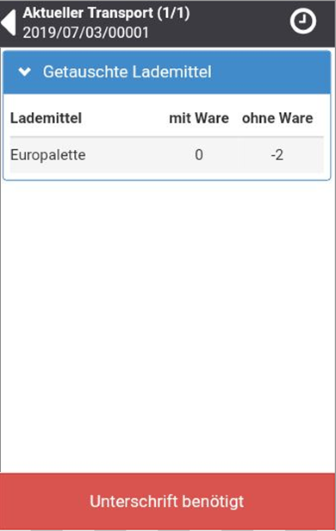
Loading equipment replacement: Unloading variant
If you select Unload, you will be taken to an editable Loading Equipment Exchange Overview.
Check the quantities of returned loading equipment and process them if necessary.
If you would like to add more loading equipment items, click on the action
Create a photo to document the handover.
Have the handover of the loading equipment confirmed by another user in the depot. To do this, scan the transferee's user barcode and have it signed.