Working with the Lookup Input Field
You can use the lookup input field to look up records from other entities. For example, if you want to select the sender of a shipment, you will be offered a lookup input panel in the shipment editor for selecting the desired organizational unit.
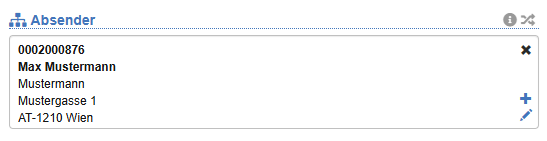
Example orgunit lookup in the broadcast editor:
Search/select a record
- Left-click inside the lookup box. The field will then switch to the search view.
- Enter a search text. e.g.: John Doe. Any change to the search text that is longer than 3 characters will load the corresponding data immediately and display it in the list of results below the input field.
- Navigate the list of results with the ↑ or ↓ keys and select the desired record with the ENTER key. Alternatively, you can select the record with the mouse.
Note
The search text is separated by spaces. The resulting parts must all appear together in the data. If you enter John Doe, all orgunits that have John or Doe will be found. The order is irrelevant.
Special features of Orgunit-Lookup
To find an organizational unit, name and address fields as well as reference numbers and business partner numbers are searched. With the following additional prefixes, you can make your search more accurate:
| Prefix | Description | Example |
|---|---|---|
| # or p# | Filters by Business Partner Number with the starts with operator | #SUP1234 finds all organizational units whose business partner number begins with SUP1234. |
| p= | Filters by Business Partner Number with the equals operator | p=SUP1234 finds all organizational units whose business partner number exactly matches SUP1234. |
| r= | Filters by the Thirdparty Application Reference with the equals operator | r=REF1234 finds all organizational units whose external system reference exactly matches REF1234. |
| r# | Filter by the Thirdparty Application Reference with the starts with operator | r#REF1234 finds all organizational units whose external system reference begins with REF1234. |
| d= | Filters by the Debitor Account Number with the equals operator | d=DEB1234 finds all organizational units whose customer account number exactly matches DEB1234. |
| d# | Filters by Debitor Account Number with the starts with operator | d#DEB1234 finds all organizational units whose customer account number begins with DEB1234.<> |
| c= | Filters by Creditor Account Number with the equals operator | c=CRE1234 finds all organizational units whose vendor account number exactly matches CRE1234. |
| c# | Filters by Creditor Account Number with the starts with operator | c#CRE1234 finds all organizational units whose vendor account number begins with CRE1234. |
| If not previously present above: A character (number/letter) + # e.g: SAP# or Z# | Filters for a special hirdparty Application Reference whose search code matches the character before # with the starts with operator | SAP#XYZ1234 finds all organizational units whose SAP external system reference exactly matches XYZ1234. |
Reset the selection
In the upper-right corner of the lookup box, click the action Reset. Note: This option is not available for every lookup field, especially if it is a field that requires input.
Editing the selected record
Some lookup fields allow you to navigate directly to the appropriate editor to edit the selected record. To do this, click on the action Edit. The corresponding editor will open. Now edit the data and then click on the Save action.