Driving Commands - Mobile App
The definition of Driving Commands, how they are created and managed, can be found in the introduction of the Driving Command Editor. This article describes the request or assignment as well as the execution of the driving orders.
Driving Commands - Request
In the storage module, click on the menu Drive commands. You will be taken to the Assignment View.
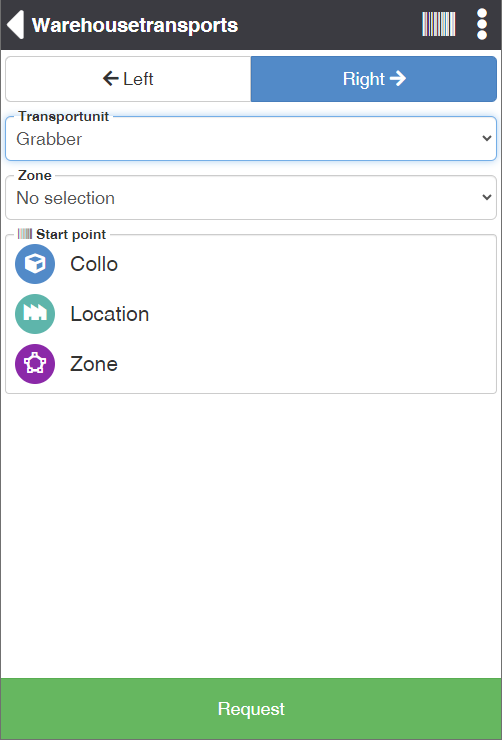
In principle, there are 2 ways to execute driving commands:
On sight
Especially in the goods receipt process, where typically many colli are produced in the goods receiving department, storage on sight is recommended. Instead of the driving command telling you which collo you need to store next, scan the collo number of the next colli. The system finds the corresponding drive command, opens it and starts the process.
Assignment
Based on your settings, the system determines the next best driving command to execute it. This is the recommended procedure for picking.
- First, set the preferred direction left or right with which you want to move through the high rack.
- Specify your resource: The asset defines the physical possibilities. For example, you can only reach certain storage locations with a hand pallet truck, while you can also reach higher levels with a high-bay stacker.
- Optionally, you can limit the assignment to driving commands of a specific zone.
- Announce the starting point. In order for the system to determine the next best driving command, scan a collo, a storage bin, or a zone.
- Click on the Request action to receive the next driving command.
You will now see the instructions for executing the drive command. As a result, the drive command automatically gets the status Started (STD) and is blocked for processing other users. To cancel the drive command, you can either navigate back in the title bar or select the Skip drive command action.
If other driving commands have already been processed, you will see the history of the most recently executed driving commands under the starting point.
Drive Commands - Execute
Depending on the type of driving command, the corresponding details will be displayed in the Execution View. In the title bar you can see the drive command type and below it the priority color-coded.
Example Collo
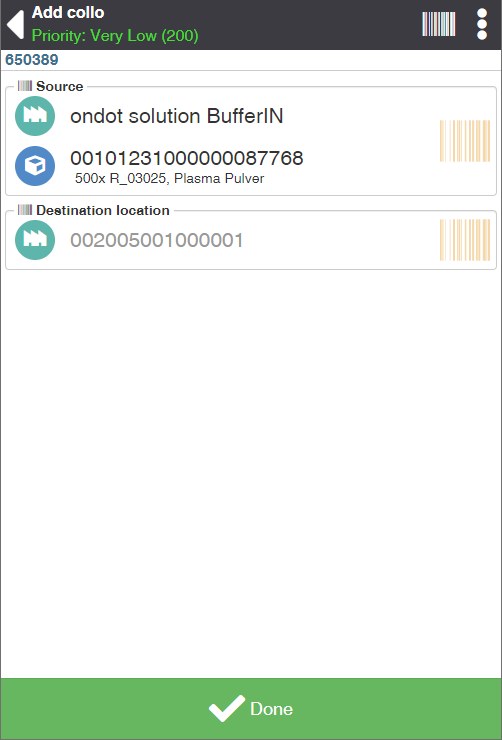
Scan the information in the order shown:
- Source: Scan the source collo. If the number of the source collo no longer exists or cannot be scanned, scan the source location. If the scan was successful, a green check mark appears instead of the barcode icon on the right.
- Pick up the source collo with your equipment and transport it to the destination storage location.
- Scan the target storage location.
- The system automatically performs the stock transfer and completes the drive command.
- After that, the next drive command will be opened.
Example Outsourcing Items
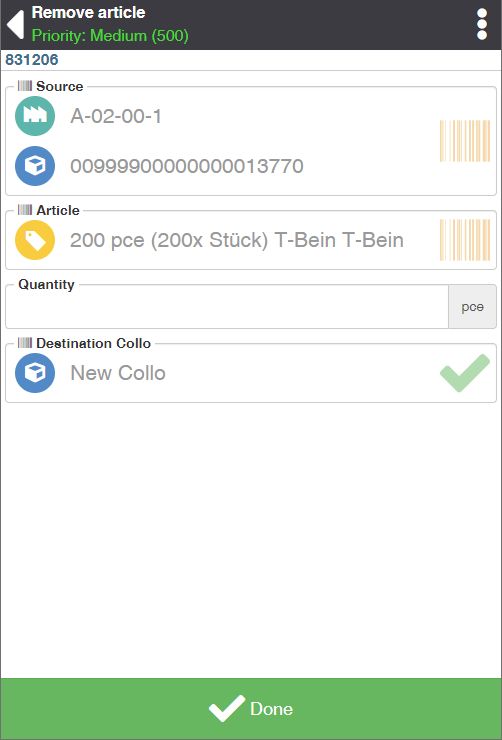
Scan the information in the order shown:
- Source: Scan the source collo. If the number of the source collo no longer exists or cannot be scanned, scan the source location. If the scan was successful, a green check mark appears instead of the barcode icon on the right.
- Scan the requested item number.
- Take the requested quantity from the source collo and enter it in the Quantity field.
- Scan the target collo, in this case the barcode of the picking load carrier. If you leave the target collo empty, the system automatically creates a new collo.
- The system automatically posts the withdrawal and completes the drive command.
- After that, the next drive command will be opened.
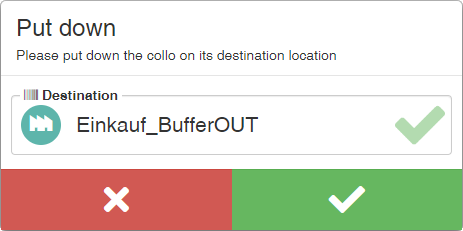
- When you're done with the Collo, for example because it's full, click on the Turn off action. The system opens the shutdown dialog. Bring the Collo to the target storage location and scan it.
Note
If you have processed the last drive command of the pick list, or if you have completed the last drive order of the order in the case of order-by-order picking, the set off dialog is automatically displayed.
Actions in the title bar
The actions available in the title bar are contextual and essentially depend on the type of drive command.
| Symbol | Function * | more information |
|---|---|---|
| reprint labels | Opens a dialog for reprinting item labels. | |
| View history | Displays the list of driving commands that have already been processed. | |
| skip gear | Cancels the current drive command and displays the next drive command in next gear. | |
| Skip drive command | Cancels the current drive command and displays the next drive command. | |
| item not available | Select this action if the item does not exist at the source bin. The system displays an RFI dialog. If you confirm this, the quantity of the item available according to the system will be posted to the difference slot. If the requested quantity is available at another storage location, a new drive command is created in the background for the removal from this location. | |
| Bin is full | If the destination bin is full when the item is put away, a new drive command is created with an alternative destination storage bin. | |
| Generate collo drive command | Converts an item drive command to a collo drive command. In this case, the current drive command is cancelled and a new collo drive order is created. This feature is only available if the user has the Mobile.WarehouseTransportChangeType access right. | |
| Generate article drive command | Converts a collo drive command to an article drive order. In this case, the current driving command is cancelled and a new item driving order is created. This feature is only available if the user has the Mobile.WarehouseTransportChangeType access right. |
* Attention: Depending on the context, not all actions are always available!
actions
| Function * | more information |
|---|---|
| Search Article | Enter a search term such as the article number or the name of the article and press the ENTER key. The system will show you suitable articles depending on the context. For example, when goods are transferred, only items from the notification are displayed. |
| Show article info | Switches to the Article Info View for the currently active article. Here you can see the basic information such as designation, system unit, standard loading equipment and weight. From here you can store an article image, edit the master data such as properties and dimensions as well as store other barcodes. |
| Print article label | Prints the item labels for the active item. |
| Print item label with quantity | Prints an item label with additional properties and quantity. Displays a dialog for entering various article properties, if none have been specified yet, otherwise the fields are blocked for entry. In addition, a loading device and a system unit quantity can be specified, which is printed on the (standard) article warehouse label as "Quantity: x". |
* Attention: Depending on the context, not all actions are always available!
actions
| Function * | more information |
|---|---|
| Show collo info | For the currently active collo, switch to the collo info view. Here you can see the basic information such as collo number, loading equipment, storage space, status and dimensions. From here, you can relocate, lock collo, or set a status. |
| Kollo Article Overview | Displays all items of the Collo with properties such as batch, serial number, etc. as well as the quantity. |
| Print Collo label | Prints the stock label for the active collo. |
* Attention: Depending on the context, not all actions are always available!