Goods Acceptance - Mobile App
Note
The process of receiving goods in the mobile app is very similar to that in the web app. It is therefore advisable to read the process description in the web app first.
See Goods Acceptance - Web App.
Goods Acceptance Process
In the warehouse module, click on the menu Goods Receipt.
Select the Advice for which you want to carry out the transfer of goods. You can search here by several criteria (notification number, goods receipt gate, delivery note number).
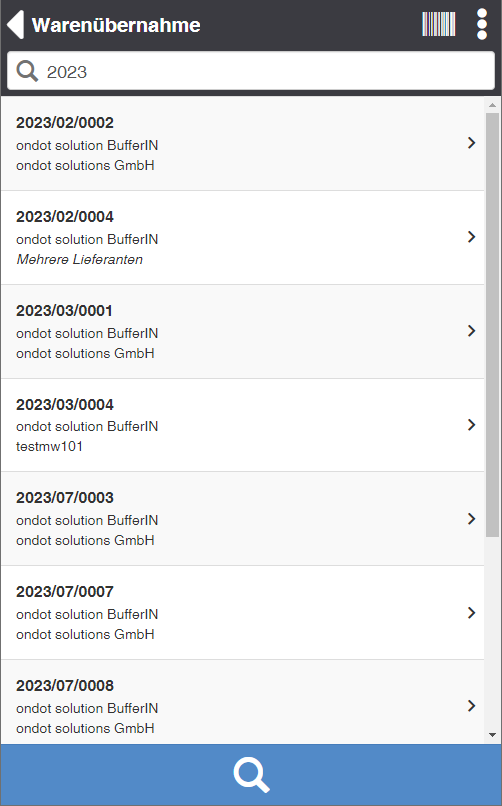
You will now see the Goods Transfer View.
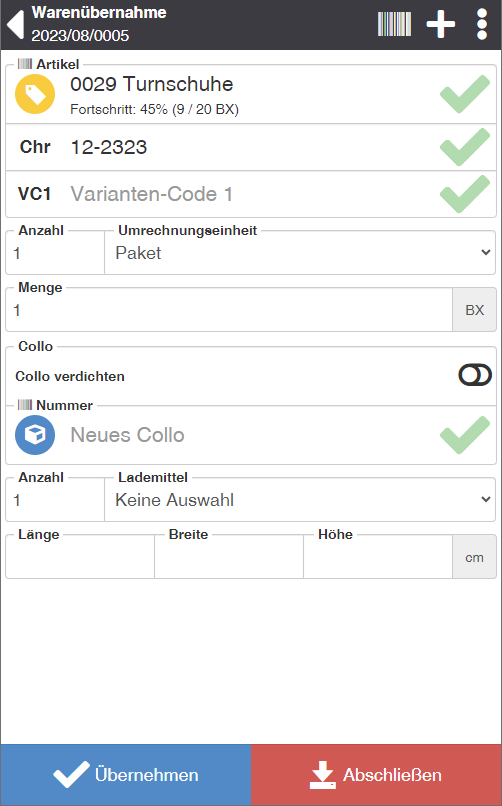 .
.Scan the item number of the packages. If the product is not sufficiently labelled, click on the and select the action Find item to display the list of all articles in the notification.
If the item requires the entry of batch numbers, best-before date, etc., enter these data in the appropriate fields. Often, this data is contained in the GS1 barcode and is therefore automatically transferred to the respective fields during scanning.
In the Transfer Quantity field, enter the number of items in the system unit. Alternatively, you can also enter the number of a higher-level packaging unit, and the system will automatically convert the transfer quantity.
Determine how the inherited quantity should be distributed to individual colli (load carriers). In the Collian Number field, specify the number of Collis to which the transfer quantity is to be distributed. For example, if you take 10 pieces and enter 2 for colli number, 2 pallets will be created, each with 5 pieces of the item.
Then enter the loading equipment, as well as the dimensions and weight of the colli to be created.
Repeat the process for all delivered items.
Complete the receipt of goods. To do this, click on the Complete action.
Actions in the title bar
| Symbol | Function * | more information |
|---|---|---|
| Create new collo | Create a new load carrier (Collo). | |
| reprint labels | Opens a dialog for reprinting item labels. | |
| Use direct storage | In the course of the takeover, book the goods directly to a storage location. To coordinate useful use cases, please coordinate with your project manager. | |
| Reset Merchandise Transfer | Resets all input fields so you can start over. |
* Attention: Depending on the context, not all actions are always available!
actions
| Function * | more information |
|---|---|
| Search Article | Enter a search term such as the article number or the name of the article and press the ENTER key. The system will show you suitable articles depending on the context. For example, when goods are transferred, only items from the notification are displayed. |
| Show article info | Switches to the Article Info View for the currently active article. Here you can see the basic information such as designation, system unit, standard loading equipment and weight. From here you can store an article image, edit the master data such as properties and dimensions as well as store other barcodes. |
| Print article label | Prints the item labels for the active item. |
| Print item label with quantity | Prints an item label with additional properties and quantity. Displays a dialog for entering various article properties, if none have been specified yet, otherwise the fields are blocked for entry. In addition, a loading device and a system unit quantity can be specified, which is printed on the (standard) article warehouse label as "Quantity: x". |
* Attention: Depending on the context, not all actions are always available!
actions
| Function * | more information |
|---|---|
| Show collo info | For the currently active collo, switch to the collo info view. Here you can see the basic information such as collo number, loading equipment, storage space, status and dimensions. From here, you can relocate, lock collo, or set a status. |
| Kollo Article Overview | Displays all items of the Collo with properties such as batch, serial number, etc. as well as the quantity. |
| Print Collo label | Prints the stock label for the active collo. |
* Attention: Depending on the context, not all actions are always available!