Scanning Station
Use the Scanstation to scan colli without a direct process reference such as loading or unloading. You can quickly check whether the data collected is correct and correct any data discrepancies.
To keep the Scanstation simple, no new colli can be created.
Note
The scanning station is often used to pull packages over an info point in the depot and fill in missing information!
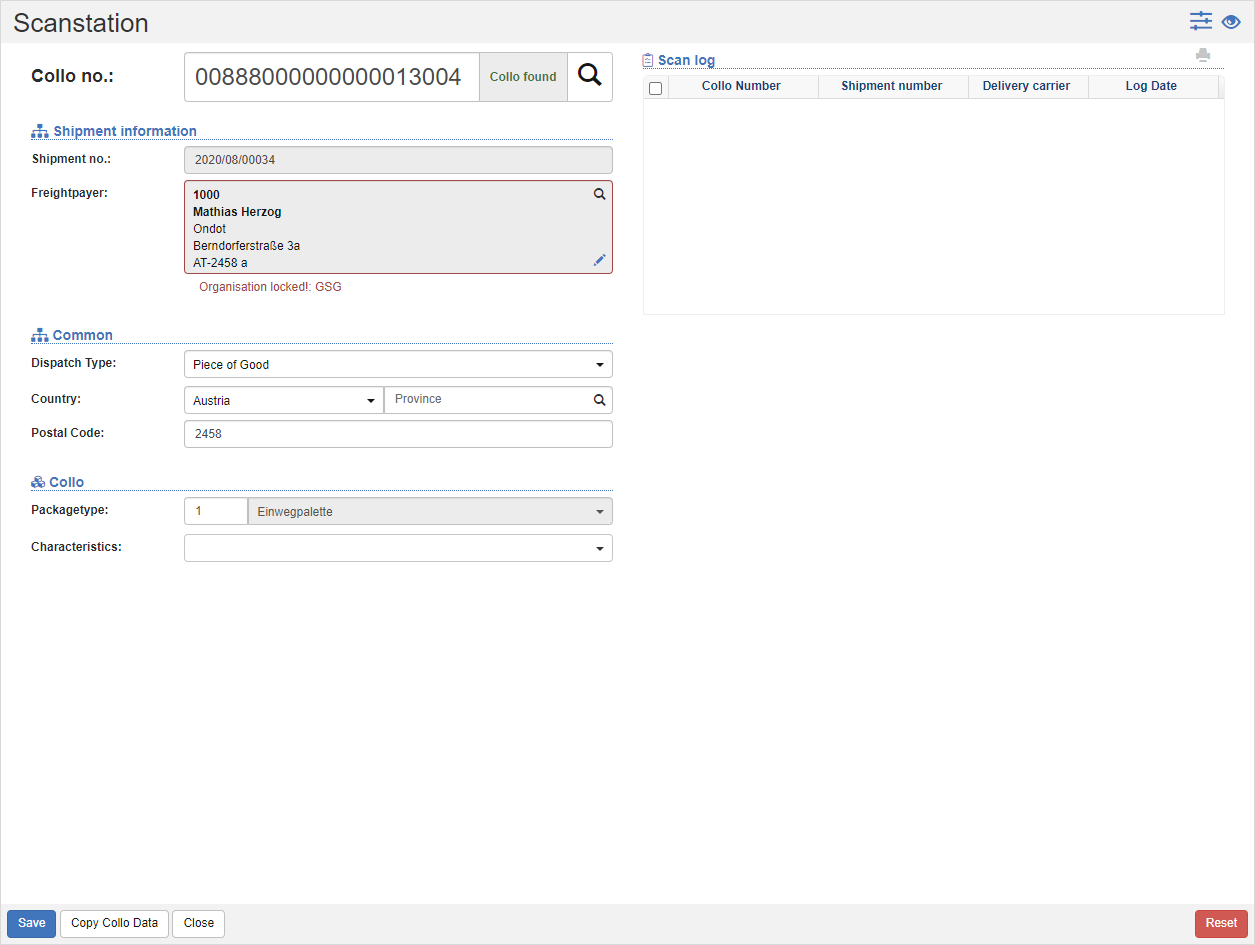
Scanning
- Scan the collo number.
- If the collo is found, the shipment and collo data will be displayed. If the collo is not found, you will see Collo not found to the right of the scan field.
- In the Shipment Information section, you will see the shipment number and freight payer.
- Under General you can change the shipment data such as recipients, address and contact details as well as telephone numbers.
- The stored collo data is displayed in the Collo area. If you notice any discrepancies, change the data such as loading equipment, dimensions and weight.
- Optionally, record any damage.
- If you have changed data, click on the Save action.
Tip
Use the Configure Views action to customize the input mask to your process. Show only the fields you actually need. This makes your views streamlined and clear and makes it easier to work with.
See also Working with Views
Scan Log
On the left-hand side, the scan log is displayed with the collo and shipment number, the delivery carrier and the date of the scan. For each scan, the Collo gets a Scan Status (SCN).
Copy collo data
The action Copy collo data overwrites the collo data of the current colli with that of the previously scanned colli.
Reset
The Reset action returns the input fields to their initial state. After that, scan the next collo.