Dashboard
In today's dynamic business world, where data is central, dashboards play a critical role in visualizing and interpreting information. The dashboard in shippingNET is more than just a collection of graphs and charts – it's a powerful tool that makes it possible to capture complex datasets at a glance and turn them into meaningful insights. These digital tools provide your business with the ability to monitor their performance, identify trends, and make informed decisions based on real-time data. In this description, we will take a closer look at the functionalities and benefits of dashboards.
Areas of the dashboard
In the upper left corner you will find the title bar, with the name of the current view.
At the top right is the title action bar with the action buttons
Refresh
edit viewBelow the title bar, the selected components are displayed according to the division configured for this view.
Note
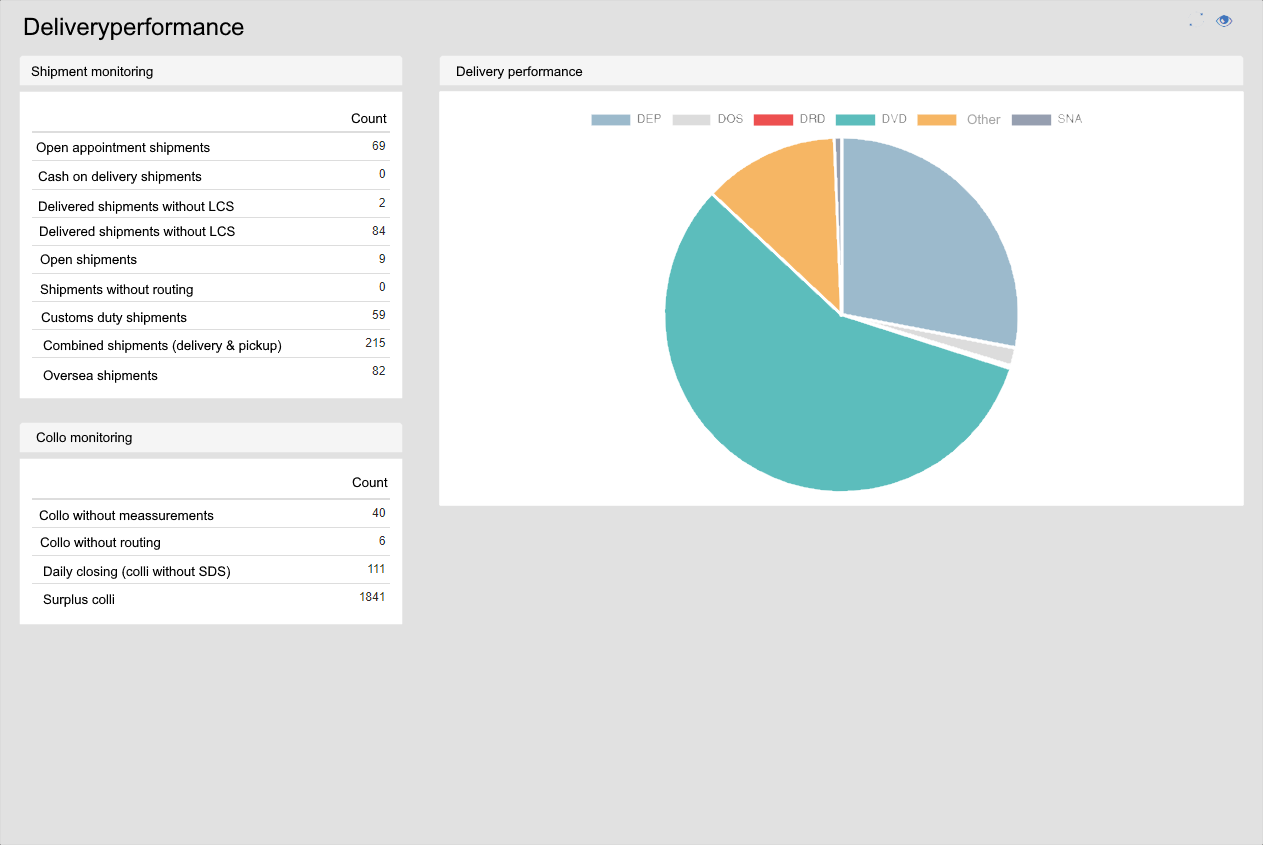
A component provides data from a specific area of the application. There are 3 types of components:
Monitoring Components: Show the number of records per view. You can define multiple views in the settings. e.g.: shipments US and shipments Europe. You get per view, the number of records
Alerting Components: Show the number of records in one view of a list. e.g.: Colli with routing error. The list should typically be empty. If it contains data, you can click on the link to open the list and correct the data.
Special Components: Special data preparation with graphics. e.g.: delivery performance of consignments.
Edit view
- Select the action Configuration and then click on Edit View from the drop-down menu.
- You are now in edit mode.
- Configure the view:
Add Component
- In the title action bar, click on the action Add component.
- In the Component dialog, select the desired area and click on the name of the component you want to add.
- Depending on the type of component, then set further settings for the visualization.
- The component will then be inserted into the layout of the dashboard.
- Save the view, see also Save view.

Deleting a Component
- Select the action Configuration and then click on Edit View from the drop-down menu.
- Click the Remove component.
- The component is removed from the view and the remaining components slide.
- Save the view, see also Save view.
Move Component
- Select the action Configuration and then click on Edit View from the drop-down menu.
- Left-click and hold the action Move Component. Now drag and drop the component to the desired location.
- Save the view, see also Save view.
Change split
With the split, you determine the arrangement of the components in the dashboard. This allows you to determine how many components are displayed next to each other and in what proportion.
- In the Title Action Bar, click on the Change Split.
- Select the desired split variant.
- Save the view, see also Save view.