Business Documents – Creation Process
shippingNET comes with a variety of standard documents. You can activate these standard documents in System Configuration. See also Creating Business Documents.
Object type
A business document always refers to an object type. For example, the shipping slip refers to the ShipmentOrLeg object, while the order confirmation refers to the Order object. In the document, all data originating from this object type is available.
Generation Process
The business documents are generated with so-called liquid snippets. A liquid snippet is a template that renders the data of the underlying business document in FO syntax. The object type is the source object for data access within the Liquid snippets.
Example of the output of the tracking number:
''' {{ Shipment.Number }} '''
When creating the standard documents, care was taken to divide the individual information blocks of the document into separate templates, so-called snippets.
Example of forwarding delivery note:
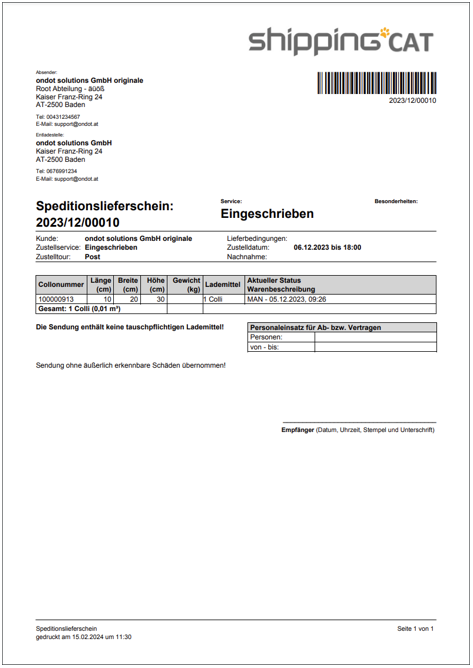
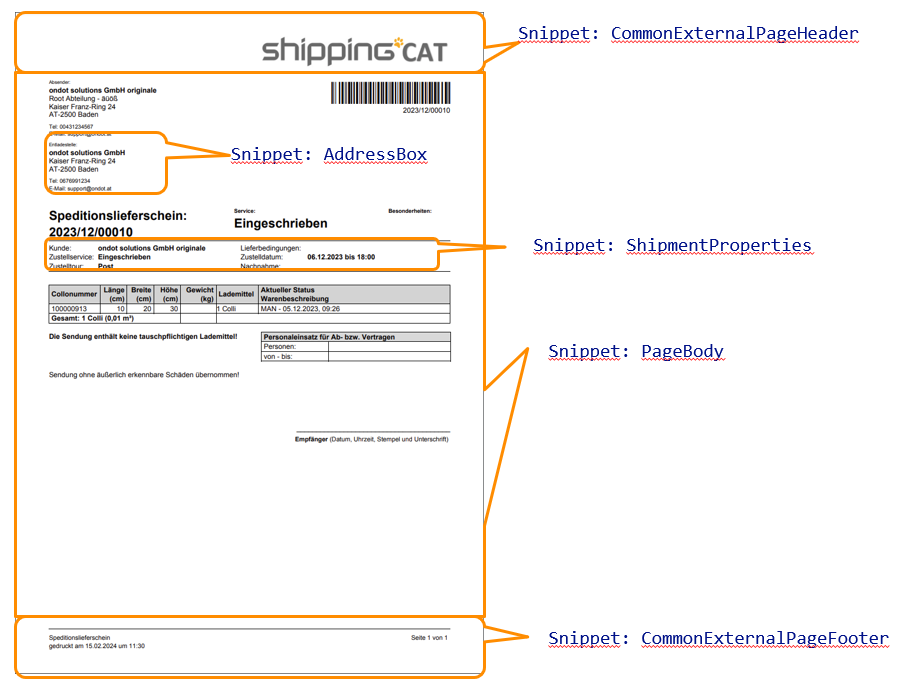
Example: CommonExternalPageHeader - Snippet***
''' {%- snippet CommonExternalPageHeader %} <fo:table border-width="0.1mm" border-bottom-style="solid" display-align="after"> <fo:table-column column-width="proportional-column-width(3)" /> <fo:table-column column-width="proportional-column-width(2)" /> <fo:table-column column-width="proportional-column-width(4)" /> <fo:table-body> <fo:table-row> <fo:table-cell> <fo:block> <fo:external-graphic max-width="240px" max-height="40px" src="{{ CustomerLogo.BusinessDocumentLogo.UriString | default: 'Images/Logo_Shipping_Pos.jpg' }}" /> </fo:block> </fo:table-cell> <fo:table-cell /> <fo:table-cell> <fo:block> {% render AddressBox, Address: CurrentOwner.Address %} </fo:block> </fo:table-cell> </fo:table-row> </fo:table-body> </fo:table> {% end snippet -%} '''
Tip
The advantage of subdivision is that you don't have to change the entire document for small adjustments, but you can overwrite individual snippets.
General Generation Process
When requesting a business document, the following steps are carried out (e.g. forwarding delivery note):
First, the GlobalSnippets.liquid will be loaded. It contains useful standard snippets for the page layout, headers or footers with page numbering, the display of addresses, signature boxes, weight scales or dangerous goods information blocks for shipments, etc.
If there is also a GlobalSnippets.liquid file in the tenant's integration project, these snippets will also be added or replace existing ones. This allows you to override individual snippets for the tenant. A typical use case is to create special headers or footers or to change the font size of the AddressBox for all documents.
Each document has a technical name. For example, the delivery note is called DeliveryNote. According to the following graphic, the system loads the Liquid files and replaces or adds missing snippets:
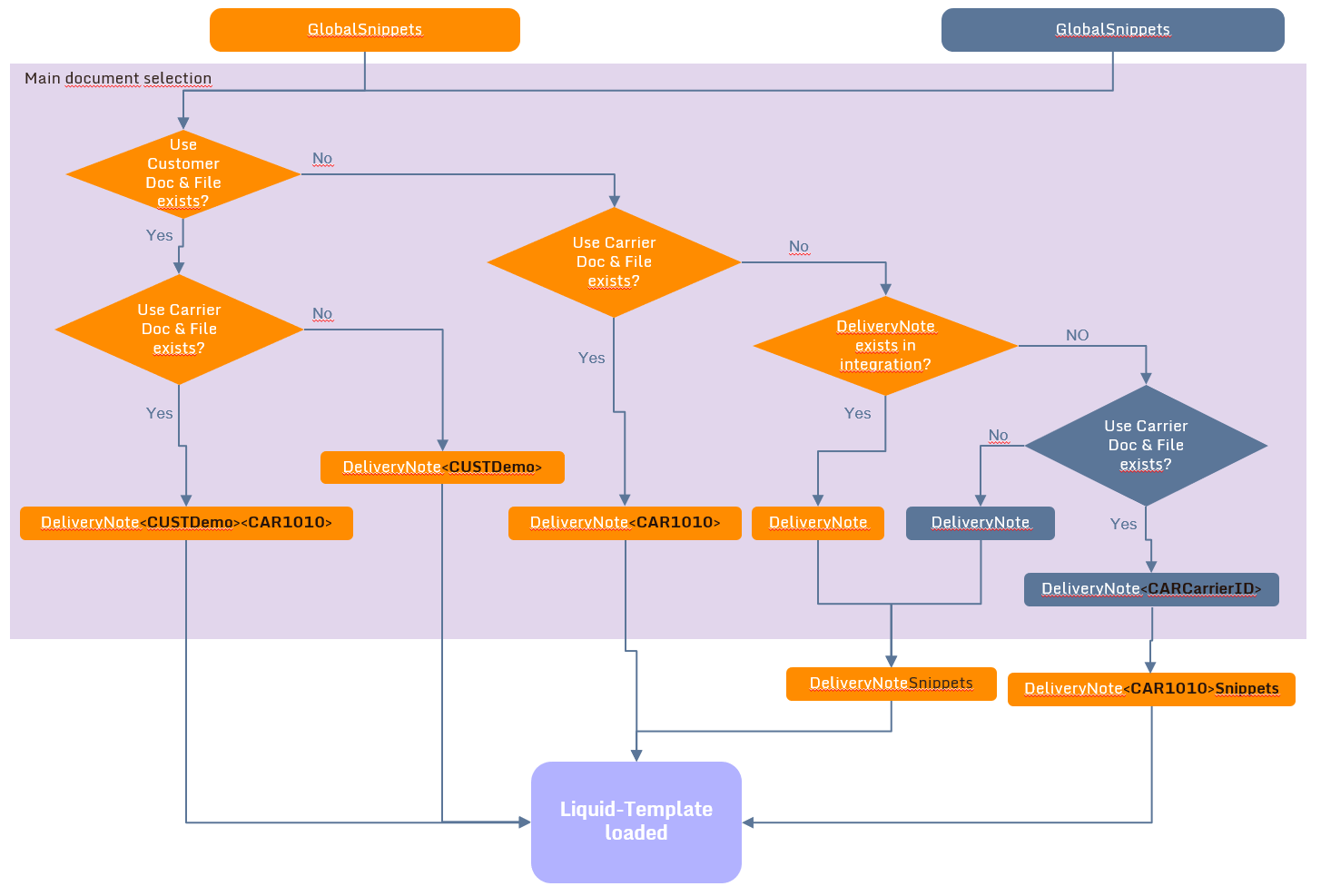
Notes on the graphic:
- The technical name in this example is DeliveryNote
- Orange Liquid files, come from the integration project.
- Dark blue Liquid files, come from the product standard.
Warning
changes in the GlobalSnippets.liquid file in the integration project affect all documents of the tenant!
Tip
If the layout requirement is significantly different from the product standard, overwrite the entire file and place it in the integration project. In the example above: DeliveryNote.liquid in the tenant's integration project.
Special documents for freight payers, shippers or consignees
In the Organization Editor for the Shipment Party on the Characteristics card in the Customer area in the field Business Document Suffix, enter a descriptive file addition, e.g.: CUSTDemo.
In the example above: DeliveryNoteCUSTDemo.liquid in the tenant's integration project
Note
If a suffix is stored for a multi-party shipment, the first file found will be used exclusively in the following order:
1st Freight Payer 2nd sender 3rd recipient
Special delivery note for pick-up or delivery carriers
For each business document, it is possible to define in the System Configuration whether a carrier-specific delivery note is to be printed.
- In the System Configuration, navigate to the General section to the Business Documents.
- Select the desired business document, e.g. the forwarding delivery note.
- Click the Edit action
- On the Business Documents card, add a new entry for the desired Carrier and specify in the Use Carrier Doc field in which cases you want to print a special Carrier Document.
See also: